Firmware and Configuration Updates
In the Firmware and Configuration Updates menu, you can monitor the installed firmware and configuration versions of the communication units (CUs) within the entire organization tree and update them.
Go to Settings > Communication Unit Management > Firmware and Configuration Updates.
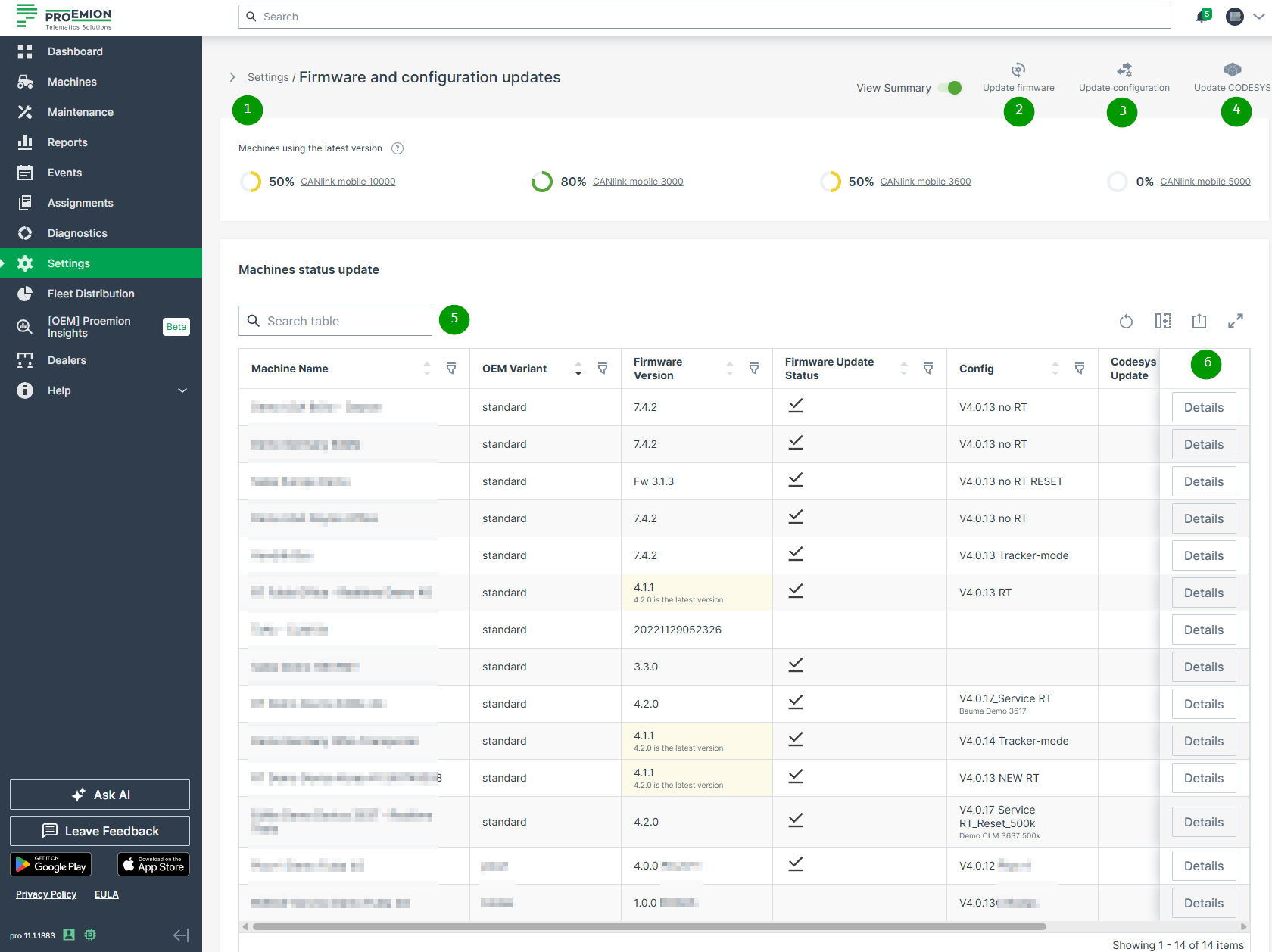
The Machine Status Update table shows you the CUs and their firmware/configuration version and update status, their machine model and organization and other information.
The table is the starting point for:
-
(1) Summary of the percentages of communication units updated to the latest available firmware version, grouped by machines from the same device family.
Note
The summary only applies to communication units that have been updated within the DataPortal. Manual updates outside the DataPortal are not covered.
-
(2) Firmware Updates/Mass FOTA (firmware-over-the-air)
-
(3) Configuration Update/Mass COTA (configuration-over-the-air)
-
(4) CODESYS Application Update/COTA (for CANlink® mobile 10000 devices)
-
(5) It allows to search, sort and filter to identify machines.
You may toggle different columns in the table, see Filters for an overview of all columns.- In the column Firmware Version, you can view the communication units updated to the latest firmware version (highlighted cells).
-
(6) The Details allow to view details of a selected CU and perform single Firmware Updates and Configuration Updates.
Requirements
In order to access Settings > Communication Units Management > Firmware and Configuration Updates within the DataPortal, the following permissions are required, see also Permission Set:
-
Admin:Machine (to view the Firmware and Configuration Updates table)
-
Maintain:Models
-
Maintain:Organizations
Note
Before performing a remote firmware or configuration update, refer to Safe Remote Updates Guideline first.
Filters
To filter the Machine Status Update table, use the  filter icon displayed in each column header.
You can export the table via the  export icon. When filters are set, they will be applied also for the exported content.
Note
In the table, all parameters are displayed. In order to keep the table as compact as possible, you can toggle the columns as desired which will be saved for the next session.
| Table Column | Description |
|---|---|
| Machine name | Machine names. |
| Serial number | Serial number of the machine. |
| Model | Display of the model name. |
| Product code | The product codes of the communication units. |
| CU Series | The type of the commumnication unit (CU). |
| OEM Variant | The variant type of the CU. Example values: standard, plus1, bodas, noFota |
| Organization | The organization unit the machine is assigned to. |
| Firmware Version | Shows the currently installed firmware version and if it is the latest available version. |
| Firmware Update | The firmware version that is in process according to its Firmware Update Status. |
| Config Update | The configuration version that is in process according to its Configuration Update Status. |
| Firmware Update Status Configuration Update Status CODESYS Update Status |
The current status of the update is shown here The following states are possible shown with different icons regarding the installation process of the update |
Pending (Transfer Pending)  The transfer for the new version was requested for the selected machine and is ready to be transferred. When the machine is online, the transfer then starts and runs automatically in the background. When the machine is offline, the transfer remains pending |
|
Updated (Success)  The new version was deployed successfully |
|
In Progress (Flash pending)  The transfer for the new version was successful, but the device hasn't confirmed the deployment yet. |
|
Cancelled  The transfer for the new version was cancelled |
|
Error  The transfer for the new version failed. This status may also appear when the selected machine was updated already. |
|
| Config | Current configuration version. |
| CODESYS App Version | Currently installed CODESYS application version, for CANlink® mobile 10000 devices. |
| CODESYS Update | The CODESYS version that is in process according to its CODESYS Update Status. |
| Details | Click in the last column to open the Machine Updates Details. |
Firmware Updates/Mass FOTA
The DataPortal allows to update one or more CUs via FOTA.
-
Go to Settings > Communication Unit Management > Firmware and Configuration Updates.
-
Click
 Update firmware.
This enables the selection of machines. -
Select the desired Machine:
Note
Only machines that can be updated together can be selected in the table, i.e. if they are of the same type, of the same OEM variant and have a similar product code; others are greyed out.
You can use the Filters for the Machines Status Update table to narrow down the selection of available machine(s):
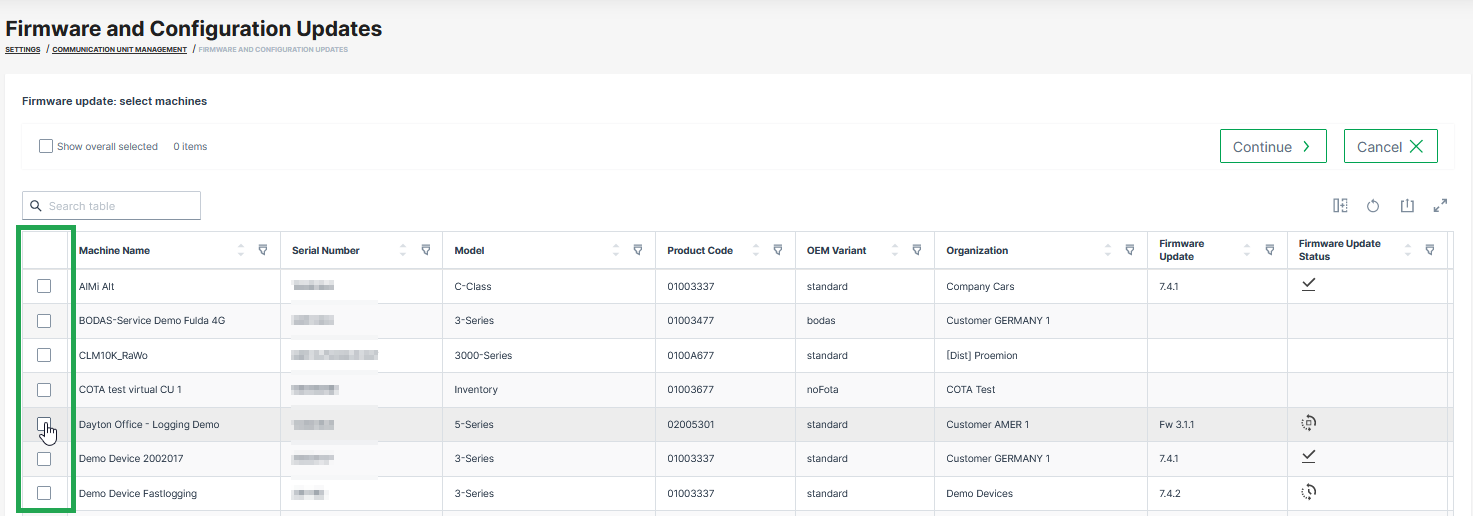
Figure 2: Select machines for firmware updates When selecting a machine, the selection will be narrowed down to other eligible machines that can be updated together with the selected machines, too:
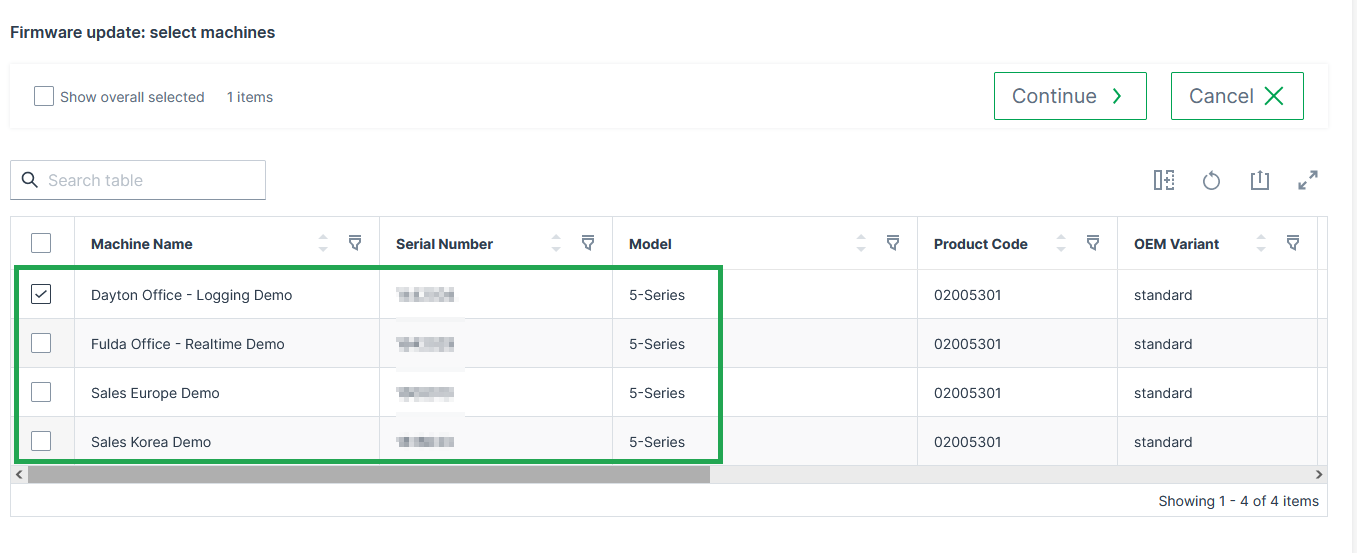
Figure 3: Select other machines for firmware update -
Select Continue.
The Select firmware page opens. -
Select the desired firmware version to be installed.
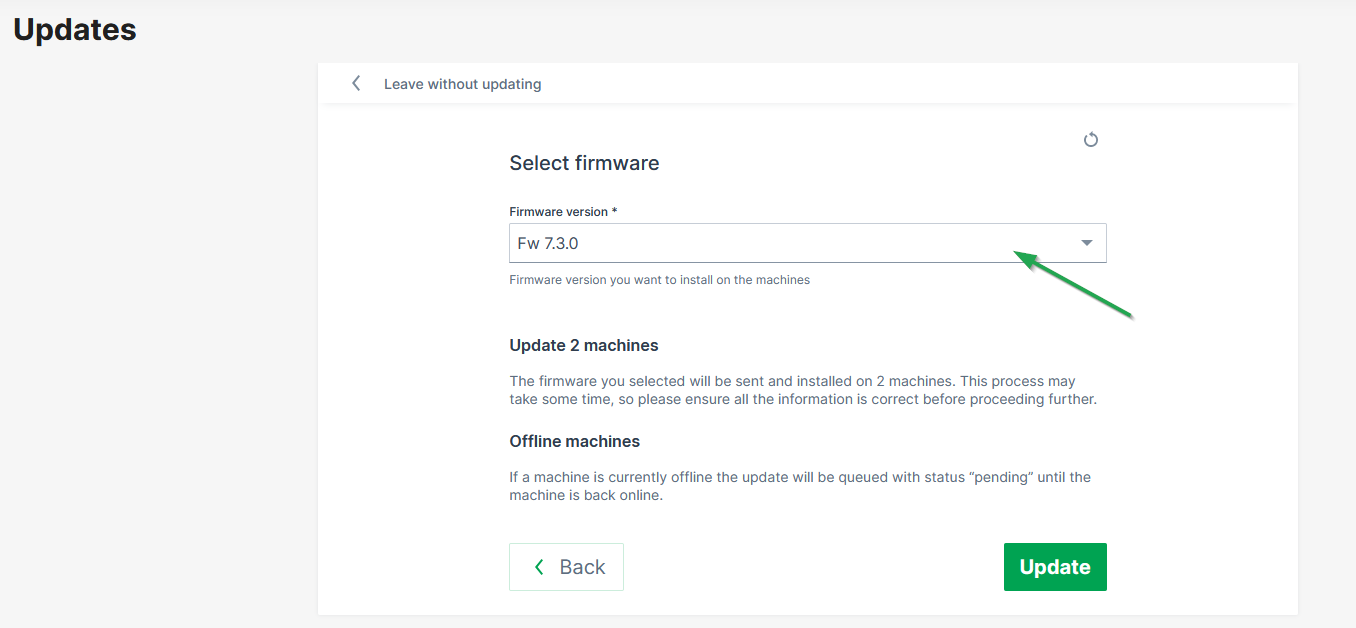
Figure 4: Select firmware versions Note
If a machine is currently offline the update will be queued with status "pending" until the machine is back online.
-
Click Update to start the update of the firmware on the selected devices.
✓ The firmware update runs in the background. When successful, the firmware update status (icon) will be updated.
Configuration Update/Mass COTA
The DataPortal allows to update one or more CUs via COTA.
Use the Filters for the Machines Status Update table to narrow down the selection of available machine(s):
-
Go to Settings > Communication Unit Management > Firmware and Configuration Updates.
-
Click Update configuration
 .
.
This enables the selection of machines. -
Select the machines where the new configuration needs to be installed.
Note
Only machines that can be updated together can be selected in the table.
You can use the Filters for the Machines Status Update table to narrow down the selection of available machine(s).
-
Click on Continue.
Note
In case that there is no configuration bundle with a matching product code available, the following message will be displayed: There are no configurations matching the product code of these machines. You can upload a new configuration from the communication unit configuration page.
-
Select a Bundle and Configuration Version.
-
Read the summary carefully and click on Update.
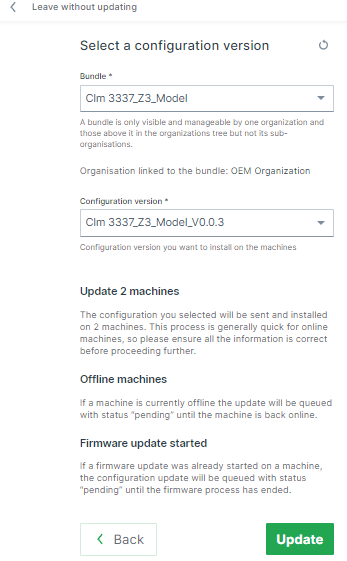
Figure 5: Summary Note
If a machine is currently offline the update will be queued with status "pending" until the machine is back online.
✓ The new configuration file is uploaded to the communication unit.

Warning
If a configuration update failed, the value cota_update_failed may appear in the configuration version.
CODESYS Application Update/COTA
The DataPortal allows to update one or more CANlink® mobile 10000 communication units with a new CODESYS application via COTA.
A CODESYS configuration bundle must be uploaded beforehand, see Create Configuration Bundle. This section only covers selecting an already uploaded bundle for a CODESYS update.
Use the Filters for the Machines Status Update table to narrow down the selection of available machine(s):
-
Go to Settings > Communication Unit Management > Firmware and Configuration Updates.
-
Click Update CODESYS in the upper right corner. This enables the selection of machines.
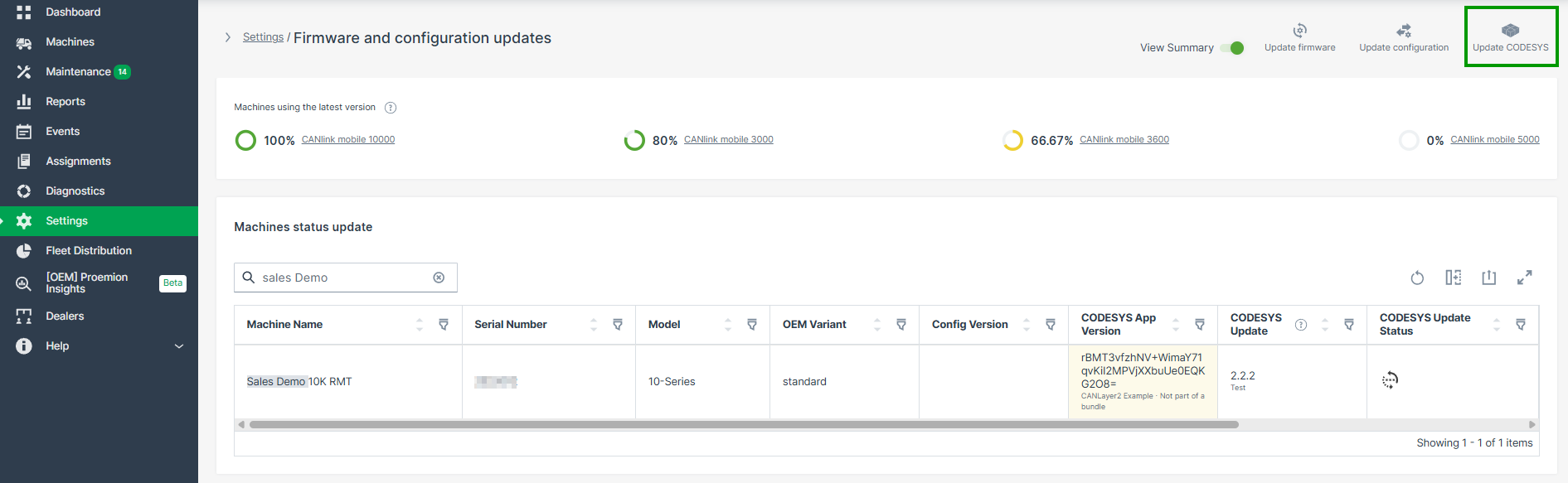
Figure 7: Update CODESYS icon -
Select the machines where the new CODESYS application needs to be installed.
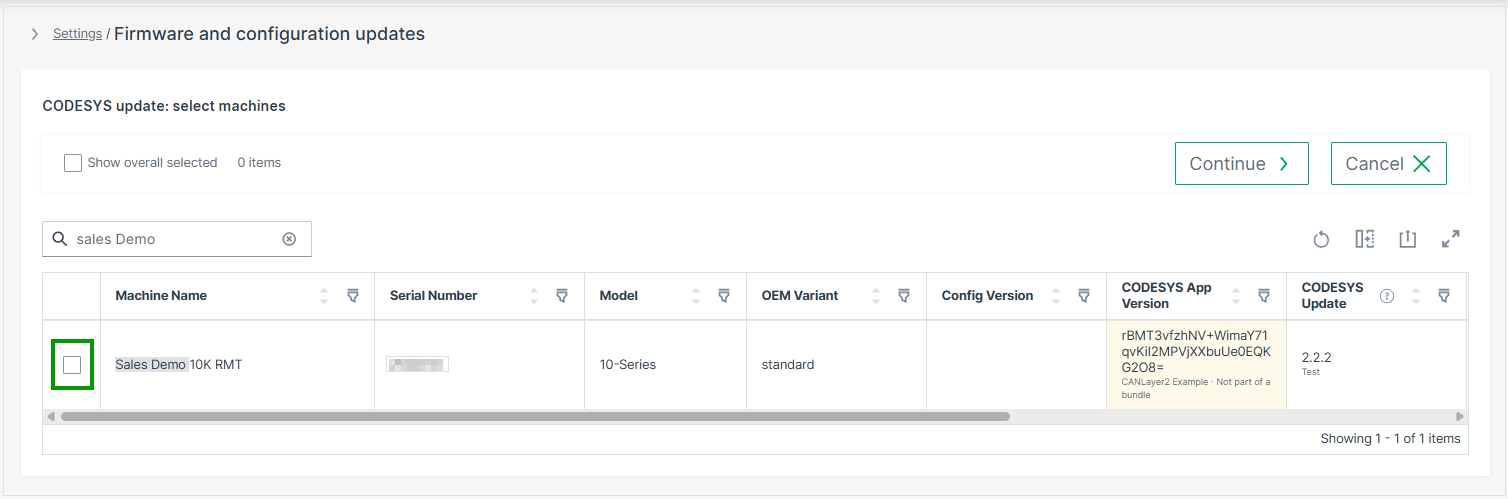
-
Click on Continue.
-
Select a Bundle and CODESYS Application Version from the previously uploaded configuration bundles.
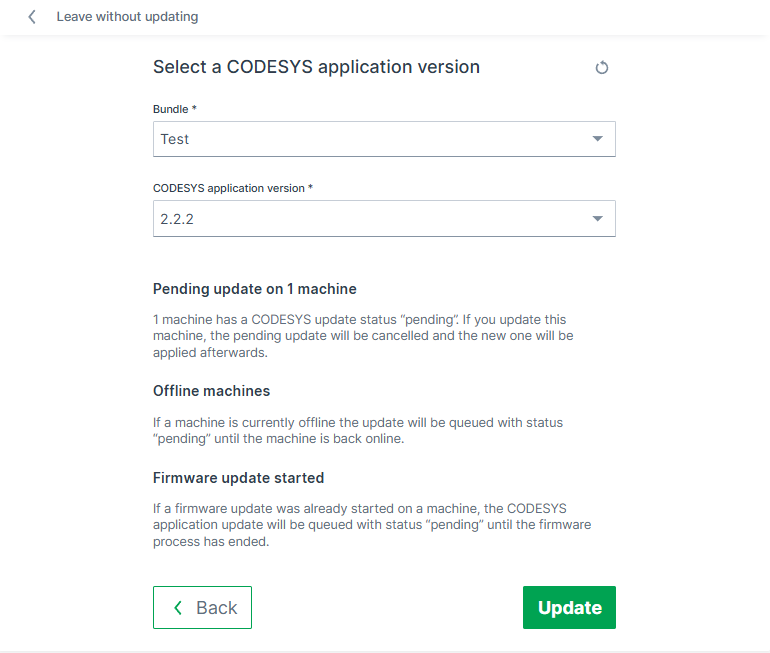
Figure 8: Select bundle and version Depending on the status of the selected machine(s), additional information may be displayed:
- Pending update: If a machine already has a pending CODESYS update, updating it cancels the pending update; the new one is applied afterwards.
- Offline machines: If a machine is currently offline, the update is queued with status "pending" until the machine is back online.
- Firmware update started: If a firmware update was already started on a machine, the CODESYS application update is queued with status "pending" until the firmware update has finished.
-
Read the information and click Update.
✓ The CODESYS application is ready to be installed on the selected machine(s). The CODESYS Update Status column shows the update progress for each machine.
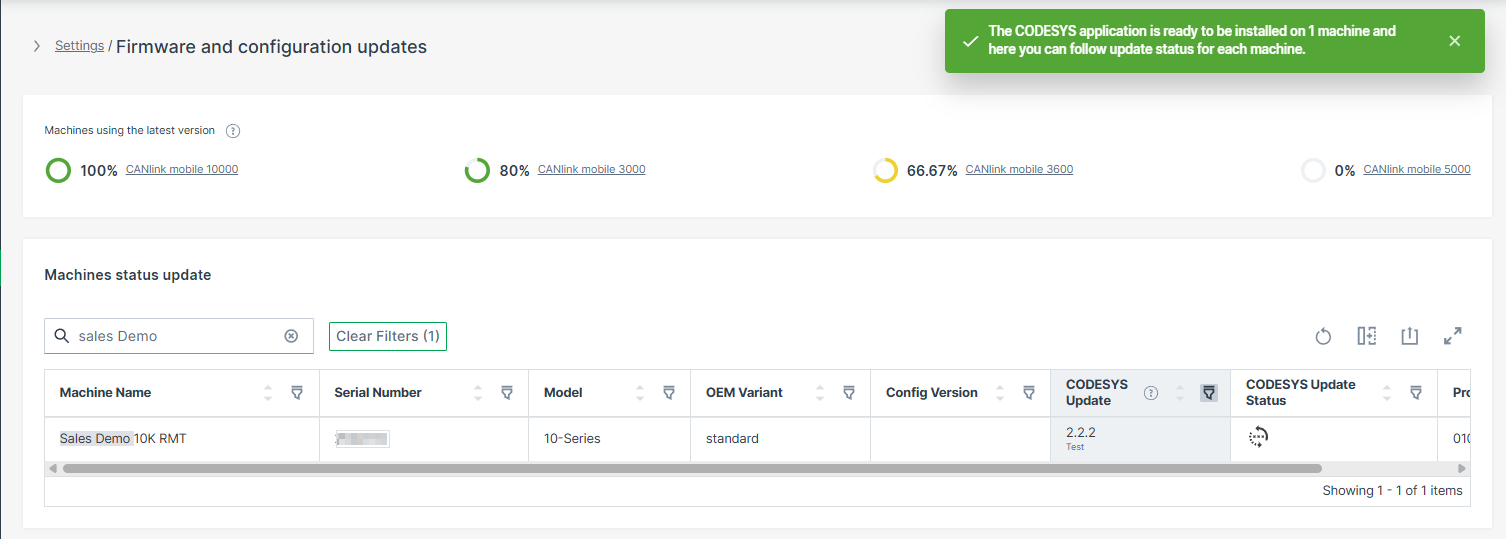
A CODESYS update also switches the CODESYS Runtime on the affected CANlink® mobile 10000 devices to Operational mode automatically, unless it is already in this mode. For details, see the COTA Update section in CODESYS section of the Configuration Web UI.
Note
A CODESYS update and a configuration update can be scheduled for the same machine at the same time.
The installed CODESYS application versions are displayed in the Software History table.
Machine Updates Details
In the Firmware and Configuration Updates menu you can also obtain details on a specific machine, or start the firmware update for the selected machine
-
Go to Settings > Communication Unit Management > Firmware and Configuration Updates.
-
Click Details by the end of each machine row in the Machine Status Update table
The following information will be displayed: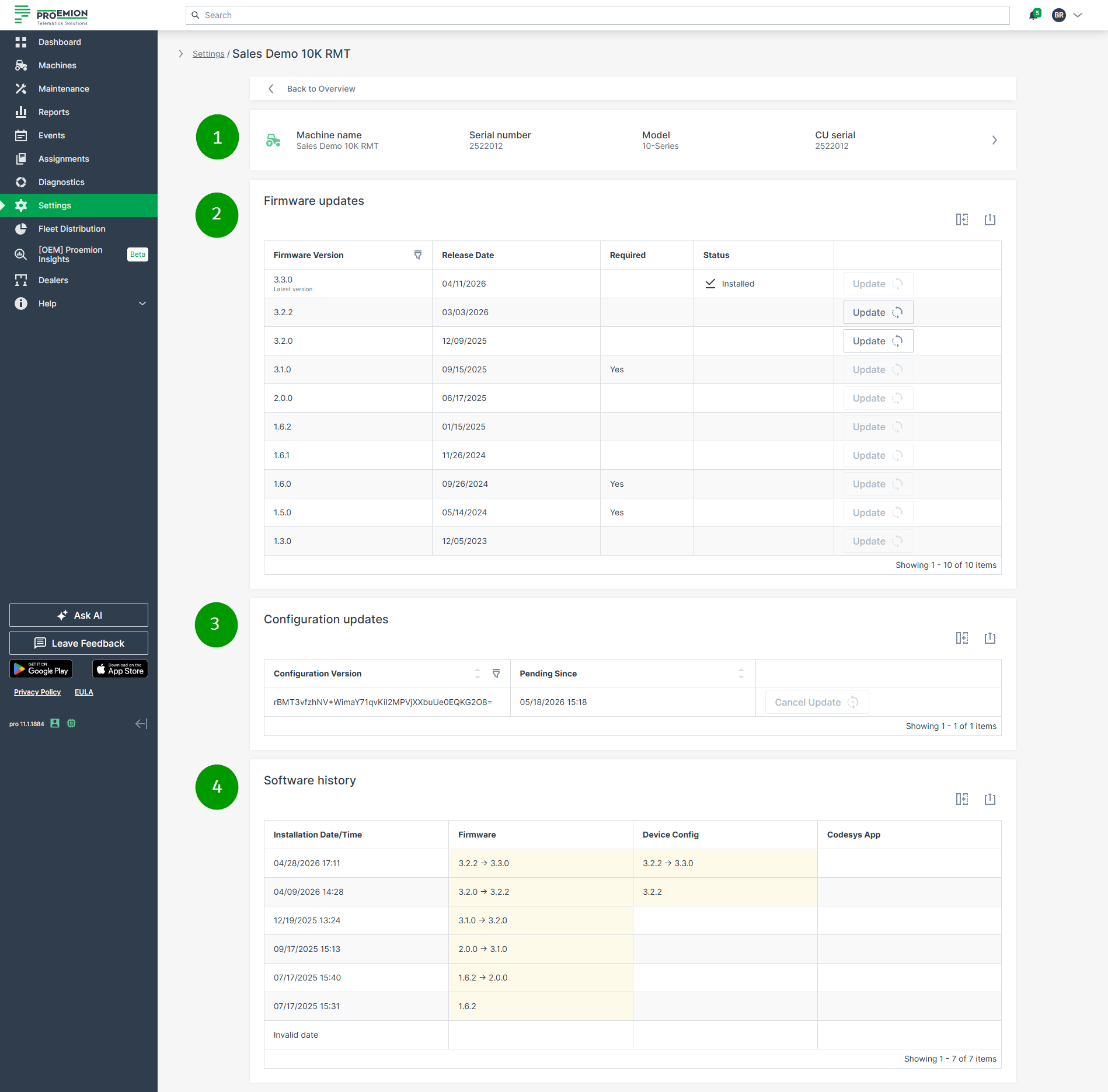
Figure 10: Firmware and Configuration Updates Details for selected machine Item Description 1 CU details. The link forwards you to the Machine Page. 2 Firmware Updates show the available and/or required firmware versions for the selected machine.
NOTE: If a configuration update failed, the valuecota_update_failedmay appear in the configuration version.3 Configuration Updates show the available configuration versions for the selected machine. 4 Software history for both the last firmware and configuration versions. For CANlink® mobile 10000 devices the CODESYS App Version column is also available for display the app version history.
Firmware Updates
To update the selected CU with a specific firmware version in the Details view, select Update in the row of the desired firmware version
(Go to Settings > Communication Unit Management > Firmware_and_Configuration_Updates > Details > Firmware Updates to the view the Update button.)
In case that the latest firmware is already installed, the message No updates available will be displayed in the Firmware Updates section:

Required Firmware Versions
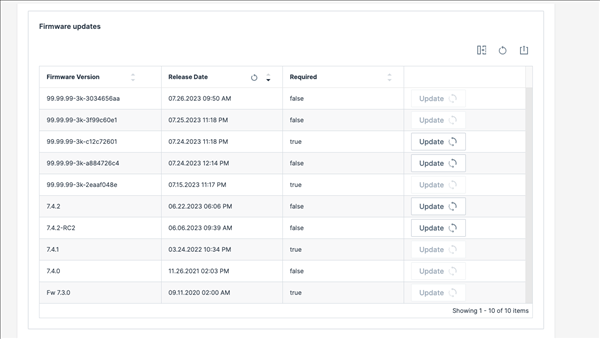
The Update button is shown only for allowed firmware versions.
In case a firmware version is marked as "Required", you have the following options:
-
Update to the "Required" firmware version first, then you may update the subsequent versions.
-
Update to the Firmware version after a required version, if the required version is already installed (up to the next required one).
-
Update to the Firmware version before a required version, if the required version (or a higher version) is not installed yet.
- Example: If the firmware versions "2" and "5" are marked as required, updating from firmware version "1" to "3" (optional) won't work because "2" is required
But updating from firmware version "2" to "3", "4" or "5" will work.
- Example: If the firmware versions "2" and "5" are marked as required, updating from firmware version "1" to "3" (optional) won't work because "2" is required
-
Downgrade from a version marked as "required" to an earlier version is not possible, e.g. from "2" (required) to "1".
For an update of the machines by selecting the firmware versions first, refer to Firmware Management.
Configuration Updates
To update the selected CU with a specific configuration version in the Details view, select Update in the row of the desired configuration version.
(Go to Settings > Communication Unit Management > Firmware_and_Configuration_Updates > Details > Configuration Updates to view the Update button.)
Cancel Configuration Update
As long as the status of the transfer is still pending, it is possible to cancel the update
Proceed as follows
-
Click Cancel Update (the Update button changes to Cancel Update):
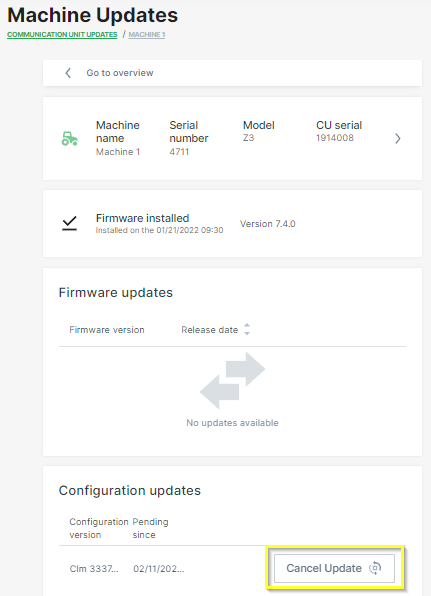
Figure 13: Machine Updates details page -
Read the notification and confirm by clicking again Cancel Update.
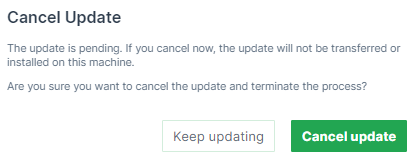
Figure 14: Cancel Confirmation ✓ The configuration update is cancelled. To double-check, refer to the Communication unit Updates overview.
Software History
The Software History section provides a combined overview of firmware and configuration changes that were installed on the selected communication unit over time.
The table displays the firmware, configuration and CODESYS application history of the selected communication unit in chronological order.
The following information is displayed:
| Column | Description |
|---|---|
| Installation Date/Time | Date and time when the update was installed on the communication unit. |
| Firmware Version | Shows the firmware version change history. |
| Config Version | Shows the configuration version change history. |
| CODESYS App Version | Shows the CODESYS application bundle name and version change history for CANlink® mobile 10000 devices. |
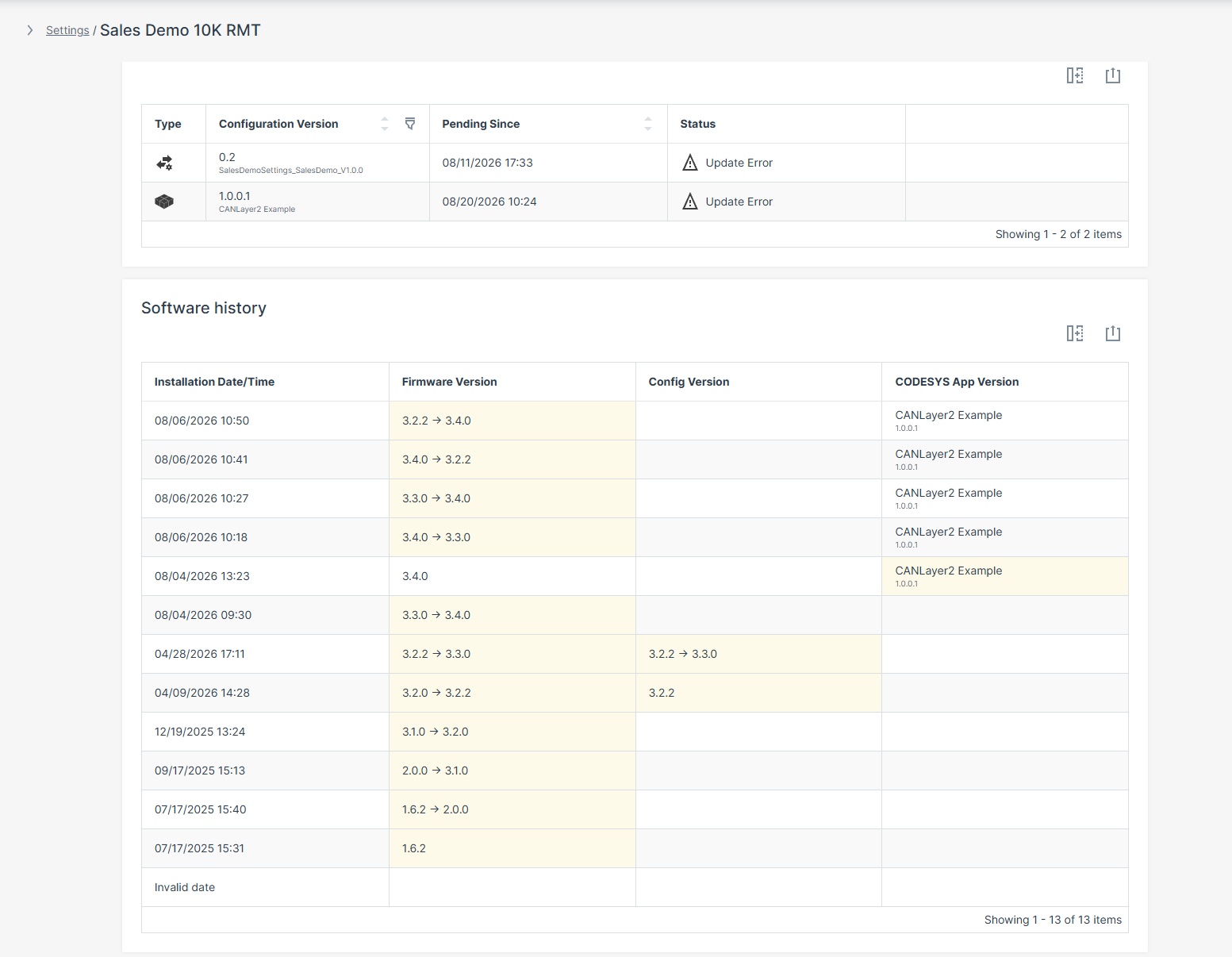
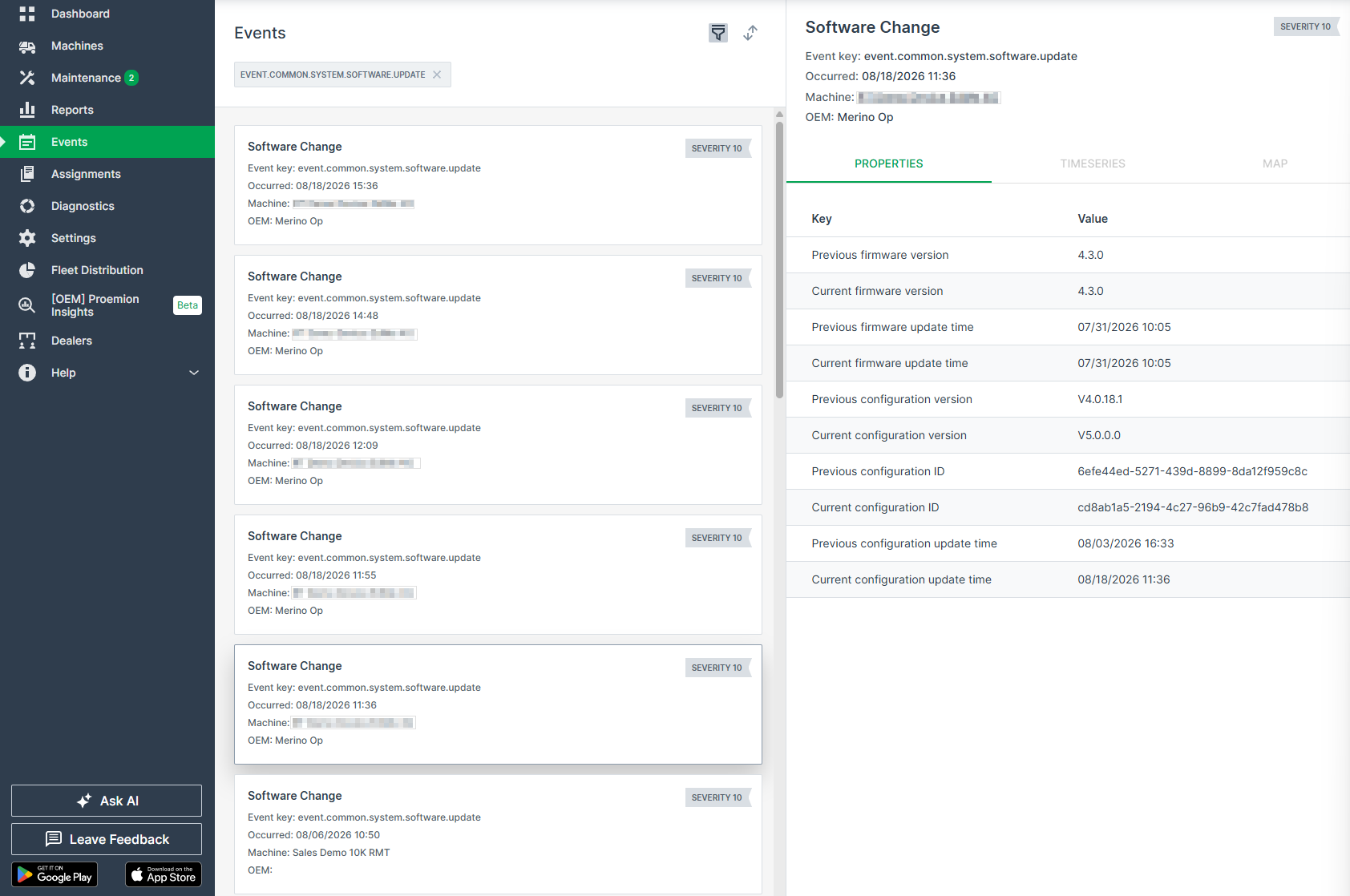
Each change is also captured as a Software Change event, see Events, with the following properties:
- Previous/Current firmware version
- Previous/Current firmware update time
- Previous/Current configuration version and ID
- Previous/Current configuration update time
- Previous/Current CODESYS version and name (for CANlink® mobile 10000 devices)
- Previous/Current CODESYS update time