Configuration Management
The DataPortal enables remote configuration updates of communication units (configuration over the air - COTA). Configuration updates are managed using configuration bundles, which allow version control and provide transparency regarding the installation status of selected machines.
Configuration bundles are visible only within the respective tenant organization (typically the OEM). Users belonging to the tenant, including its child organizations, can view and assign configuration bundles according to their Permission Set. Users outside of the tenant cannot see or assign configuration bundles. See Tenant for further details.
A remote configuration update of a communication unit consists of two steps:
-
In the first step, the Create Configuration Bundle procedure must be completed.
-
In the second step, the transfer of the configuration update to the device must be triggered, either by selecting one or more CUs for the Configuration Update/Mass COTA or by selecting the configuration bundle first, see Select Configuration Bundle for Update.
Requirements
In order to have the configuration update option available within the DataPortal, the following preconditions must be fulfilled:
| Feature | Permission Set Name | Level |
|---|---|---|
| Upload/Deletion of Configuration into the Configuration Management Repository | Models | Admin |
| Triggering or Cancelling of Remote Configuration, either of | Models | Admin |
| Machines | Admin |
| Feature Name | Status |
|---|---|
| Configuration Management | ON |
Software Update Use Cases
A: As telematics OEM manager with Models Admin permission set I need to be able to manage configurations and configuration bundles to provide them for updating existing machines or configuring new machines.
| Permission Set | Level | Description |
|---|---|---|
| Models | Admin | Is allowed to manage configurations and bundles. |
| Models | Admin | Is allowed to download configuration files. |
B: As telematics OEM manager with Models Admin permission set I need to be able to start/stop COTA/FOTA requests for machines and models so I can test and rollout fleet wide software updates.
| Permission Set | Level | Description |
|---|---|---|
| Models | Admin | Is allowed to view configurations and bundles. |
| Models | Admin | Is allowed to view current and historical COTA requests of a machine. |
| Models | Admin | Is allowed to create a COTA request for a machine. |
| Models | Admin | Is allowed to view current and historical FOTA requests of a machine. |
| Models | Admin | Is allowed to create a FOTA request for a machine. |
C: As an OEM end-of-line worker with Machines Admin permission set I need to be able to start/stop COTA/FOTA requests for machines to be able to install the latest software version into a new machine.
| Permission Set | Level | Description |
|---|---|---|
| Machines | Admin | Is not allowed to manage configurations and bundles. |
| Machines | Admin | Is not allowed to download configuration files. |
| Machines | Admin | Is allowed to view configurations and bundles. |
| Machines | Admin | Is allowed to view current and historical COTA requests of a machine. |
| Machines | Admin | Is allowed to create a COTA request for a machine. |
| Machines | Admin | Is allowed to view current and historical FOTA requests of a machine. |
| Machines | Admin | Is allowed to create a FOTA request for a machine. |
Create Configuration Bundle
The DataPortal supports the following configuration files, depending on the selected Model and Configuration type. Each combination is considered a configuration bundle.
- CANlink® mobile 3600: a combination of a
.dodfile and its corresponding.binfile, created with the Proemion Configurator software. - CANlink® mobile 10000:
- Configuration type CLM: a single
.clmfile, exported from the CANlink® mobile 10000 Web UI. - Configuration type CODESYS: an Application export (
.zip), containing the exported.appand.crcfiles, and a Project archive (.projectarchive), created with the CODESYS IDE. The application export can optionally also include aPlcLogicfolder with WebVisu files.
- Configuration type CLM: a single
-
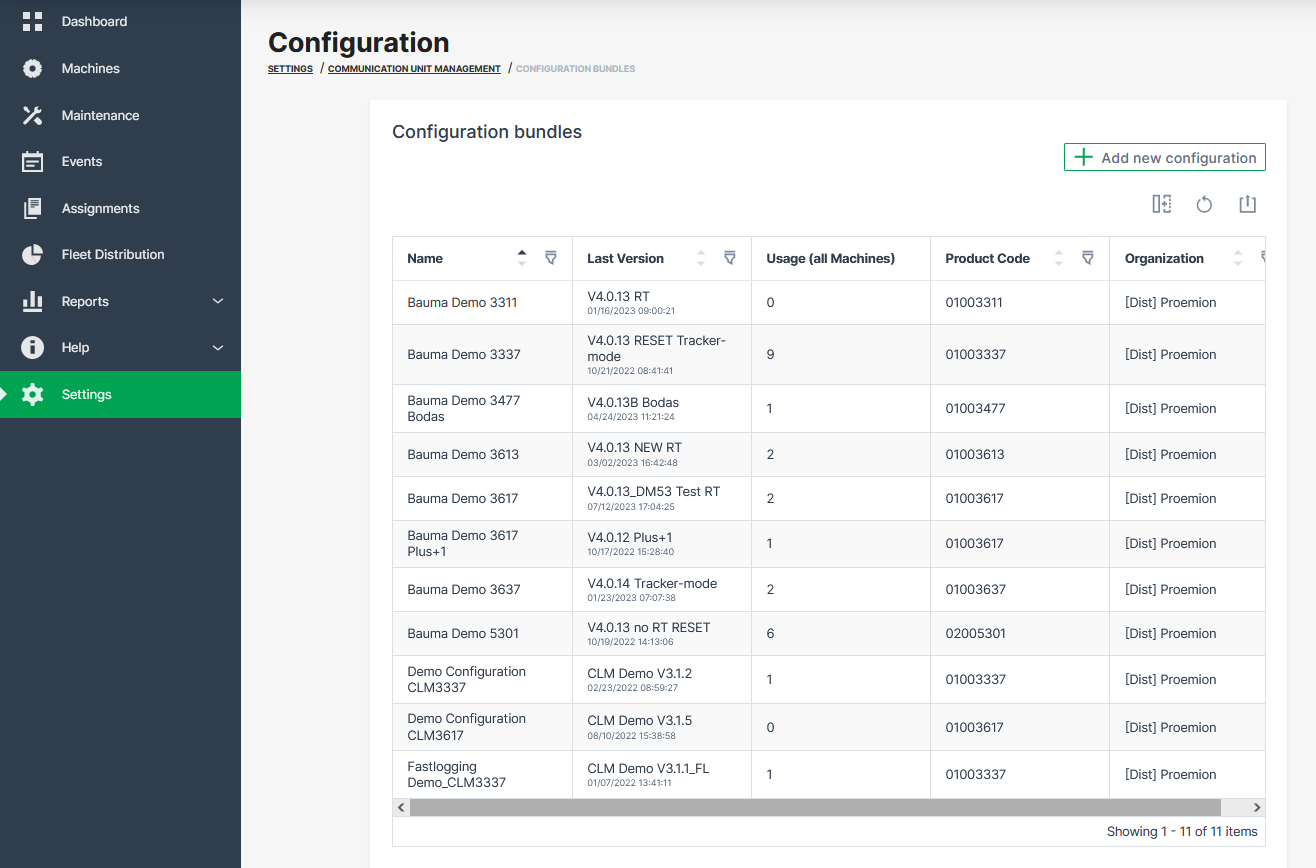
Open Settings > Communication Units Management > Configuration Bundles.
✓ The table with the available configuration bundles opens.
-
Click on + Add new configuration in the top right corner to add a new configuration.
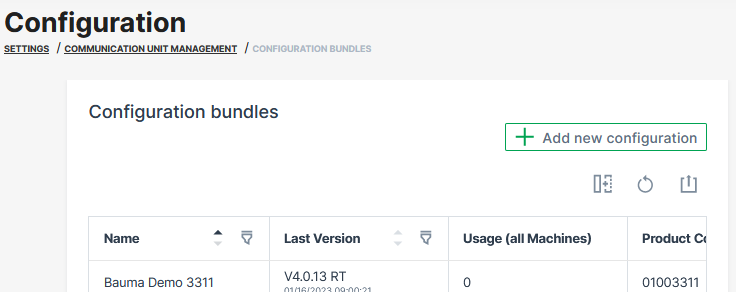
Figure 2: Add new configuration -
In the New configuration dialog, select the Model: CANlink® mobile 3600 or CANlink® mobile 10000. For CANlink® mobile 10000, also select the Configuration type: CLM or CODESYS.
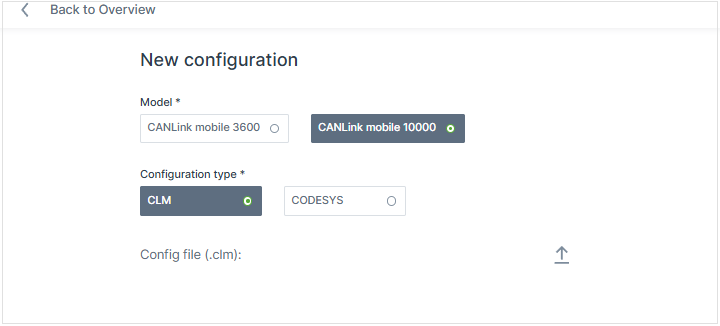
Figure 3: Select Model The configuration file(s) that must be uploaded depend on the selected model and configuration type.
-
Upload the required configuration files. Click the upload button for each required file and select the corresponding file.
For CANlink® mobile 3600
The uploaded
.dodfile is validated for consistency. The product code and device configuration version string must be the same in both the.dodand.binfiles. In case of an error, the upload is cancelled and a specific error message is displayed. To detect the root cause of the error and resolve it, contact Service and Support.Uploading and processing a large CODESYS application export can take up to a few minutes, depending on file size and connection speed. A progress indicator shows the current upload and processing status.
The New Configuration section opens.
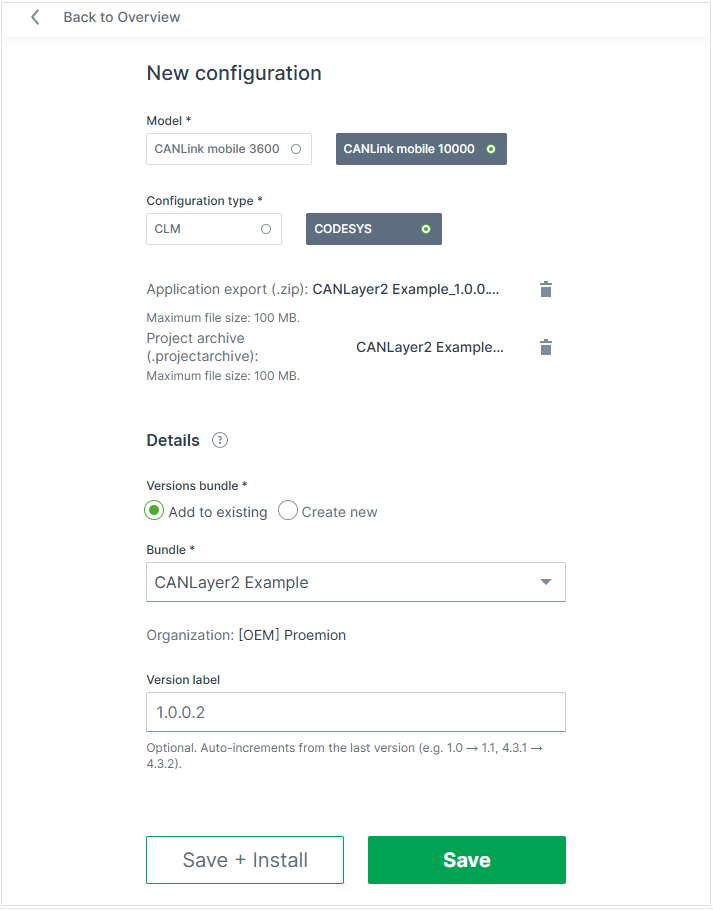
Figure 4: Upload Details -
Regarding the Versions bundle, you may choose Add to existing or Create new files.
-
Enter a proper Bundle Name.
-
Optionally, enter a custom Version label; otherwise the automatically proposed label is used.
Note
The version label must be unique within the bundle. DataPortal proposes a label automatically by incrementing the last version's label (e.g.
1.0→1.1). The label can be changed later, see Edit Version Label. -
Click Save. Alternatively, click Save + Install to save the configuration bundle and immediately start the installation on machines.
✓ After saving, the Configuration Overview with the available configuration bundles opens and the new configuration bundle is available.
Download Configuration File
Users can download the files from a configuration bundle for further use.
-
Open the Configuration bundles overview.
-
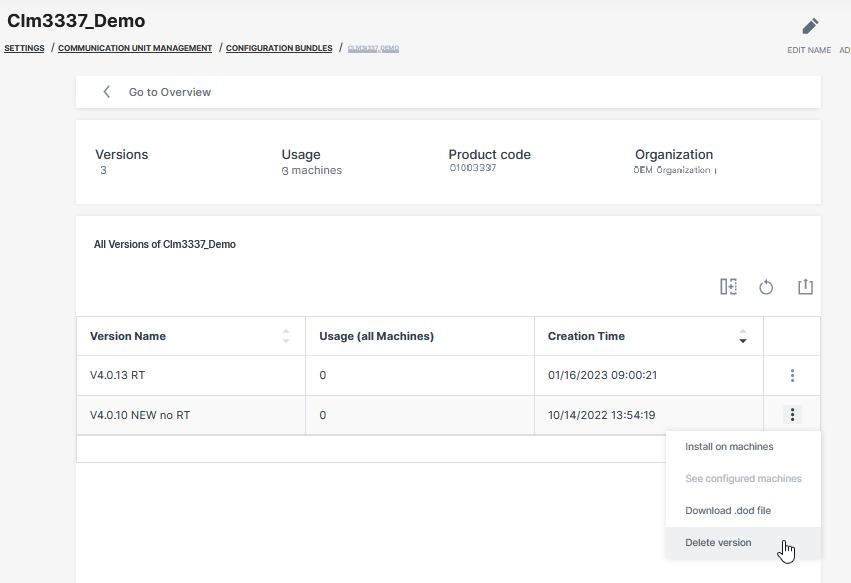
Select the desired configuration bundle to open it. The details page with all versions opens.
-
Click the
 3-dots of the desired configuration version to open the context menu.
 -
Select Download
<file extension>file, where file extension matches the configuration bundle's file (e.g.,.dod,.bin,.clm,.zip,.projectarchive).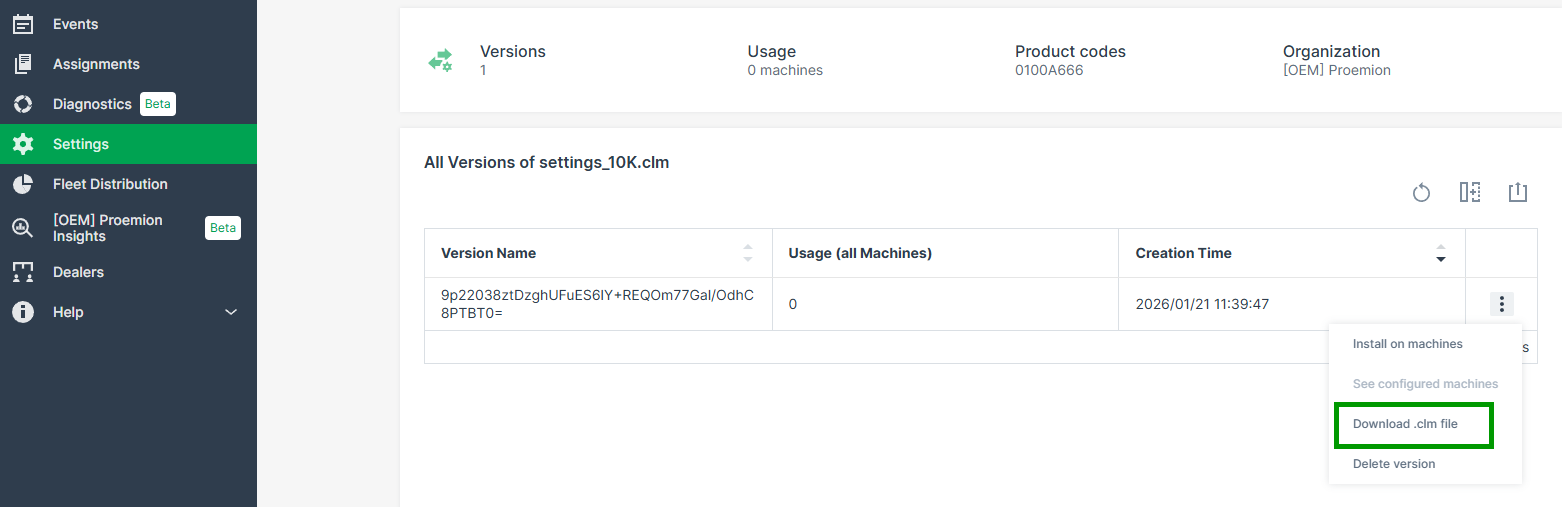
Figure 5: Download .clm file
Select Configuration Bundle for Update
-
Open the Configuration bundles overview.
-
Select the desired configuration bundle to open it. The details page with all versions opens.
-
Click the
3-dots of the desired configuration version to open the context menu. -
Select Install on machines.
Note
When there are no eligible machines for this update, the Install on machines option will not be displayed.
The Select machines page opens in the Firmware and Configuration Updates menu.
-
Choose all or specific machines for the configuration update and Continue. The Configuration update page opens. In case there are conflicts for the selected machines, the information is displayed here, too:
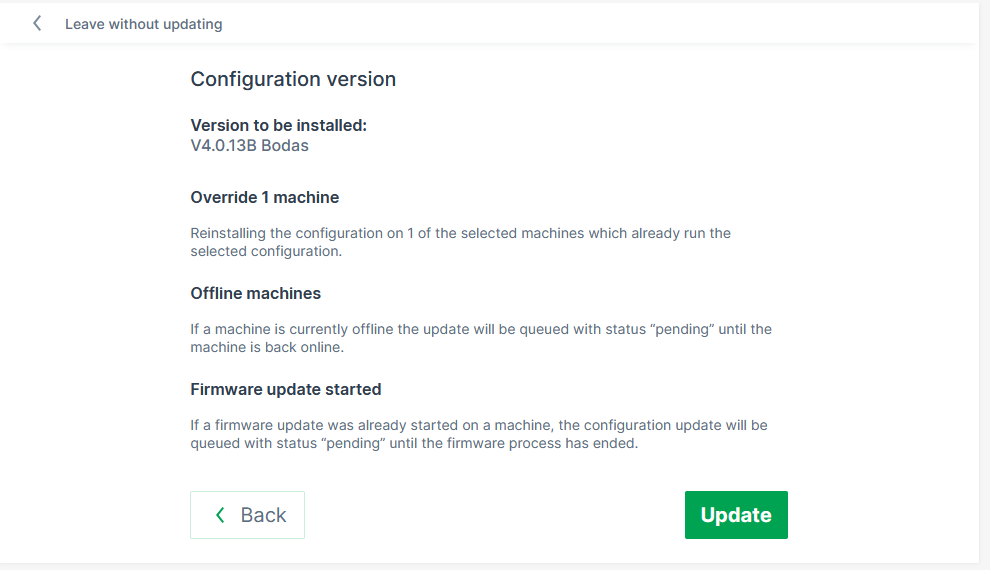
Figure 6: Configuration update information page You can then proceed with the firmware update for all machines or only those without a pending update.
-
Click Update to start the update of the firmware on the selected devices. ✓ The configuration update runs in the background.
Edit Version Label
The DataPortal automatically assigns a technical version identifier when a version is created. Since this identifier is a system-generated string, you can additionally assign a version label. The label can be changed at any time without affecting the underlying technical version.
To change the version label of an already uploaded configuration version, open the Configuration bundles overview, select the specific bundle, and select Edit label from the context menu of that version.
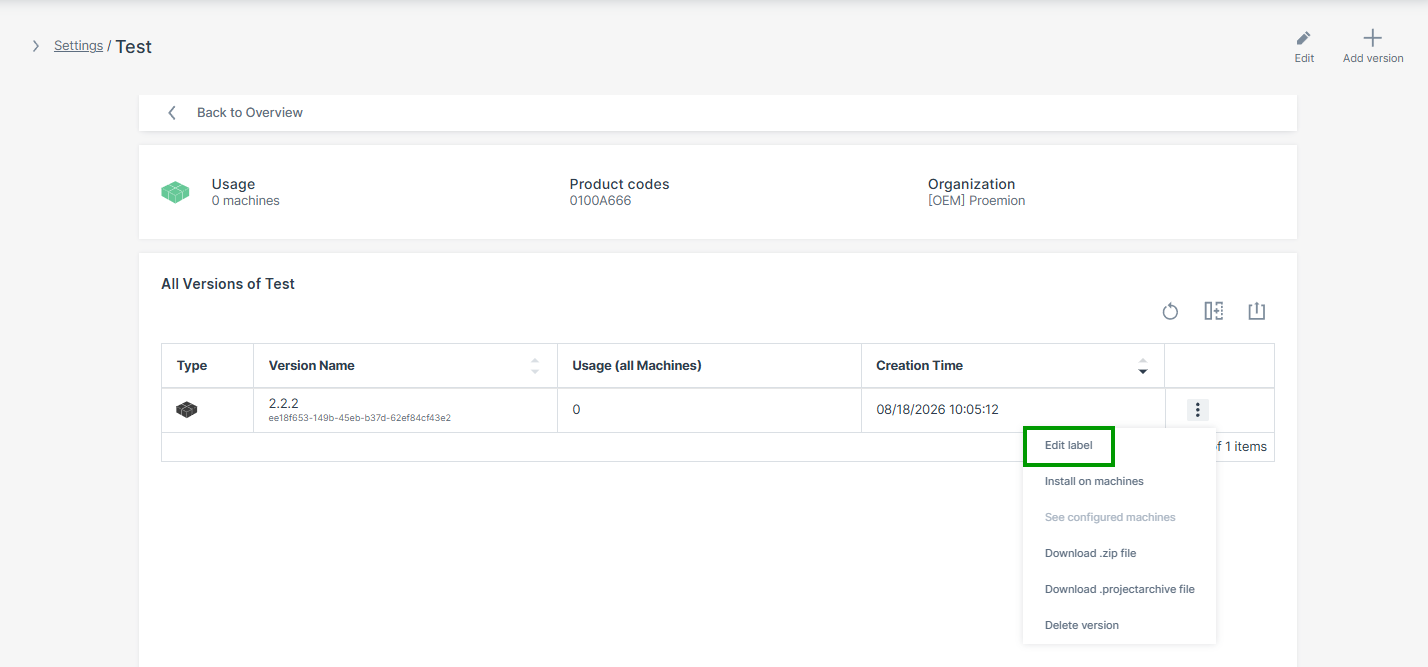
In the Configuration bundles overview and in a bundle's version list, the version label is displayed as the primary version name; the technical version identifier remains visible below it.
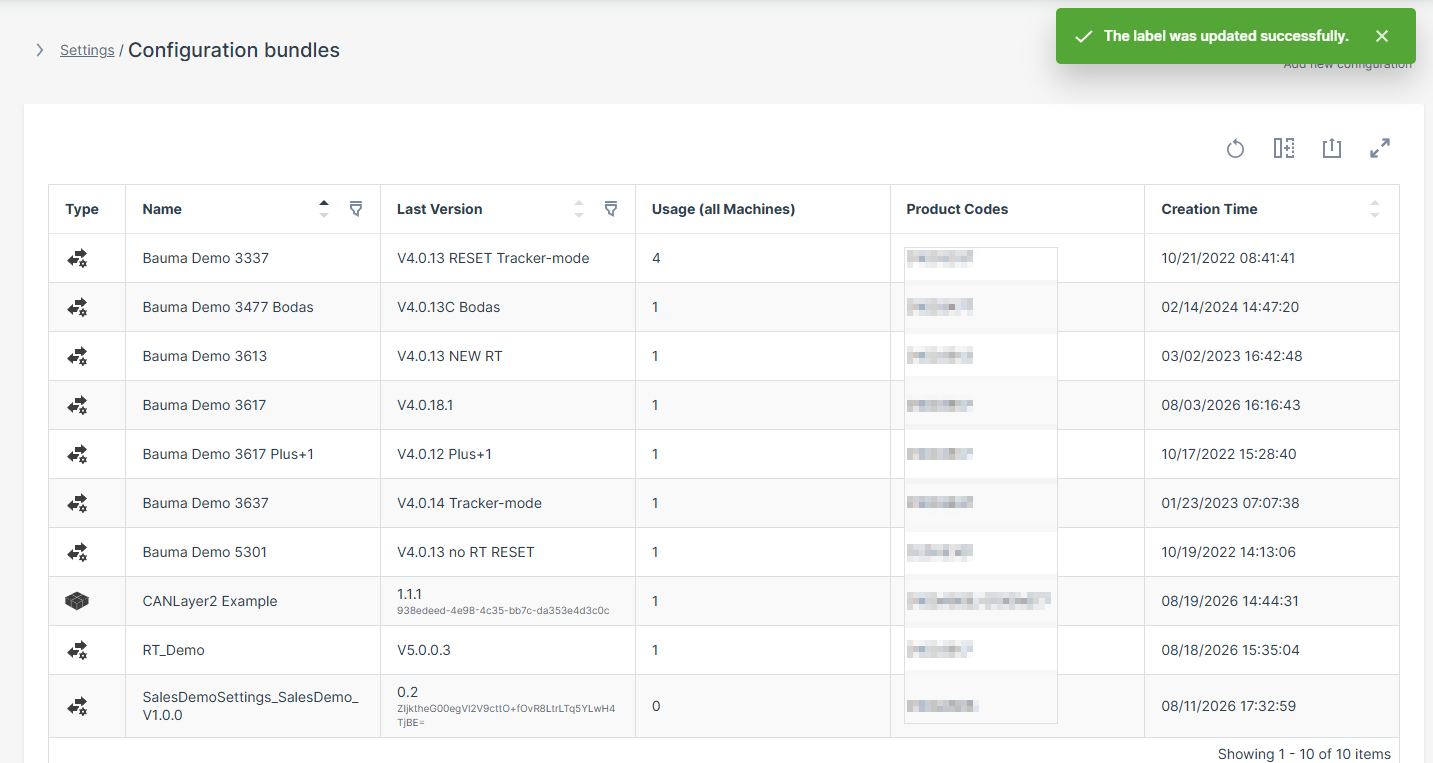
The version label must remain unique within the bundle. The technical version identifier remains visible and can be copied regardless of the assigned label.
Delete Configuration Bundle
To delete a version of a configuration bundle that is no longer required, open the Configuration bundles overview, select the specific bundle, and select Delete version from the context menu of that version.
Note
Only versions without machine usage can be deleted.