Capacity
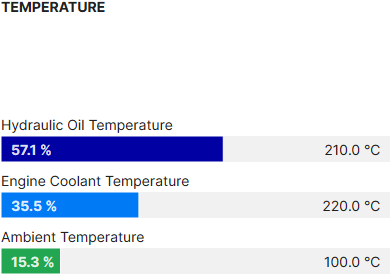
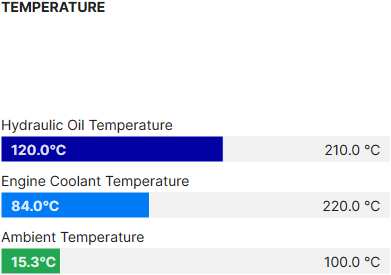
The Capacity widget allows you to select and display a value for an individual signal and total remaining capacity. The signal can be displayed as either an absolute value (e.g. 0oC - 220oC) or as a percentage (e.g. 0-100%).
Note
The capacity widget can only display positive values.
Configuration
Configure the widget and put it on the Organization Dashboard and/or the Model Dashboard by following the steps below:
It is highly recommended to adapt a Machine Page (Model Dashboard) centrally via the Machine Page Layout. If you need to configure the Machine Page for the selected machine only, proceed as follows:
-
In the selected Machine Page, select Manage Layout > Add widgets.
-
Select the desired widget. A preview will be shown.
-
Click Apply. This forwards you to the widget configuration dialog with the options described below.
If you need to adapt the Organization Dashboard, select the desired dashboard configuration and click Edit > Add  to open the widgets catalog, see also Add Widgets to the Organization Dashboard.
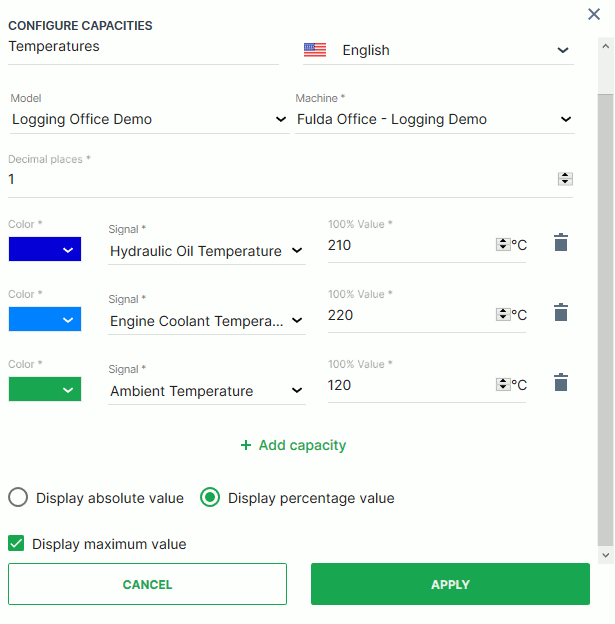
| Item | Description |
|---|---|
| Title | The label for the widget (English is the default, additional languages must be configured. See Language below). |
| Language | Select the language for the title of the widget. |
| Model | The model of the machine you select to display the capacity (see Info). |
| Machine | The machine that you select to display the capacity (see Info). |
| Decimal Places | Select the number of decimal places for the value. |
| Color | Select the color for the indicator. |
| Signal | Select the signal to be displayed. |
| 100% Value | The maximum value or usage capacity of the signal. |
| Add Capacity | Configure an additional signal to measure its capacity. |
| Display absolute/percentage value | Toggle between absolute value in units or value as a percentage on a scale from 0 to 100%. |
| Display maximum value | Display the maximum value of the signal range. |
Note
Model and Machine configuration options can only be selected from the DataPortal dashboard.
Sample
Suggested usage of the Capacity widget: For temperatures, tank levels, battery charge levels.