Legal Requirements
OEM DataPortal customers (top- or distributor-level) are required by law to inform users of their legal rights and obtain their consent in regards to data protection and privacy. The DataPortal hosts and enables access to the documentation via links, and user consent via banner.
The Tenant:Admin permission set is required to manage data protection and legal documents for the DataPortal, see Tenant.
Note
The Admin of the Tenant subject is a Super Admin that differs from the typical DataPortal Admin because they must have dedicated general knowledge of legal compliance and specific expertise of data privacy.
The standard documentation includes (but is not limited to - dependent on the region):
-
Required by OEM
-
Privacy Policy (PP)
-
End User Agreement (EUA)
-
-
Provided by Proemion
-
Imprint (required by German regulations - provided exclusively by Proemion)
-
Privacy Policy template
-
End User Agreement (EULA) template
-
-
User Tracking (banner) and Consent permission declaration
Note
Privacy Policy and End User Agreement are mandatory regardless of region.
GDPR Compliance
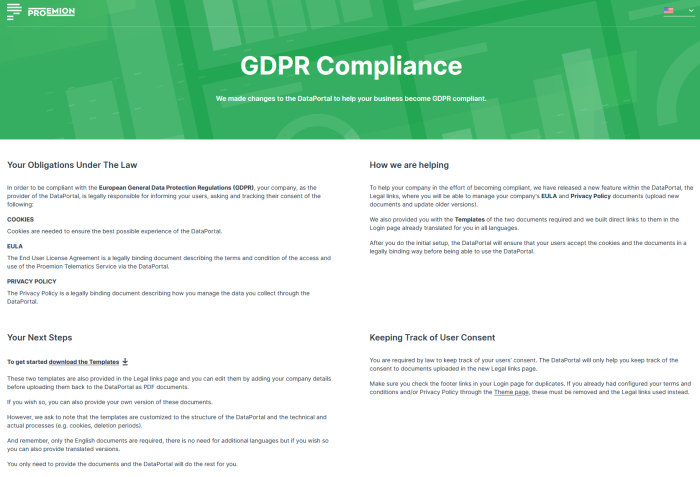
The GDPR Compliance page functions as an information hub for fulfilling your compliance obligations.
The following points are discussed here:
| Item | Description |
|---|---|
| Your Obligations Under The Law | Cookies are needed to ensure the best possible experience of the DataPortal. EULA or End User Licensing Agreement is a legally binding document describing the terms and condition of the access and use. Privacy Policy is a legally binding document describing how you manage the data you collect through the DataPortal. |
| How we are helping | After you do the initial setup, the DataPortal will ensure that your users accept the cookies and the documents in a legally binding way before being able to use the DataPortal. |
| Your Next Steps | You only need to provide the documents and the DataPortal will do the rest for you. |
| Keeping Track of User Consent | The DataPortal will only help you keep track of the consent to documents uploaded in the new Legal links page. |
| Final Submission Date | If one or all of the documents are missing after the deadline, the DataPortal will use the default legal documents. |
| FAQ | What is GDPR?: GDPR is a regulation in EU law on data protection and privacy in the European Union (EU) and the European Economic Area (EEA) Can I keep my documents up to date?: If in the future any of these documents need to be updated, you will be able to do so by uploading new copies of them to the DataPortal. Do I need one document in each language?: The DataPortal allows you to upload your documents for all languages supported. |
User Actions
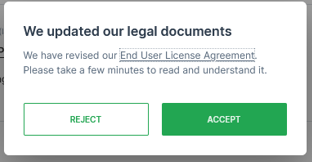
The first time a user logs in and subsequently every time the documents are updated - specifically PP and EULA - they are prompted for their explicit consent before proceeding to use the DataPortal. This also applies to the banner.
-
Selecting the Reject button automatically signs the user out of the DataPortal.
-
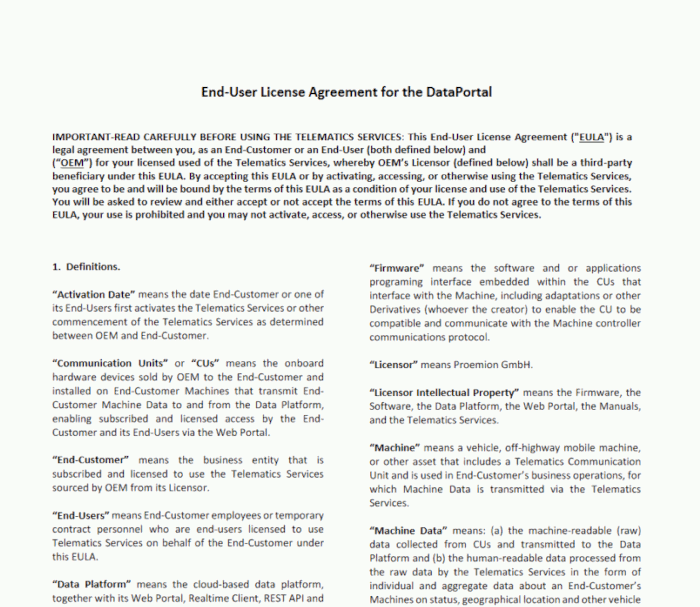
Selecting the End User License Agreement link opens the document in a separate browser tab.
User Tracking
Consent to user tracking (cookies) by the DataPortal is facilitated by a banner.

TEXT: To be GDPR-compliant make sure you have uploaded your company's Privacy Policy and End-User License Agreement by [date]. If by the date there are no documents uploaded, the two templates in this page will be added automatically to your Login page. Please read the documentation for more details. This banner will disappear after appropriate action is taken.
Configuration
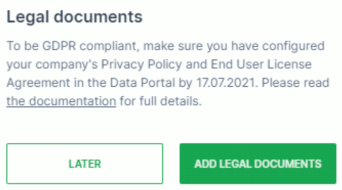
If the legal documents have not yet been configured, a prompt appears informing the DataPortal Admin upon login into the system that the documents must be set up and redirecting to the Legal Links menu via Add Legal Documents.
-
Select Later and a message appears prompting you to include the EULA and a browser note informing you about GDPR compliance requirements.
-
Select Read the Documentation and you are taken to the GDPR Compliance page (https://dataportal.proemion.com/legal-documentation) where you can read about your obligations and compliance instructions.
In the documentation there is a link - To get started, download the templates - that allows you to download the templates (in .doc format) whereby you can replace the text with that of your own. Once you have made the necessary adjustments, you can upload the links back into the DataPortal as PDF documents.
Document Upload
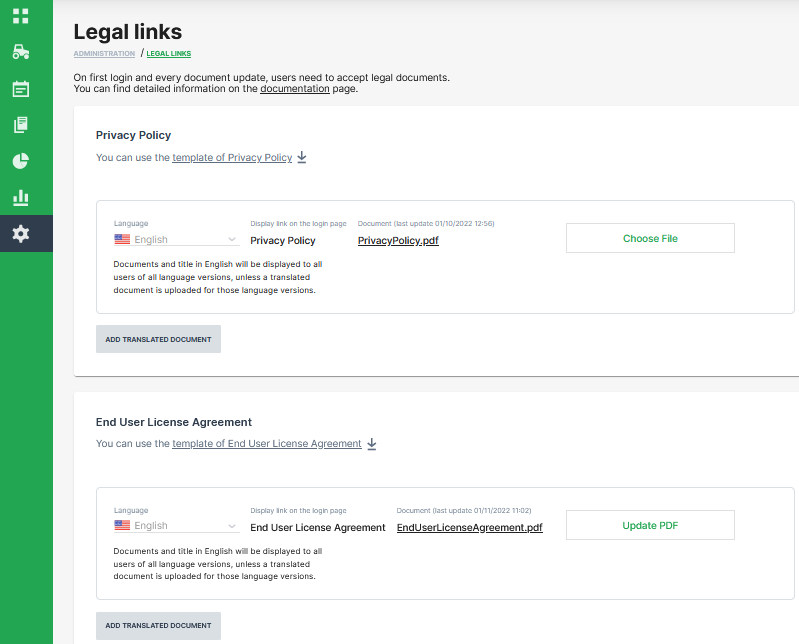
You can add the relevant documents in Settings > Portal Appearance > Legal Links.
In the sections Privacy Policy and the End User License Agreement sections, it is mandatory that you upload the document in the English language first
After uploading the English documents, the Add Translated Documents button appears that allows you to upload the documents in other languages.
Warning
DO NOT USE Login Footer Links from the DataPortal Themes section to serve Privacy Policy, End User License Agreement or other legal compliance/ data privacy documents!
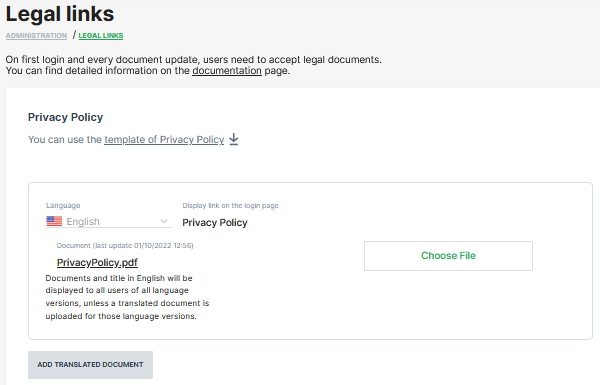
Selecting the Choose File button you can select the document
A successful upload shows a popup message that confirms the document is updated
After successful upload, the Add Translated Document button is now active and you can add translations of each document for localized versions of the DataPortal.
Note
The DataPortal does not validate if the language you uploaded matches the localization!
Imprint
Due to legal regulations, it may be necessary to store your own imprint for the respective data portal account. A fictitious example below shows how this can be achieved.
| Permission Set Name | Level |
|---|---|
| Tenancy | Admin |
-
To add an Imprint, select Settings > Portal Appearance > Legal links.
-
Click on ADD IMPRINT.
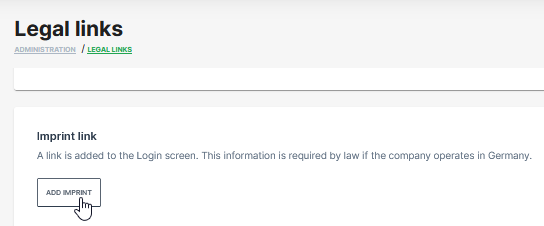
Figure 8: Add Imprint button -
Complete the imprint details at the pages Contact,Details and Board.
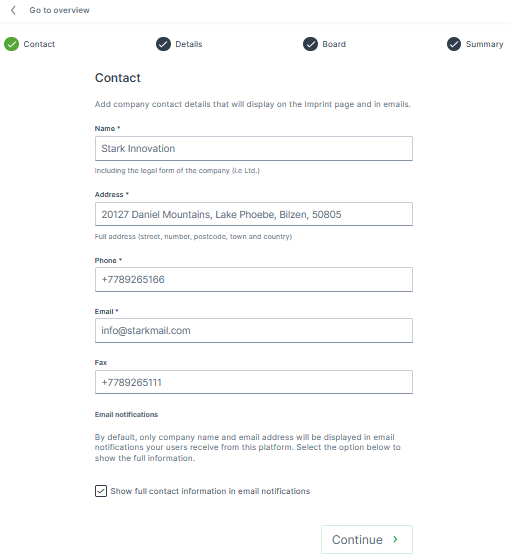
Figure 9: Imprint Details -
Check the summary and confirm by click on SUBMIT.
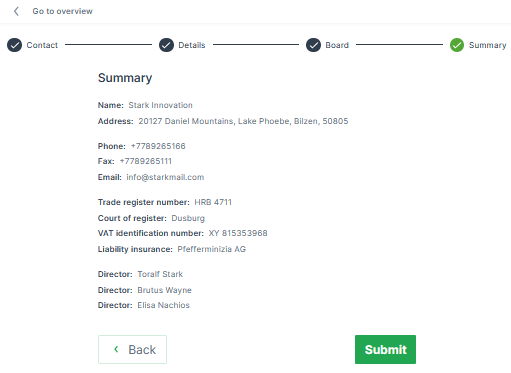
Figure 10: Summary and Submit button ✓ The message Imprint created successfully appears in the upper right corner.
Imprint Usage in Emails
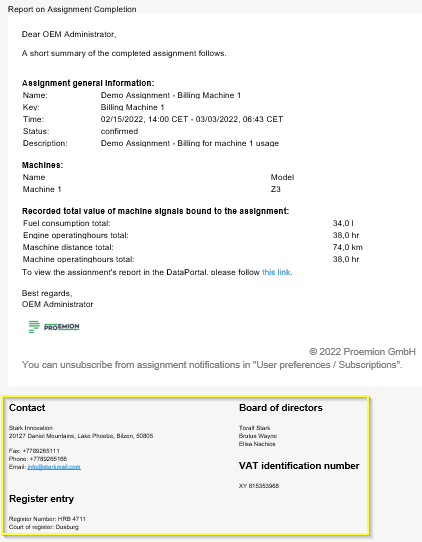
The customer imprint will be used in the footer of the following email notifications:
| # | Email notification |
|---|---|
| 1 | Time fence Breach |
| 2 | DTC Notification |
| 3 | Maintenance Task |
| 4 | Threshold |
| 5 | GeoLeas Breach |
| 6 | Assignment completed |
| 7 | Password reset |
| 8 | E-Mail change notification |
| 9 | Export of raw data |
You can select the checkbox "Show full contact information in email notification" to unhide/hide the address and phone number in the imprint.
Imprint at Login Page
Note
The customized imprint at the login page is only available for white label customers with customized login URL. All DataPortal standard accounts alternatively can use the login footer link to get redirected to the imprint URL of the corresponding homepage.
-
To check the imprint settings at the login page for white label accounts, click on the Imprint label below the footer links in the lower left corner at the login page.
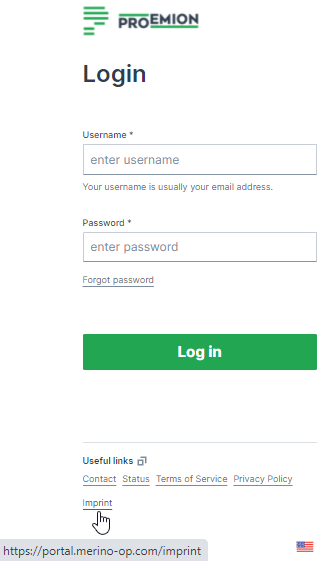
Figure 12: Login page ✓ The imprint opens in a second tab.
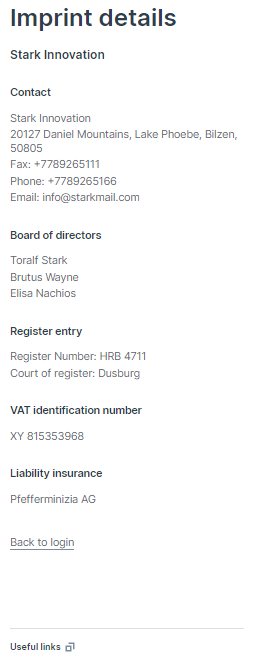
Figure 13: Imprint details -
Click on Back to login to close the imprint window and proceed with the login.