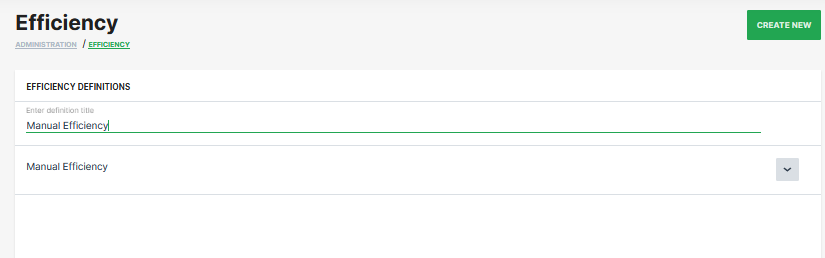
Efficiency Definitions
Note
The functionality explained here is an enhancement of the Efficiency widget that has been deprecated, resp. reworked to Efficiency Snapshot and Efficiency History widgets.
Efficiency enables machine owners to calculate and track efficiency for individual machines or for your fleet. The functionality enables the following:
-
Compare efficiency for individual machines or an entire fleet
-
View efficiency for an individual machine or an aggregated set of machines (i.e. organization)
-
Visualize the data as a chart, graph or table.
Note
This feature requires the availability of counter values of work and idle signals/keys on the machine
The total time of these signals is used for calculating the efficiency as follows: work group / (work group + idle group)
More information about the signal keys can be found in the chapter Counter Guard Signals within the Standard Metrics Documentation.
Requirements
The Efficiency Definition can be configured by a tenant, typically the OEM
For more information, see Tenant.
The required permission set is Organization:Admin to edit and delete sets of metrics used in efficiency definitions, see Organization Subject.
Configure Efficiency Definitions
We begin by creating an efficiency definition. You can do this by selecting Settings > Machine Data Management> Efficiency Definitions and clicking on the Create New button in the top right corner to open the configuration dialog.
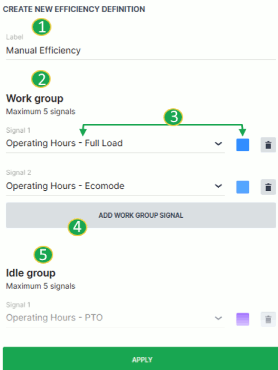
| # | Item | Description |
|---|---|---|
| 1 | Label | Definition title. |
| 2 | Work Group | Signal group that will be calculated for the active operation state of the machine. |
| 3 | Signal and Color | Signals chosen as part of the work group. Color designation of the signal. |
| 4 | Add Signal | Increase the number of signals used in the group. |
| 5 | Idle Group | Signal group that will be calculated for the inactive operation state of the machine. |
Once you have configured the efficiency definition, click the Apply button at the bottom of the dialog. You can now see the newly created definition available from the Efficiency control panel.