First steps codesys setup
First you have to set up a new CODESYS project for the CANlink® mobile 10000.
To do so, follow these steps.
Create a new CODESYS Project
Open the CODESYS IDE, create a new project via File → New Project → Standard Project and choose a Name and Location for your project.
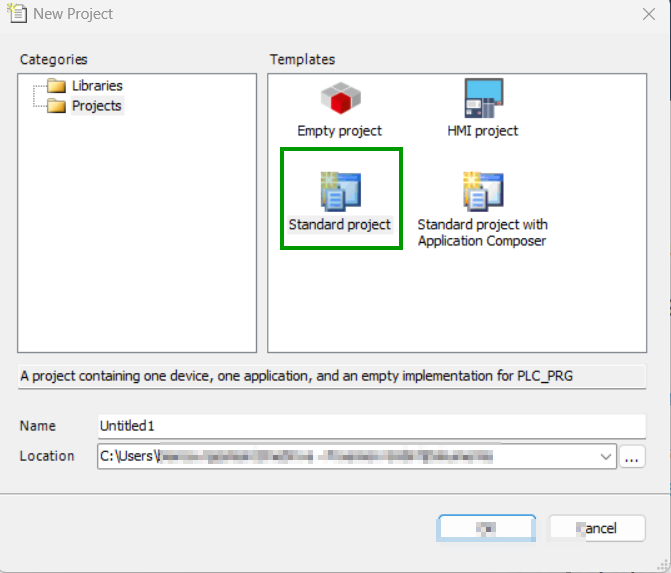
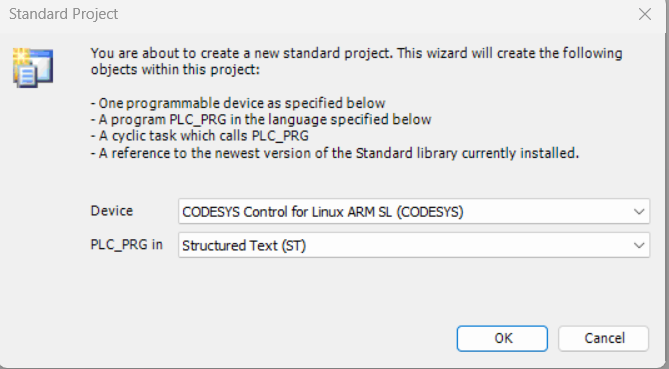
Select Device and Programming Language
Select Device and PLC_PRG in.
- Select Device: CODESYS Control for Linux ARM SL
- Choose programming language for PLC_PRG: Structured Text (ST)
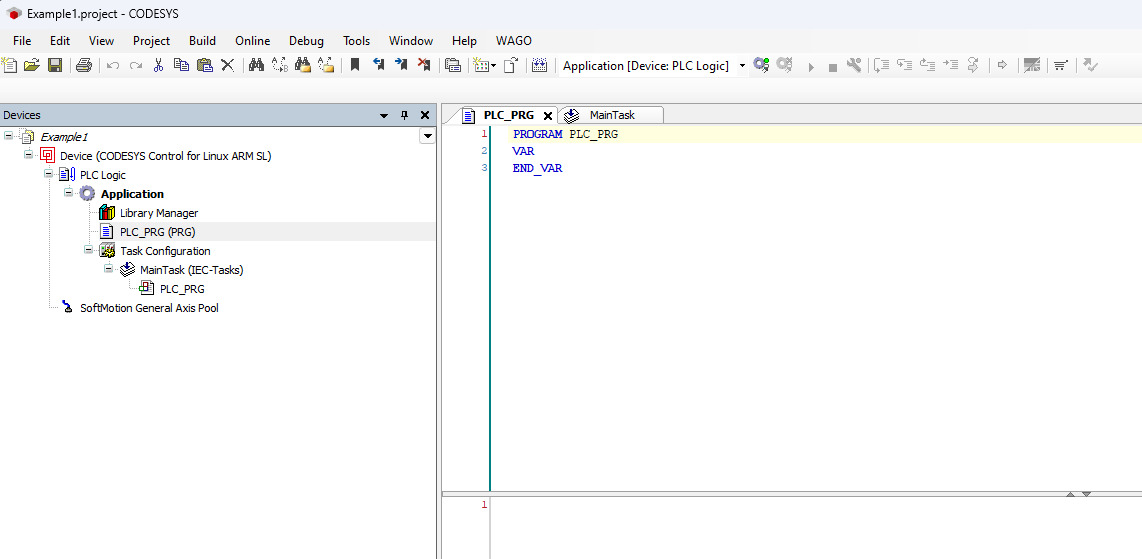
If the device CODESYS Control for Linux ARM SL is not available, it may not be installed. Read Install CODESYS dependencies for installation instructions. An empty project similar to the following screenshot should be created.
Enable CODESYS Runtime on the CANlink® mobile 10000
Before adding the CANlink® mobile 10000 library or programming, ensure the CODESYS Runtime is enabled on the device:
- Open a web browser and access the device’s IP address.
- Log in to the web interface.
- Navigate to Advanced Settings > CODESYS Settings.
- Enable the option Enable CODESYS Runtime.
- Save the settings (restart the device if required).
Once enabled, the device is ready for CODESYS connection and library integration.
Add the CANlink® mobile 10000 CODESYS Library
Add the CANlink® mobile 10000 CODESYS library to your project.
1. Open the Library Manager in the Devices tree on the left side of the CODESYS IDE, expand the Application node under your device and double-click on Library Manager.
2. Click the + Add library button in the Library Manager toolbar at the top of the screen. This opens the Add Library window, allowing you to search and add new libraries to your project.
3. Search and select the CANlink® mobile 10000 library.
4. Click OK in the bottom-right corner of the window to confirm your changes.
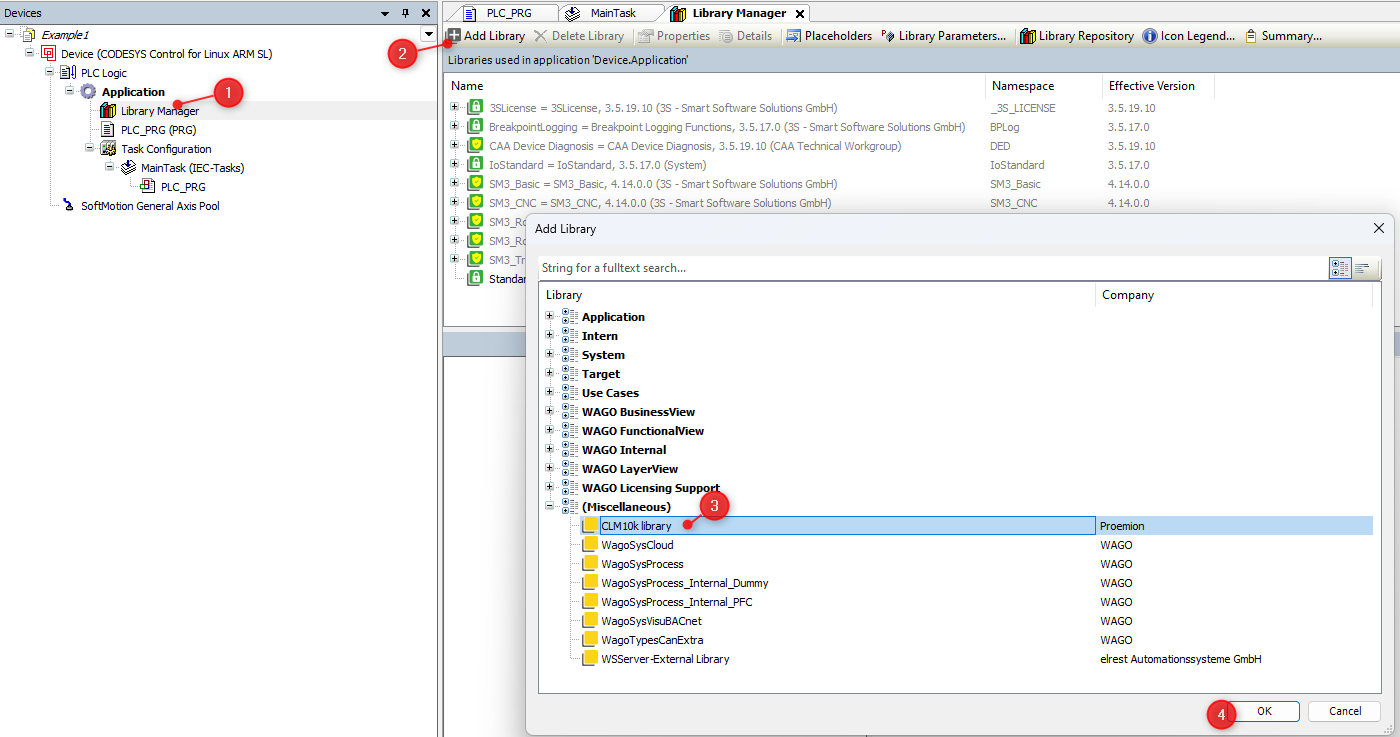 If you can not find the CANlink® mobile 10000 library, it may be not installed.
Read Add Proemion CANlink® mobile 10000 Library for installation instructions.
If you can not find the CANlink® mobile 10000 library, it may be not installed.
Read Add Proemion CANlink® mobile 10000 Library for installation instructions.