File Transfer
The DataPortal features file transfer to and from the machine via browser. You can also view basic history of the transferred files. The Machine:Admin permission set is required to use this feature.
Note
All operations intentionally do not allow files for special purposes, which are either platform-internal or represent use cases outside of general "data transfer". Note that configuration files regarding communication units can be maintained in Configuration Management.
DataPortal Transfers Overview
To view and transfer files to and from the DataPortal, open Settings > Communication Units Management > File Transfers.
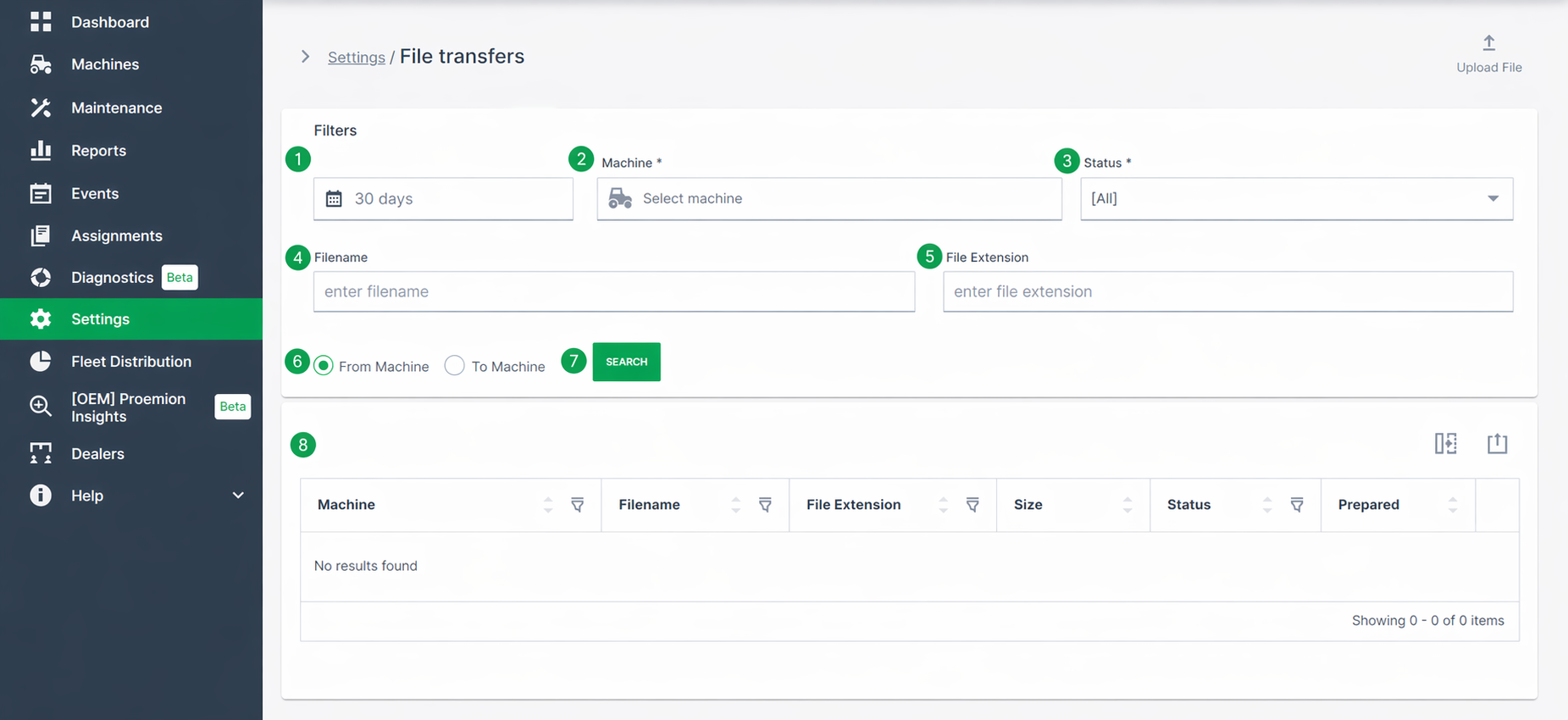
| # | Item | Description |
|---|---|---|
| 1 | Start/End within | Select the time range for the file search. |
| 2 | Machine | Select machine(s) to filter transfer by a specific machine or show all. |
| 3 | Status | Search Complete or Incomplete transfer status. |
| 4 | Filename | Name of the file you are searching for. |
| 5 | File Extension | Search by file extension. |
| 6 | From/To | Search transfers to the machine or from the machine. |
| 7 | Search | Use the filter settings to search for a file transfer. |
| 8 | Files Table^*^ | Files returned by the search. |
| 9 | Upload | Upload a file for transfer. |
^*^In the table of files returned by the search, there are following columns:
-
Filename: Read the file name restrictions below.
-
Size: The unit is bytes.
-
Actions
-
Save
 : Save or open the file from the browser.
 -
Remove
 : Remove the file from its current location.
-
File name and extension restrictions for CANlink® mobile 36xx devices:
-
The file names must have 8 characters and the file extension must have 3 characters (8.3 format).
-
Characters permitted for the file name and file extension are :
"A", ... "Z","a", ... "z"and"0", ... "9" -
The following file extensions are reserved for internal use only and may not be used for customer application:
.obr,.obw,.obc,.dbs,.prg,.bin,.clf,.msg
File name and extension restrictions for CANlink® mobile 10xxx devices:
-
Filename (before the dot):
- Can contain letters, numbers, underscores (
_), and hyphens (-) - No spaces or special characters allowed
- Must be 1 to 256 characters long
- Can contain letters, numbers, underscores (
-
File extension (after the dot):
- Must be 1 to 10 characters long
- Can include only letters and numbers
- No special characters allowed
File Upload
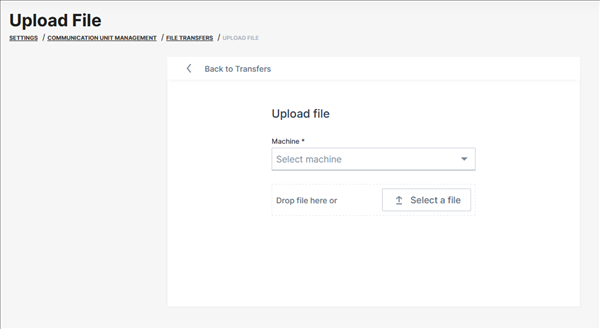
You can upload a file to a machine by clicking the Upload File button in the upper right corner. This opens the Upload Transfer File dialog:
-
Select the machine you want to transfer a file to.
-
Choose a file or drag it and drop it where indicated.
-
Upload the file by clicking the Upload button.
File Deletion
The transferred generic files are stored for 120 days on the DataPlatform
After this period they are automatically deleted and not available anymore
Consider that files that were to be transferred to the CU but have not been transferred successfully will be deleted after 360 days in the queue.
.clf files are automatically deleted latest after 45 days.
Note
The described storage durations are subject to change
There is no guarantee for a specific holding time, especially for *.clf files!