Completion Note
The Completion Note field allows service technicians to document work performed, observations, or follow-up actions directly on the Maintenance Task.
The note can be edited at any time during the Maintenance Task, before or after finishing it.
It can be added by the maintenance service technicians with Maintenance Tasks:Maintain Permission Set for the Maintenance Tasks they are assigned to.
This Completion Note is then made accessible to users with Maintenance Tasks:View Permission Set, e.g. Machine Owners as soon as the Maintenance Task is completed.
In the History, a new entry "updated Completion Note" will be noted when adding, editing or deleting a Completion Note.
To add a Completion Note, proceed as follows:
-
Open the task details page of a Maintenance Task and click + in the Completion Note section.
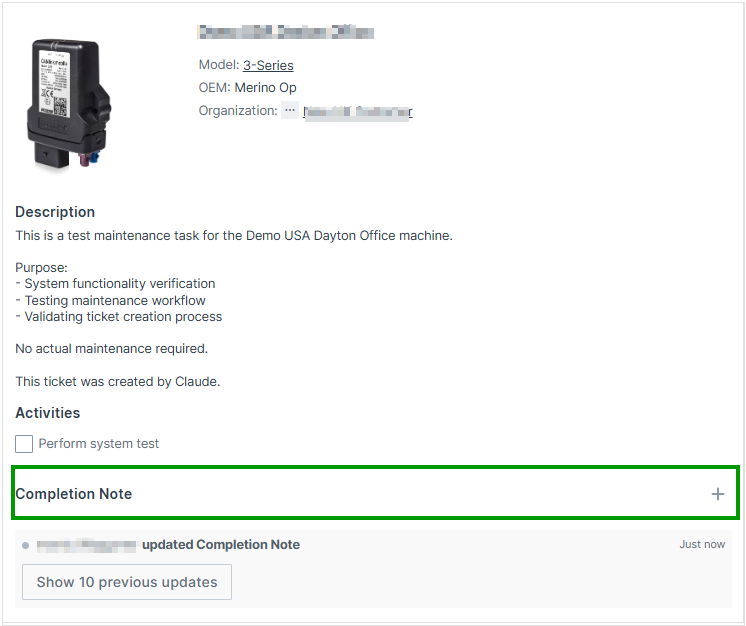
Figure 1: Add Completion Note -
Add the desired text and click the Disk icon to save your Completion Note. The change will be directly written in the History below.

Figure 2: Add Completion Note Text The Text cannot be formatted and is limited to 2000 characters.
-
Click Update Progress and choose one of the available options to close the complete Maintenance Task with the note.
✓ The Completion Note will be added to the Maintenance Task and a corresponding message is displayed in the History.
To change the Completion Note, add a new text in the Completion Note field and click the Disk icon to save your changes.
To delete the Completion Note, save an empty Completion Note.
A note may be edited multiple times.