Activate CODESYS licenses
Without an activated CODESYS license the CODESYS application runs for 2 hours on the CANlink® mobile 10000. To restart the CODESYS application the user needs to restart the device e.g. by performing a power reset, see Main Plug Connector in the device manual.
The CANlink® mobile 10000 Variant CRT comes with two activated CODESYS licenses by default. For more details see also Available Models/Types in the CANlink® mobile 10000 Device Manual.
Activation
The activation of the CODESYS licenses is performed with the CODESYS Development System, an external tool maintained by the company CODESYS, see CODESYS Online Help. Refer to their documentation and consider the following CANlink® mobile 10000-specific steps in the CODESYS License Manager:
-
Open the License Manager:
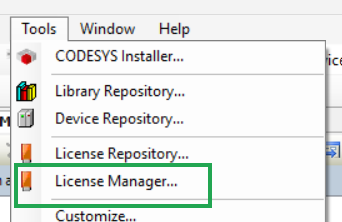
Figure 1: Open the License Manager -
Select Device in the Select Target window:
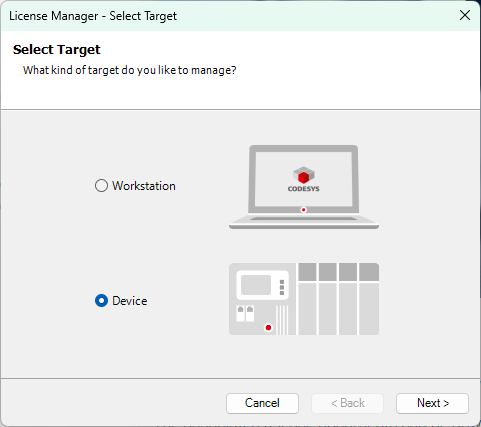
Figure 2: CODESYS Licence Manager - Select Target -
Select the network path to the device and click OK:
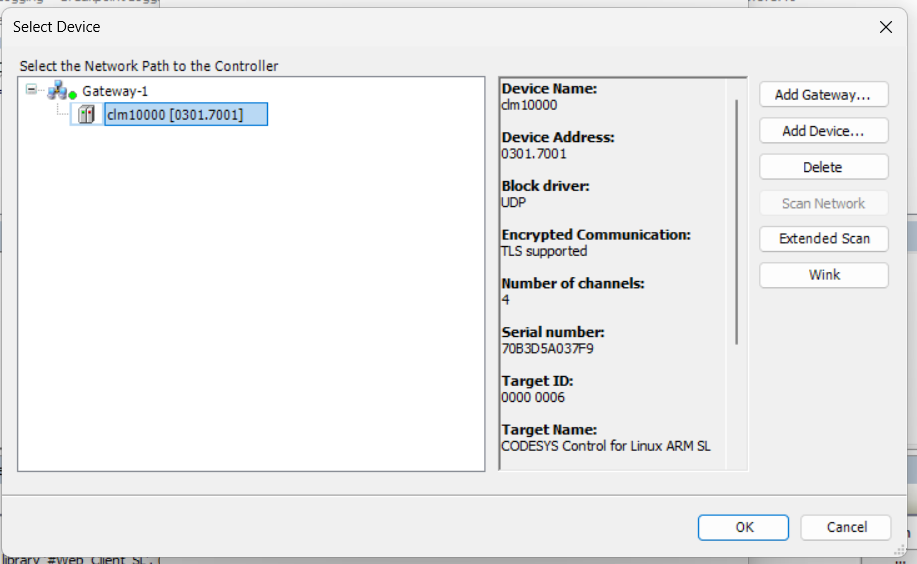
Figure 3: Select Device -
Depending on the CANlink® mobile 10000 firmware version, the CODESYS user management is either preset by default or must be created initially:
- Firmware 3.4.0 and later: the CANlink® mobile 10000 comes with a preset CODESYS User Management and default admin credentials, managed by the operating system. Log in with the preset CODESYS admin credentials. For further information, see CODESYS section of the Configuration Web UI.
-
Firmware before 3.4.0: if no CODESYS user management is configured, you are prompted to create it now, including a password used to log in to the device:
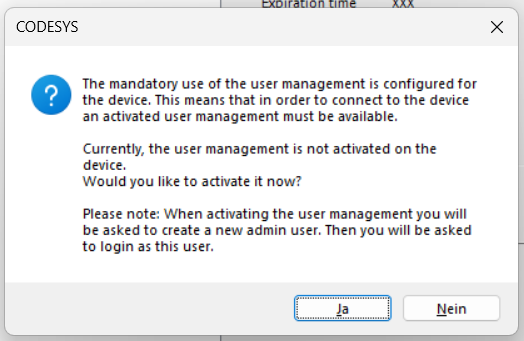
Figure 4: Create password dialog 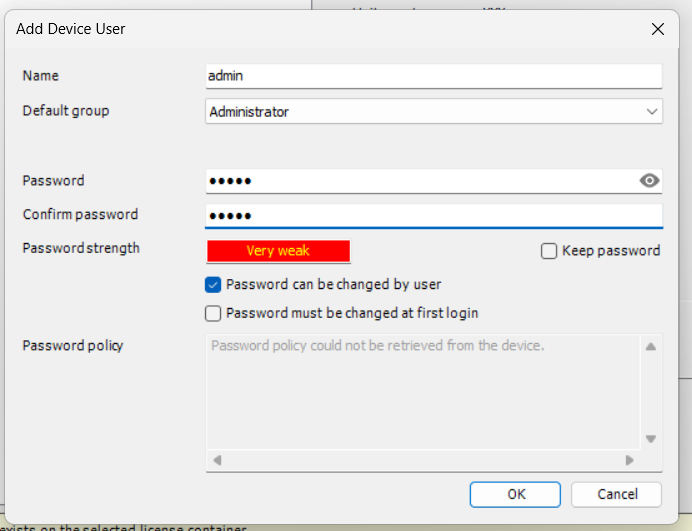
Figure 5: Add password Store the CODESYS password securely
Save this password immediately, as you might need to enter it several times. Proemion does not have access to the CODESYS application without it and cannot access or analyze the application in support cases if the password is lost.
-
You might need to log in again with the password:
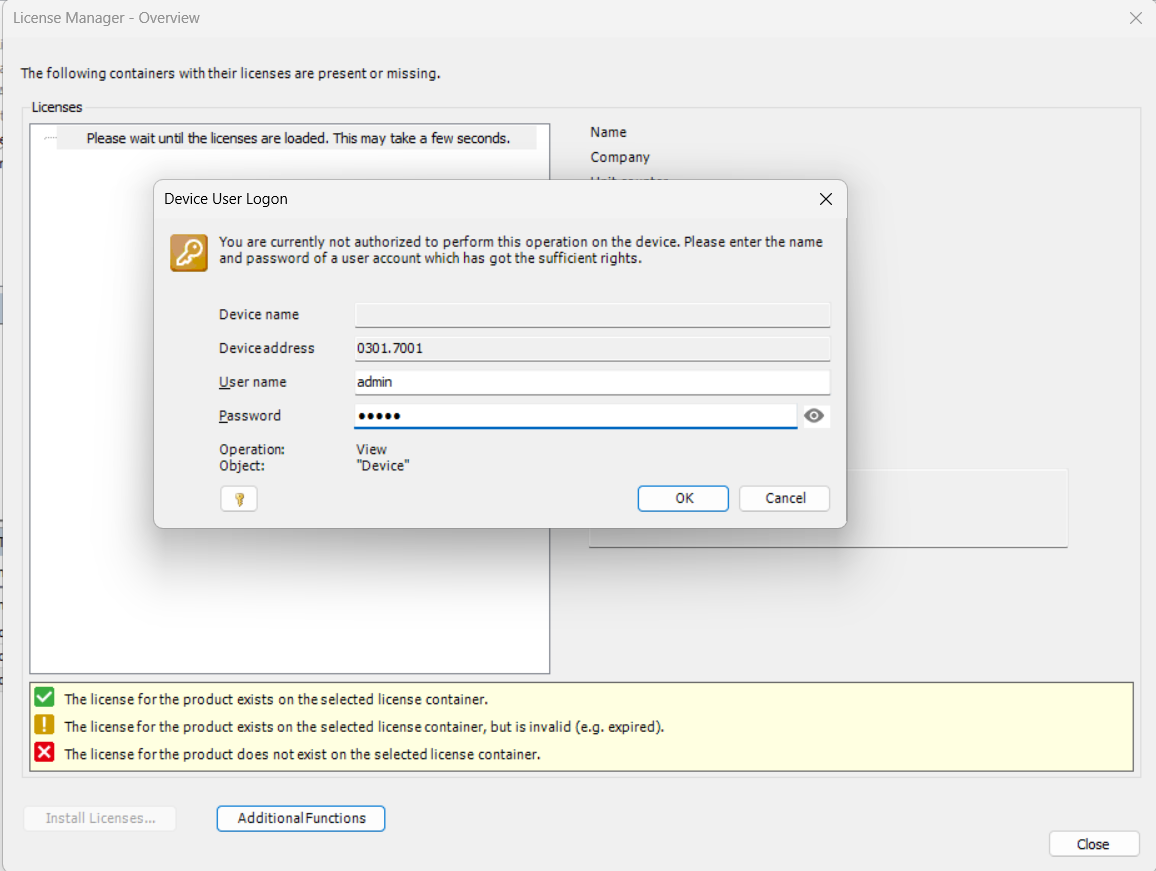
Figure 6: Device user logon -
Select Install license at the bottom of the License Manager window:
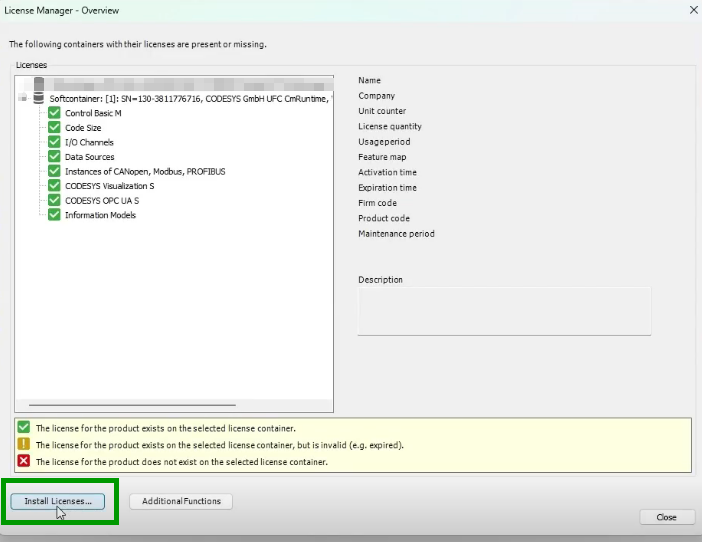
-
Select Activate license in the Install licenses window:
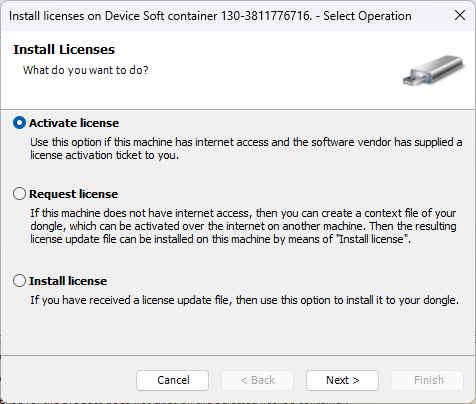
Figure 7: CODESYS Licence Manager - Activate license -
Enter the license information and click Next:
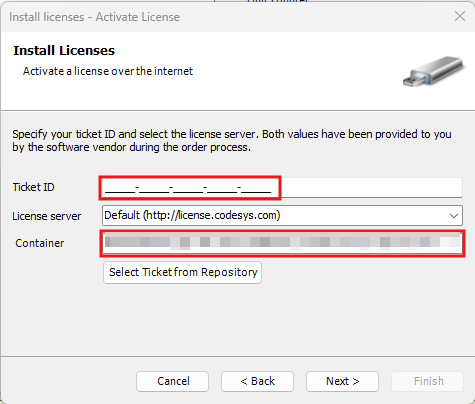
Figure 8: Enter license -
Select the licenses:
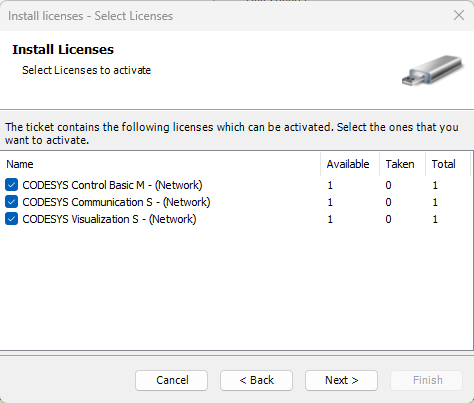
Figure 9: Select the license -
The selected licenses will be loaded in the License Manager.