Add Proemion CANlink® mobile 10000 Library
The Proemion CANlink® mobile 10000 library for the CODESYS Development System is available in the Download Center. It also includes general descriptions and specific documentation for each feature.
Download and Install Library
You must install the library on your computer.
-
The file is available in the Download Center under:
01_Proemion_Devices > 09_CANlink mobile 10000 > 10_Other Software. Save it under a common path, e.g.CODESYS > Managed Libraries. -
In CODESYS, open the Library Repository window via Tools > Library Repository.
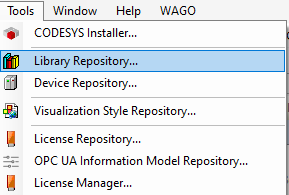
Figure 1: CODESYS - Library Manager -
Select Install. In the "Select Library" window, select the downloaded library. Older versions of the library might be installed under Miscellaneous. From version 2.1.0.0, it will be under Application.
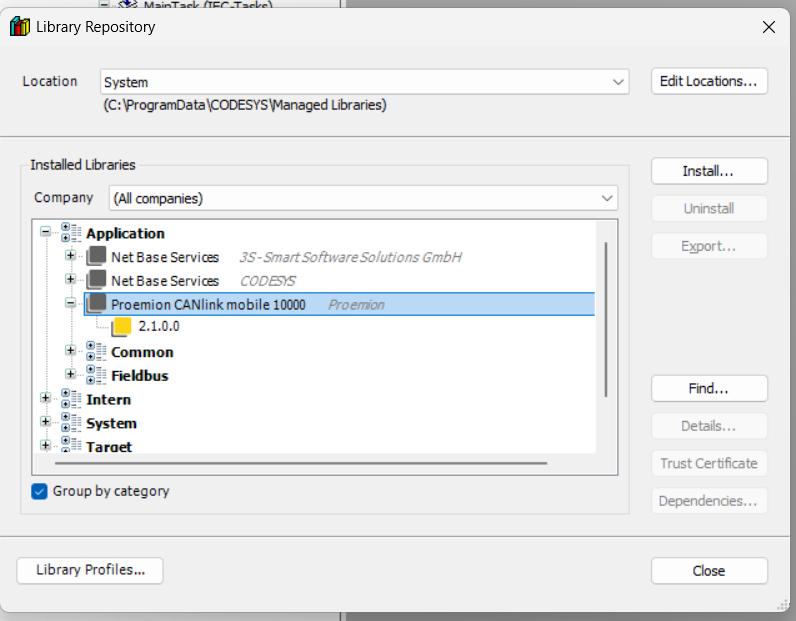
Figure 2: Library Download Path -
Close the window.
Use Library for Project
After downloading the library, you can add it to the CODESYS project.
-
In CODESYS, select the Library Manager window.
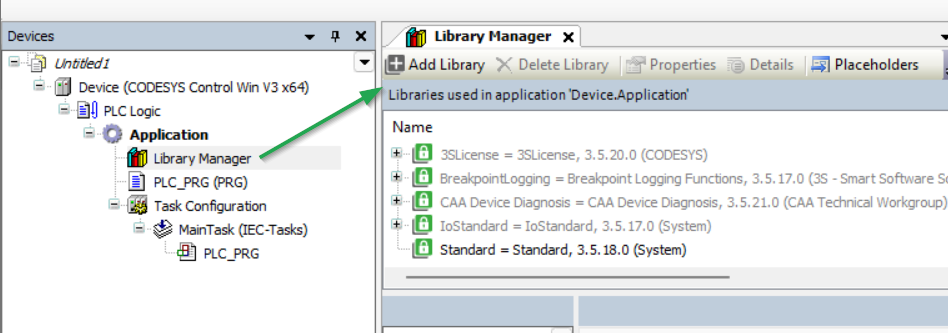
Figure 3: Open Library Manager -
Select the CLM10K library via Add Library. You have successfully added the CANlink® mobile 10000 library:
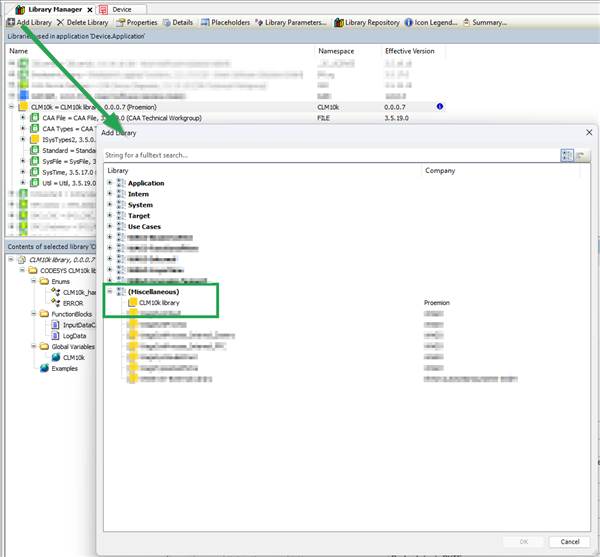
Figure 4: Library Manager
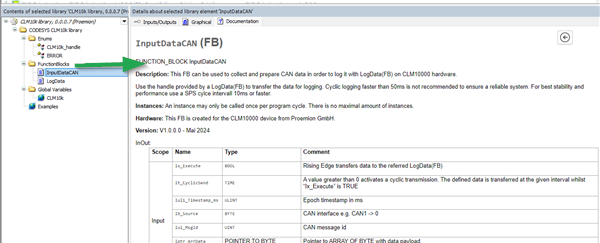
Library Documentation
Selecting the directory opens the documentation:
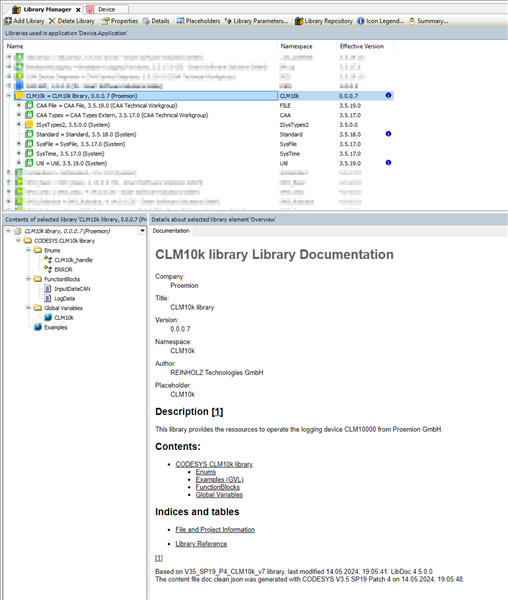
The directory CODESYS CANlink® mobile 10000 library > FunctionsBlocks includes documentation for each feature, e.g. "LogData" for CAN data logging to DataPlatform.