Diagnosis via USB Port
For diagnosis purposes, you can connect the device to a PC via the USB-C cable and record a debug log by using the DeviceAnalyzer software. The USB port is located inside the device and is accessible only with the housing open.
For cable and pinout specifications, see Diagnostics Cable.
Note
The firmware does not support this function yet. It will be added in a future firmware update.
Record the Debug Log
-
Open the housing with the CANlink mobile Opening Tool.
-
Install the following software from the Download Center:
CANlink® mobile 3000 DeviceAnalyzer Setup.exeunder:03_Proemion Tools Software > 01_Software > 08_CANlink mobile 3000 DeviceAnalyzer- and the USB driver under:
05_Utilities > 06_USB Drivers - for the software manual, navigate to:
03_Proemion Tools Software > 01_Software > 00_Documentation
-
Connect the device to a PC using the USB-C to USB-C cable.
- Connect the device to the power supply.
-
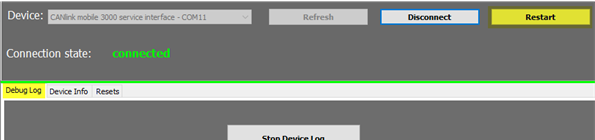
Create a device log with the DeviceAnalyzer software. While the device log is recorded, click on Restart. This will allow the support team to also evaluate the initialization phase of the device.
-
If required, send the generated
*.glogfile to the support team for further analysis. - Close the housing again.
The housing is equipped with two click fasteners, which must be closed separately and sequentially. Apply force only at the designated pressure points. These pressure points are located at the outer edge of the cover on the short sides, aligned with the click fasteners. Closing the housing requires a higher level of force at these pressure points.