The following sections contain information on operating the device and the Proemion Configurator software
Proemion Configurator
Configure the device using Proemion Configurator.
You can find additional information on individual objects (DEVICE VARIABLES) in Proemion Configurator under the Additional Information field for each object. Always use the latest version of Proemion Configurator with the updated information texts.
The Proemion Configurator software can be downloaded from the Download Center under: 03_Proemion Tools Software > 01_Software > 01_PROEMION Configurator.
Note
In case of problems, the Connectivity Check utility can be used to check the connectivity of our software tools with our services from your site's network.
Creating Object Dictionary Groups and Objects
You can use the Proemion Configurator tree structure to create, rename, or delete object dictionary groups or objects.
This chapter explains how to create object dictionary groups and objects.
The following example shows creation of the object RECEIVE MESSAGE PDO. This object is used to receive and log CAN messages.
To create the object, you need the CUSTOM CAN COMMUNICATION object dictionary group and then the RECEIVE CAN MESSAGES (PDOs) object dictionary group.
-
Start the Proemion Configurator software.
-
Choose FILE > OPEN from the menu and select the configuration file you want.
-
In the tree structure, open CUSTOM CAN COMMUNICATION > RECEIVE CAN MESSAGES (PDOs).
-
Right-click to open the context menu and select NEW OBJECT DICTIONARY GROUP > RECEIVE MESSAGE (PDOs)
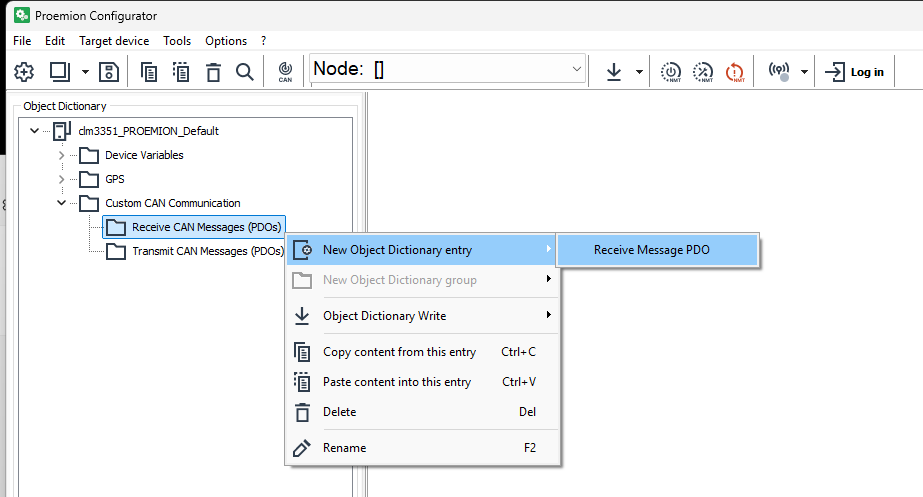
Figure 1: Object Dictionary Group - RECEIVE CAN MESSAGES (PDOS) -
In the NUMBER OF NEW OBJECTS field, enter how many objects (received messages) you want to create.
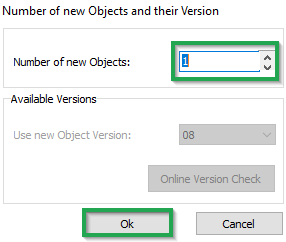
Figure 2: NUMBER OF NEW OBJECTS -
Click OK.
✓ The object RECEIVE MESSAGE PDO is created.
-
To rename an entry in the tree structure, click on the corresponding entry to select it. Click on the entry again to rename it.