Power Management
To protect the device from damage and data loss, a correct wiring and configuration of the power management settings is mandatory. The main purpose of the power management settings is that the device has a safe shutdown before the supply voltage (terminal 30/31) is disconnected.
The Power Management settings allow you to configure how the device enters sleep mode and which events can wake it up again. Proper configuration helps reduce power consumption while ensuring that the device remains responsive to required wake-up triggers, such as movement or scheduled intervals. The Power Management settings can be accessed through the device Web UI under Advanced settings > Power management settings.
Note
Wake-up of the device is possible when at least one of following condition is fulfilled:
- The IO - Clamp 15 (Ignition) State is at level
high(> 6 V) - The Enable accelerometer as a wake-up source option in the power management settings is enabled and the configured threshold is exceeded
- The Enable RTC interval as a wake-up source option in the power management settings is enabled and the configured time is elapsed
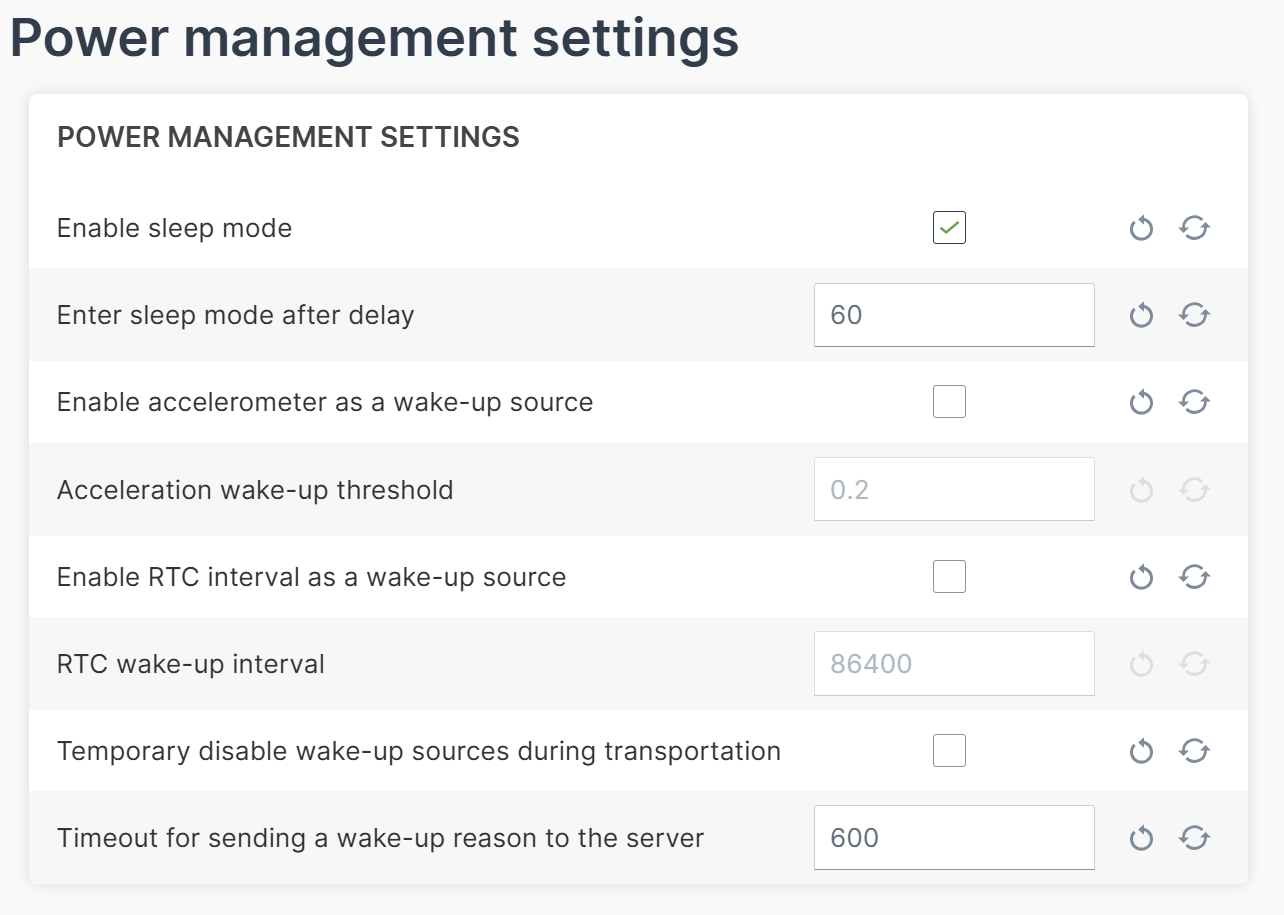
The following subsections provide an overview of the individual power management functions.
For further information see also chapter Switching the Device On/Off.
Enable Sleep Mode
Enabling Sleep mode allows the device to automatically reduce power consumption when no activity is required. When this option is activated, all configured sleep and wake-up mechanisms become active.
To enable Sleep Mode, proceed as follows:
- Enable Sleep mode.
- Configure the desired optional sleep triggers described below.
Enter Sleep Mode After Delay
The Enter sleep mode after delay parameter defines how long the device continues normal operation before entering sleep mode if sleep mode has been enabled.
You can configure this setting as follows:
- Enable Sleep mode.
- Enter the desired delay time (in seconds).
- Apply the configuration.
Note
Ensure that the delay is long enough to allow pending tasks to finish before the device goes into sleep mode.
If Timeout for sending a wake-up reason to the server is also configured, the device only enters sleep mode once the wake-up reason has been successfully transmitted or the timeout for sending a wake-up reason to the server expired. See Timeout for Sending Wake-Up Reason for further details.
Accelerometer Wake-Up Source
The internal accelerometer can be used as a wake-up trigger when the device is in sleep mode. When enabled, the device wakes up as soon as the detected acceleration exceeds the configured threshold.
To configure accelerometer wake-up, proceed as follows:
- Enable Accelerometer as a wake-up source.
- Set the Acceleration wake-up threshold (in g). The minimum delta value for the threshold is 0.2 g, resulting in an actual wake-up force of 1.2 g on the sensor. The maximum value for the acceleration wake-up threshold is 16 g.
- Apply the configuration.
Note
Choosing a threshold that is too low may cause frequent unintended wake-ups due to vibration or handling.
RTC Interval Wake-Up Source
The RTC wake-up interval function allows the device to periodically wake up at a defined interval using its internal real-time clock.
To configure RTC interval wake-up, proceed as follows:
- Enable RTC interval as a wake-up source.
- Enter the RTC wake-up interval in seconds.
- Apply the configuration.
Note
Choose the interval based on the required update or reporting frequency. Very short intervals may reduce power-saving benefits.
Temporary Disable Wake-Up Sources During Transportation
This option allows you to temporarily disable all wake-up sources during transport, storage, or shipment. When enabled, neither accelerometer wake-up nor RTC interval wake-up will cause the device to start unintentionally.
To enable transport protection, proceed as follows:
- Enable Temporary disable wake-up sources during transportation.
- Apply the configuration.
Note
Once the device is deployed and requires regular operation, ensure that this option is disabled again to restore normal wake-up behavior.
Timeout for Sending Wake-Up Reason
The Timeout for sending a wake-up reason to the server parameter defines the maximum time the device will keep trying to transmit its wake-up reason before entering sleep mode. This prevents a failed or delayed transmission from blocking the device from entering sleep mode indefinitely.
When the CANlink® mobile 10000 wakes up or boots, it automatically attempts to send its wake-up reason to the DataPlatform. In some situations, for example due to missing network coverage or temporary connectivity issues, this upload may not be possible before the delay to enter sleep mode expired again. This setting allows to postpone entering sleep mode in case sending the wake-up reason is still pending.
If the wake-up reason is sent before the sleep mode delay expires, this setting does not have an impact and the CANlink® mobile 10000 enters sleep mode as configured. But if the wake-up reason has not been transmitted by the time the sleep mode delay expires, sleep mode is postponed until the transmission succeeds. The Timeout for sending a wake-up reason to the server defines the maximum postponement - once it expires, the device enters sleep mode regardless of whether the wake-up reason was transmitted.
To configure this setting, proceed as follows:
- Set the desired Timeout for sending a wake-up reason to the server (in seconds).
- Apply the configuration.
Note
A longer timeout increases the likelihood of a successful upload but may temporarily reduce power-saving efficiency, especially in areas with poor connectivity.
Interaction with Enter Sleep Mode After Delay
When both Enter Sleep Mode after delay and Timeout for sending a wake-up reason to the server are configured, the following rules apply:
- The device enters sleep mode at the earliest after Enter Sleep Mode after delay has expired - but only if the wake-up reason has already been transmitted by then.
- The device enters sleep mode at the latest after Timeout for sending a wake-up reason to the server has expired, regardless of whether the wake-up reason was transmitted.
- If Enter Sleep Mode after delay expires while the wake-up reason is still pending, the device continues trying to transmit. It enters sleep mode immediately once the wake-up reason is successfully sent.
| Scenario | Enter Sleep Mode |
|---|---|
| Wake-up reason sent before sleep mode delay expires | After sleep mode delay expires |
| Wake-up reason sent after sleep mode delay expires | Immediately after successful transmission |
| Wake-up reason cannot be sent | After the timeout for sending a wake-up reason to the server expires |