Setup
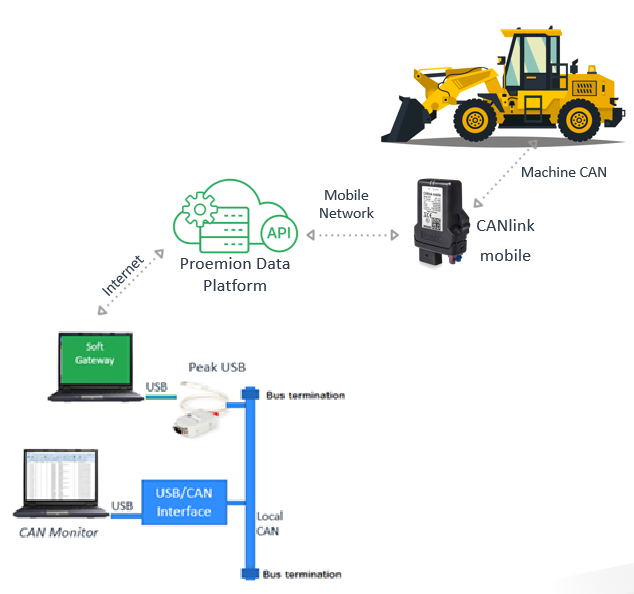
By default, Proemion SoftGateway and the client application, e.g. a "Diagnostics & Service Tool", run on the same computer.
If the cable gateways or applications used cause conflicts, run them on separate computers instead:
Note
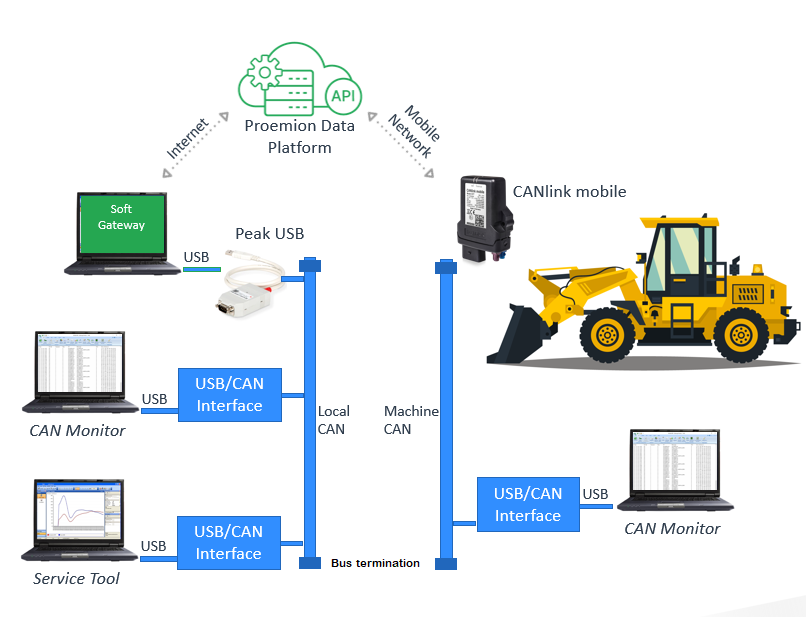
A CAN bus termination (two 120 Ω resistors) is required. See Connecting the Device to the PC in the CANlink® mobile 3600 device manual for wiring details.
Use separate CAN bus monitoring software, such as PCAN-View (version 5.3.0 or later), to compare the messages received by the service tool and the CANlink mobile:
Resources
Download Proemion SoftGateway and its release notes from the Download Center, under 03_Proemion Tools Software > 01_Software > 06_PROEMION SoftGateway.
We recommend the PCAN-USB by PEAK as the CAN-to-USB gateway device.
Prerequisites
Proemion SoftGateway has the following prerequisites:
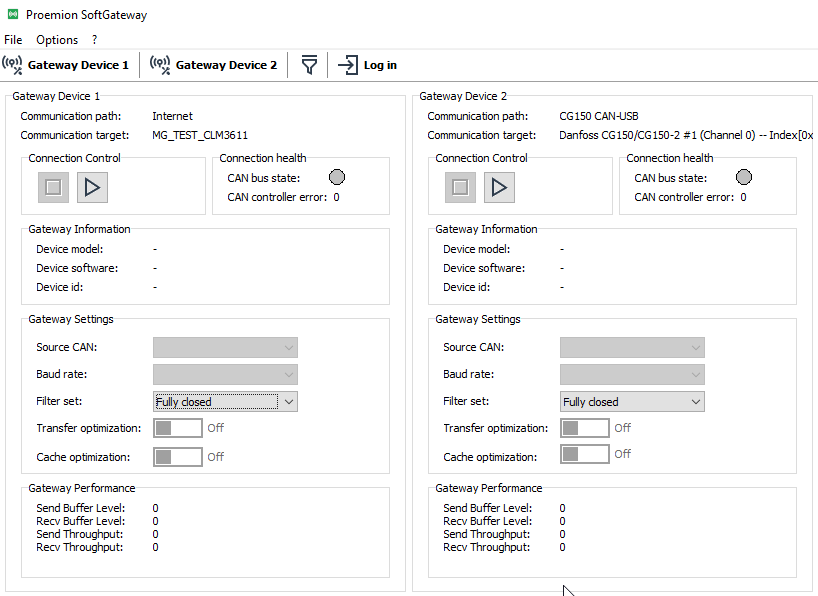
- Requires MS Windows 10 or 11.
- No special hardware is required.
- To retrieve the machine list from the Proemion server, SoftGateway uses an outgoing TCP connection on port 443 (HTTPS).
- For a RealTime connection to a CANlink mobile, SoftGateway uses WebSockets on port 443 (same as HTTPS).
- Ensure the firewall does not block these connections, otherwise the RealTime connection cannot be established.
- Ensure the CANlink mobile device is in RealTime mode, see RealTime Operation.
- Check connectivity on the computer using connectivity-check.exe (Windows, 64-bit), available via Connectivity Check.
- A Proemion DataPlatform account (preferably a REST client) with RealTime permission must be set up for the CANlink mobile device.
- SoftGateway is based on the REST API, so DataPortal users with the Realtime:Admin Permission Set are allowed to use the tool.
- Add the REST API URL via Options > Preferences to use it as the default.
-
A proxy server is not required.
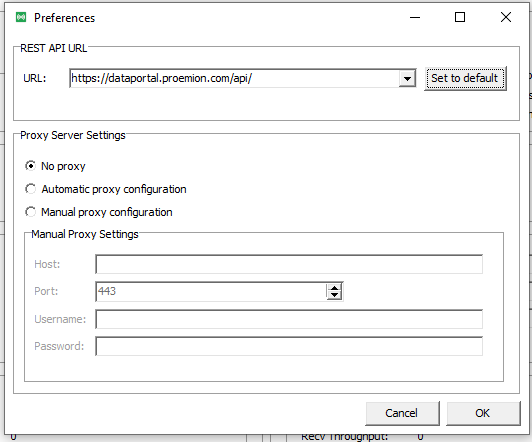
Figure 4: Preferences