How-To - File sharing via Confluence
Confluence for File sharing
Please use created Confluence pages for file hosting.
When a new file has to be added, drop the file on the correct page and add a description.
Feel free to use other Confluence items to create content on a page (type "/" to see all available options).
Example: You can directly upload Excel files in the format .xlsx or images within the Confluence page.
-
Updating of files with new version is done by clicking on 3 dots in the upper right corner … → Attachments → Files.
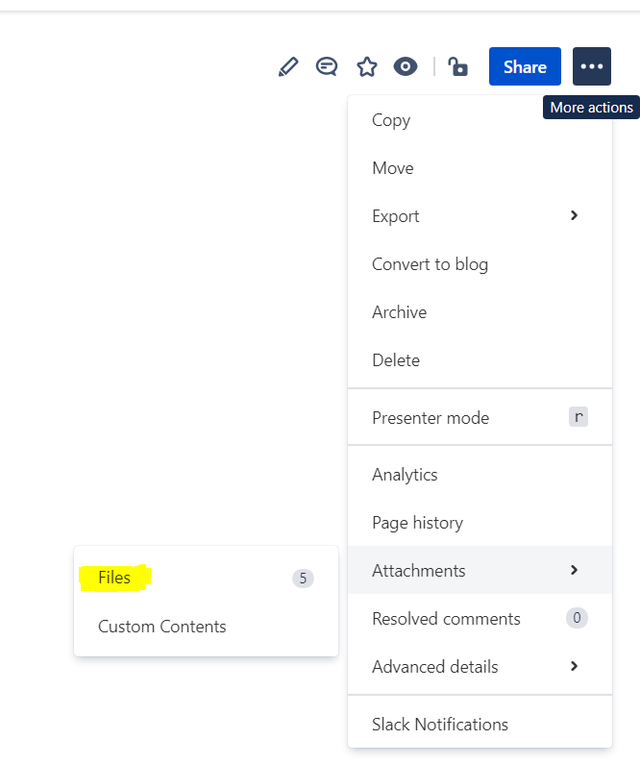
Figure 1: Attachments > Files -
After uploading a new version, the new version will be shown on a confluence page and the old version can be found in the same menu.
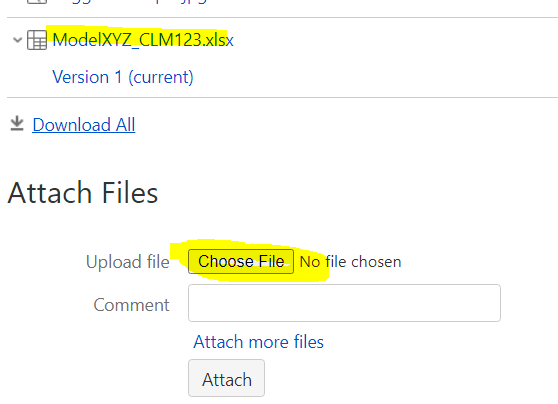
Figure 2: New version of an attachment