Collaboration Dashboards
To help you stay organized and efficiently manage your ongoing collaboration with Proemion, we provide two dashboards. Please keep them visible and use them as your central point for collaboration-related activities. For information about which space to use when raising work items, refer to the Space Types section.
Work overview customer user
The Work overview customer user gives you a clear overview of your open to-dos in collaboration with Proemion.
The dashboard is organized into sections based on the Next Call field of the underlying work items. Work items are grouped by labels such as Tech Cloud, Tech Embedded, and Business, among others, allowing you to use each section as the agenda for your respective meetings.
Each work item in the overview displays:
- Summary
- Reporter
- Assignee
- Priority
- Status
You can click a work item in the overview to navigate directly to it. Work items with the status Done are automatically excluded from the dashboard to keep the overview focused on active work.
This dashboard also provides quick links to:
- your collaboration space
- your open issues
- creating a new work item
- other relevant collaboration resources
Meeting preparation
To flag an issue for discussion in an upcoming meeting, set its Next Call field to the appropriate label. Stakeholders from each team can use this to compile the agenda for their respective calls, ensuring relevant topics are ready for discussion before the meeting starts.
Suggested day-to-day workflow
To make the most of this dashboard in your daily work, we recommend the following routine:
- Check the dashboard regularly, ideally once a day, to stay up to date on your open collaboration to-dos.
- Review the sections relevant to your team (such as Tech Cloud, Tech Embedded, or Business). Each section reflects the Next Call field of the underlying work items and helps you prepare for upcoming meetings on that topic.
- Act on issues assigned to you. The assignee is always the person who has the next step to take - if an item is assigned to you, it is waiting on your input or decision.
- Use the quick links to jump directly to your collaboration space, your open issues, or to create a new work item.
- Before a scheduled call, check the corresponding Next Call section, or use the Customer Meeting Dashboard, to confirm which topics are ready for discussion.
Customer Meeting Dashboard
While the Work overview customer user shows your individual open to-dos, the Customer Meeting Dashboard gives you a broader overview across your organization — useful when preparing for a meeting or reviewing the overall collaboration status.
After selecting your organization, the dashboard shows:
- Spaces: an overview of the collaboration and application development spaces available to your organization
- Support Requests: a list of your open support requests, including Key, Summary, Reporter, Assignee, Priority, and Status
Adding a new user to a collaboration space
To add a new user to your collaboration space, create a work item of type Task in your collaboration space, requesting the addition and providing the new user's name and email address. Assign the task to your Field Application Engineer (FAE).
Proemion will process the request. The new user will then receive an invitation from Atlassian if they don't already have an account.
Viewing your time report
If you have a Customer Collaboration Space or Customer Application Development Space, you can view a report of the time Proemion has spent on your project via the Clockwork Pro tab in your space navigation. This gives you transparency about the effort your FAEs have invested on your behalf.
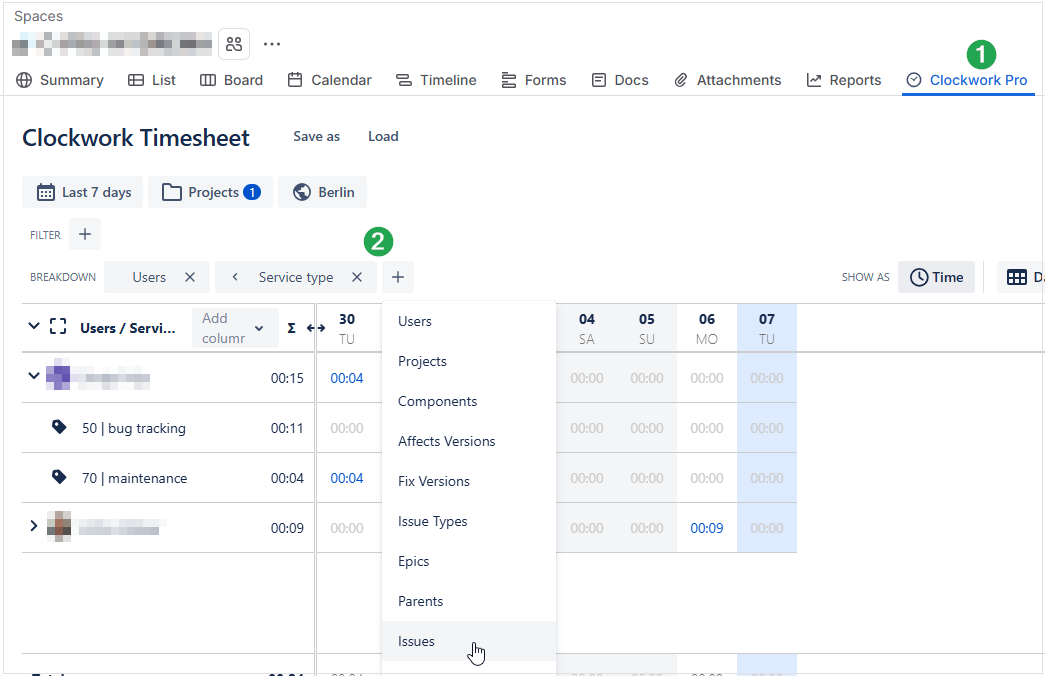
- Open your collaboration space and click the Clockwork Pro tab in the space menu bar (①).
- In the Breakdown bar, click + to add a grouping dimension (②) — for example Service type or Issues.
The timesheet then shows the logged time broken down by the selected criteria.
Services with a Service Type ID below 50 are paid services; services with an ID of 50 or above are free of charge.
For further reporting options, refer to the Clockwork Pro documentation.