How to...
Read Data from Device
To read data from the device, select Device > Read Data from the Device or click  .
✓ The configuration is then loaded in CANlink® wireless Configurator, filling out the tabs accordingly.
Note
Reading the data may overwrite the currently loaded configuration. A warning is displayed.
Write Configuration to Device
To apply the changes in the configuration to the device, in the menu bar, select Device > Write Data to the Device or click  .
When the write operation succeeds, the message "Wrote data to device" is displayed briefly.
Create a New Configuration
The CANlink wireless configuration file format is .clk.
To start with a blank configuration file, in the menu bar, select File > New Configuration or click  .
To use an existing configuration file instead, load a configuration.
Reset Device
In the menu bar, go to Device > Reset Device to Factory Settings.
The existing configuration is then overridden with the factory settings of CANlink® wireless Configurator.
Get Device Information
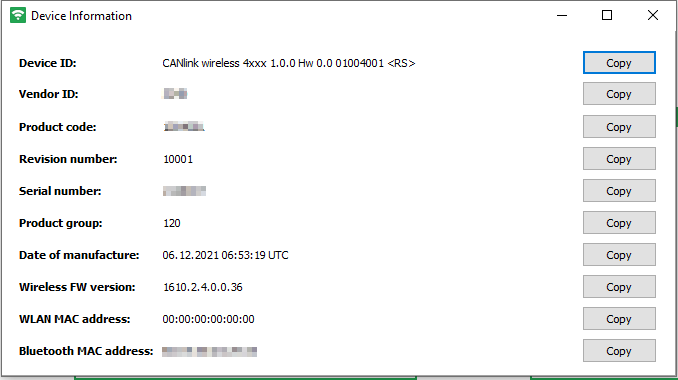
To view more information, select Device > Device Information. A dialog with information about Device ID, Serial number, and Bluetooth MAC address is displayed.
This device information is also useful for the support archive.
Support Archive
CANlink® wireless Configurator can create a backup of the installed device configuration and static device parameters.
Use this function to save the original configuration and device information, such as the software version and the WiFi and Bluetooth MAC addresses.
If a malfunction occurs, attach the support archive to the support request.
Tip
To keep a backup of the latest configuration status, create a support archive before installing a customized configuration.
- Connect the device to the PC. For instructions, see Connection with a PC via RS232.
- Select Device > Read Data from the Device from the menu.
✓ The configuration from the device is loaded.
- Select Help > Create Support Archive from the menu.
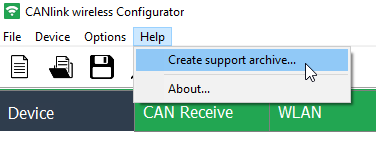
✓ This opens Windows File Explorer.
- Enter a descriptive file name for the backup file of the original device configuration.
- Click Save.
✓ This saves a backup of the original device configuration (config.clk) and a text file with the most important device information (details.txt) into a .zip archive.
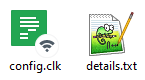
Example of a device information file (details.txt) (click to view)
Date and time: 16.03.2022 07:41:50

APPLICATION
-----------
Name: CANlink wireless Configurator
Version: 4.1.0.1

DEVICE
------
ID string: CANlink wireless 3xxx 1.x.x 2.0 01003001 <RS>
Serial number: 2148007
Product code: 1003001
Vendor ID: 524D
Product group: 120
UNIX time of manufacture: 06.12.2021 06:53:19 UTC
WLAN FW version: 1610.2.4.0.0.36
WLAN MAC address: 80:C9:55:A1:FA:2C
Bluetooth MAC address: 80:C9:55:D3:29:35