Getting Started
This chapter describes the first steps to install CANlink® wireless Configurator, connect the device to the PC, and read, write, or adapt the configuration.
Install the Software
Download CANlink® wireless Configurator from the Download Center, under 03_Proemion Tools Software > 01_Software > 09_PROEMION CANlink wireless Configurator.
After installing CANlink® wireless Configurator, connect your device to the software as described in the next section.
Connect the Device to CANlink® wireless Configurator
Prerequisites
Before connecting the device to CANlink® wireless Configurator, connect it to the PC. For instructions, see Connection with a PC via RS232.
After connecting the device to the PC, connect it to CANlink® wireless Configurator:
- In the menu, select Options > Communication Settings to select the serial port for the Bluetooth connection.
- Select Device > Connect or click
 .
✓ The device is now connected to CANlink® wireless Configurator. You can now read data from the device or create a new configuration.
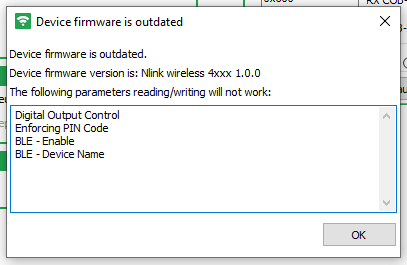
If the device firmware is outdated, a dialog may be displayed when connecting the device, as shown below. To update the device firmware, see Firmware Update.
To disconnect the device, select Device > Disconnect or click  .
Load a Configuration
To use a local configuration file from your computer in CANlink® wireless Configurator, in the menu bar, select File > Load Configuration or click  .
Note
Reading data from the device afterwards overwrites this loaded configuration.