Perform a functional test
After uploading the configuration to the CANlink® mobile 3600, perform a functional test to verify that the device receives CAN messages and processes the configured signals.
Use a CAN monitoring tool (for example PCAN View) together with the PCAN-USB interface from the Launch Kit.
For a general overview of potential issues, see troubleshooting. For detailed information, see CANlink® mobile indicator elements.
Send CAN messages
- Start the CAN monitoring software on your PC.
- Connect to the CAN interface.
- Send a few sample CAN messages cyclically that correspond to the signals configured in the Receive CAN Messages section of the installed configuration on the CANlink® mobile 3600.
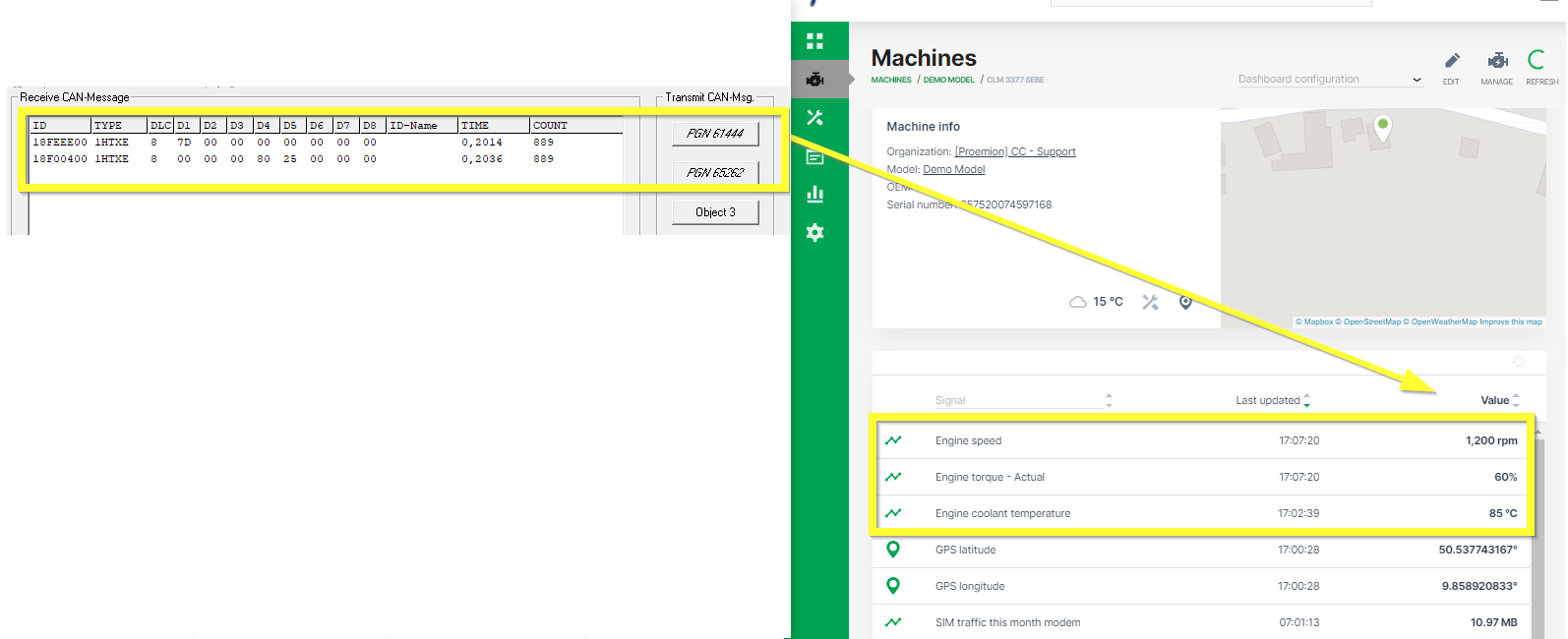
The following CAN messages can be used for test:
| J1939-PGN | SPN | CAN ID | Type | DLC | Data Bytes | Signal |
|---|---|---|---|---|---|---|
| 61444 | 190 | 0x18F00400 | Ext | 8 | 00 00 00 80 25 00 00 00 | 1200 rpm |
| 65262 | 110 | 0x18FEEE00 | Ext | 8 | 7D 00 00 00 00 00 00 00 | 85°C |
If a real machine is available that transmits the configured CAN messages, the CANlink® mobile 3600 can be connected directly to the corresponding CAN bus.