Overview
The CANlink® mobile 3600 quick start guide explains how to set up the CANlink® mobile 3600 and connect it to the DataPortal using the Launch Kit.
It outlines the typical initial setup process and the main steps required to get started with a "Hello World" type application. Detailed step-by-step instructions are provided in the following manuals, which are referenced throughout this guide:
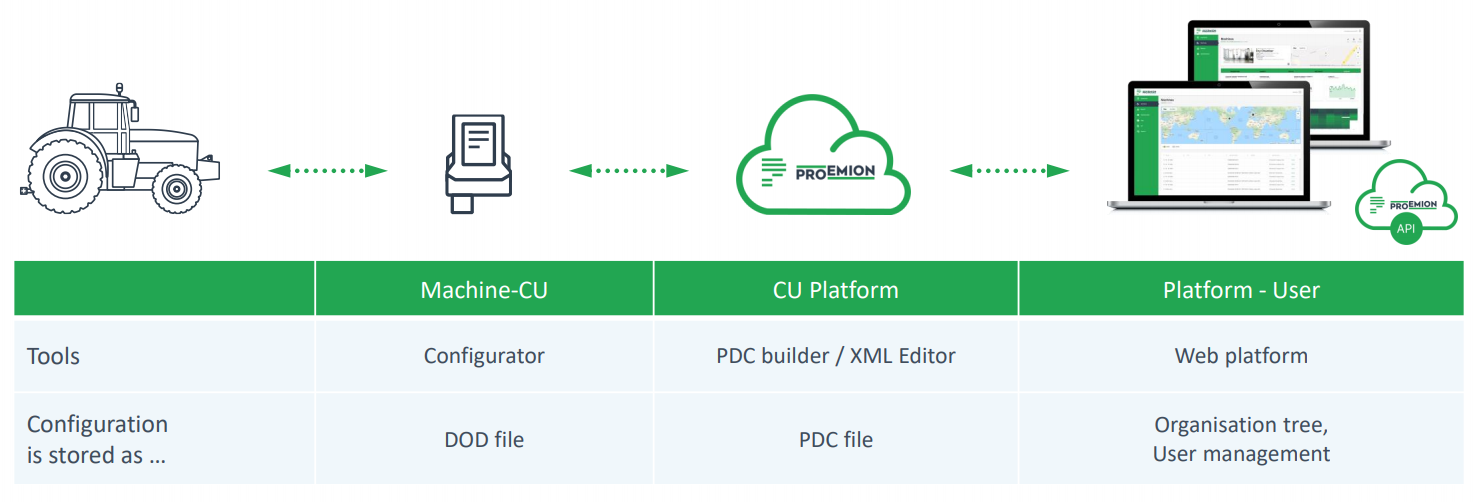
The following figure illustrates the interaction between the machine with its Communication Unit (CU), the CU Cloud (DataPlatform), and the Web interface (DataPortal).
Intended audience
This guide is intended for technicians who are familiar with CAN bus systems, telematics devices, and basic device configuration workflows.
Onboarding best practice
Based on our experience in integrating telematics solutions into machine fleets, we recommend the following approach for the initial start-up:
- Create a laboratory setup using the device and the Launch Kit before installing the device in a machine.
- Perform the initial configuration and testing in this controlled environment.
- For live machine testing, install the device on a machine to which you have access without limitations.
- Before rolling out the solution to the entire fleet, first deploy the setup on a small set of pilot machines to validate the solution.
Prerequisites
- A valid DataPortal account
- A CANlink® mobile 3600 device
- The CANlink® mobile 3600 Launch Kit
- The latest Proemion Configurator software.
- A PC running Windows or Linux
- An active internet connection
Setup overview
- Perform Provisioning and GoLive in the DataPortal.
- Install the Proemion Configurator .
It can be downloaded from the Download Center under:03_Proemion Tools Software > 01_Software > 01_PROEMION Configurator -
Connect the CANlink® mobile 3600 to a PC.
-
Upload the device configuration.
- Perform a functional test.
- Verify the data in the DataPortal.