Maintenance
The Proemion Maintenance feature lets you monitor machine-specific maintenance tasks for each of your machines, along with details of additional maintenance services performed.
Note
If the OEM relies on "Hours to next service" for maintenance, Machine Companion App displays only the maintenance status indicators on the machine details page.
Overview
The Maintenance screen lists all maintenance tasks across machines, with their different statuses:
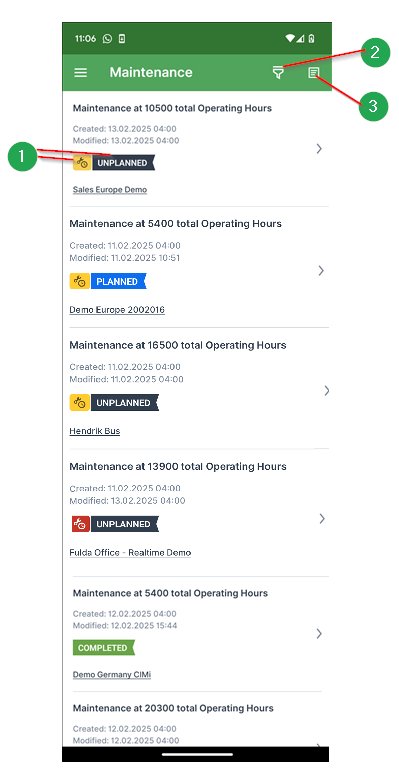
- (1) Indicators: show both the progress status (planned, unplanned, completed, skipped) and the deadline status (yellow icon for upcoming, red icon for overdue) of a maintenance task. Skipped and completed tasks have no deadline.
- (2) Filters: select the filter icon in the top-right corner to open the Filters and narrow down the list of maintenance tasks.
- (3) Sort: sort tasks by Newest, Oldest, or Last Modified.
Filters
Select the desired filter checkboxes and select Apply:
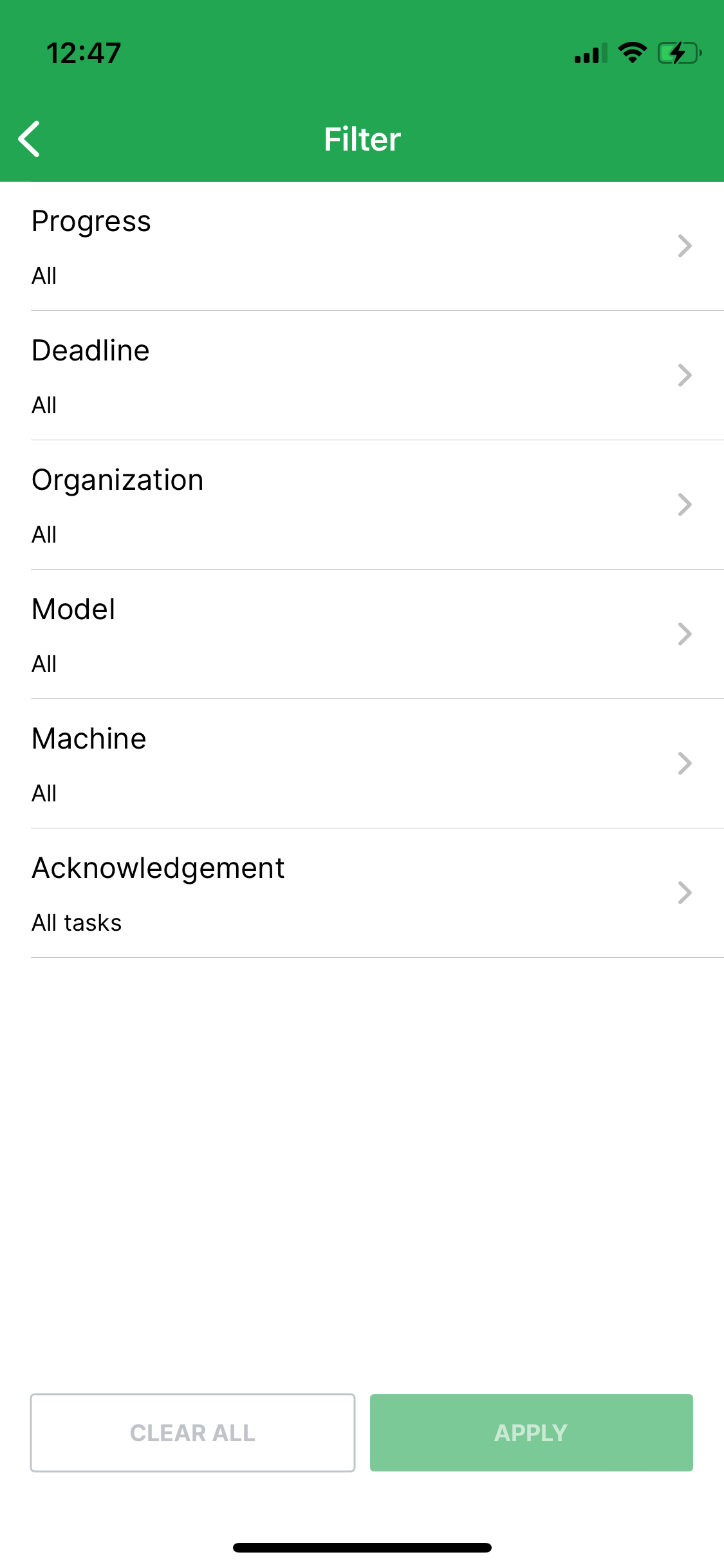
Maintenance tasks can be filtered by status:
- Progress
- Unplanned
- Planned
- Skipped
- Completed
- Deadline
- Upcoming
- Overdue
Other filters:
- Organization
- Model
- Machine
- Acknowledgement
Maintenance Task Details
Select a maintenance task to use the following features:
- View checklists for the maintenance services performed on a machine. Checklists let service technicians document actions such as exchanging fuel filters or replenishing engine oil.
- Add an optional completion note to share additional information about the maintenance task, during or after the service appointment.
- Request a signature during or after the service appointment, see Acknowledge Maintenance Tasks.
Update a Maintenance Task
The Update task button at the bottom of the maintenance task details moves the task to Planned status, resets it to Unplanned, or completes it. You cannot update skipped maintenance tasks.
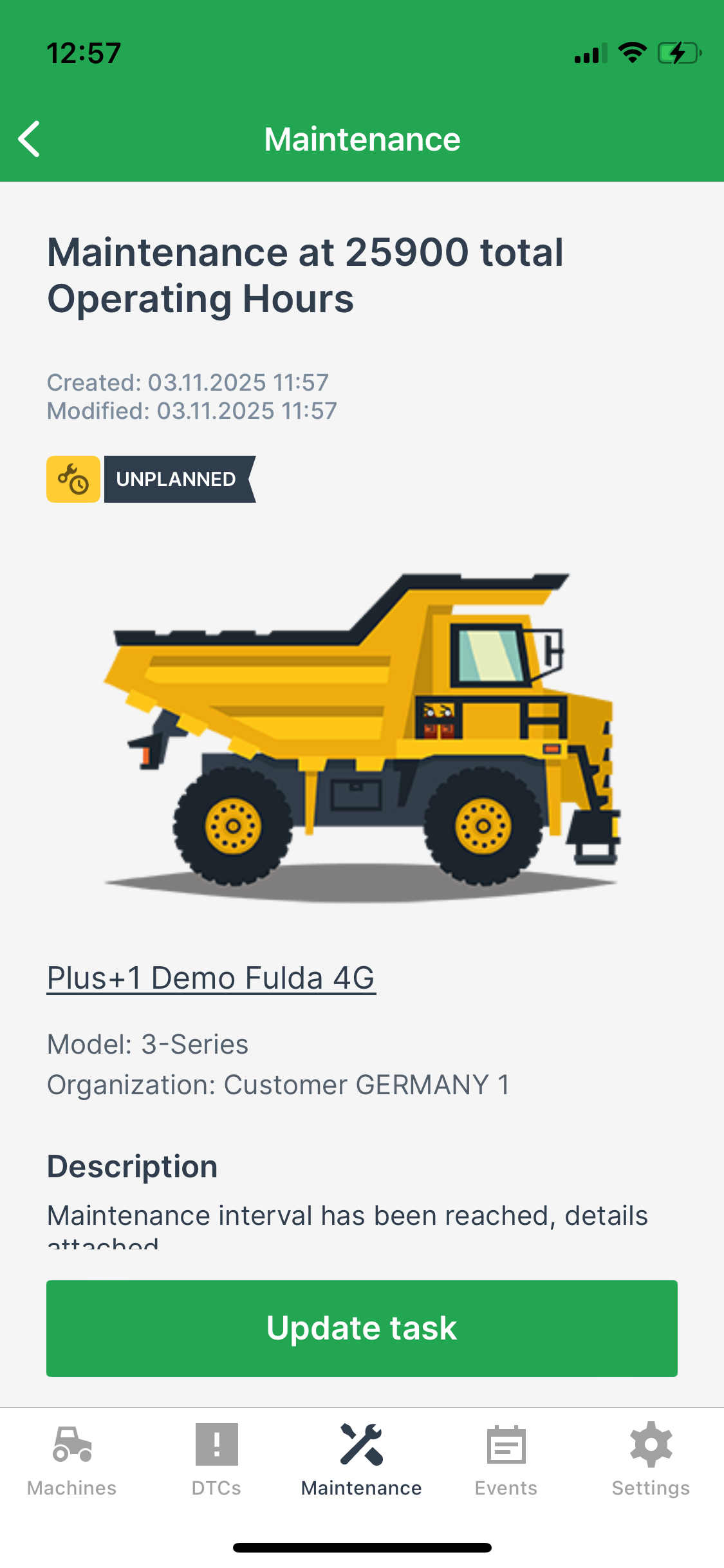
To update a maintenance task, proceed as follows:
- At the bottom of the maintenance task details, click Update task.
-
In the dialog that opens, update the task:
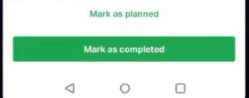
Figure 4: Update task dialog -
Select Mark as planned to move the task back to planned status.
-
Or select Mark all as completed to complete the task and its open activities, or Continue anyway to close the task without marking the pending activities as completed:
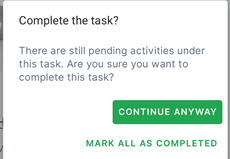
Figure 5: Complete task Completing the task changes its state indicator to Completed and iterates or resets the service cycle:
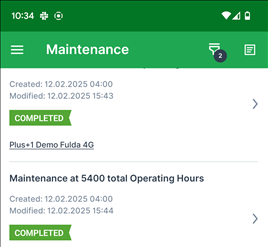
Figure 6: Completed task in overview
The Overview list reflects the updated labels as well.
Acknowledge Maintenance Tasks
The acknowledgment process lets a dealer organization's service technician request acknowledgment from the machine owner once the service is complete, by validating the owner's identity and collecting a signature.
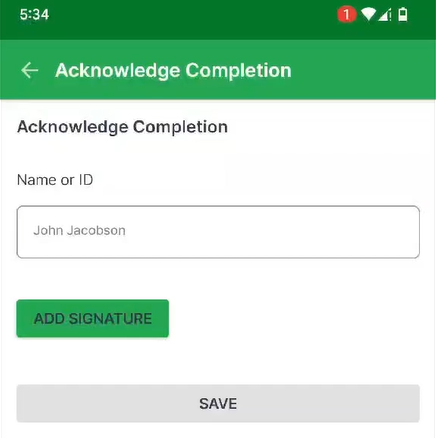
The acknowledged task syncs to the DataPortal, where you can also view the acknowledgment details, see Acknowledge Maintenance Tasks in the DataPortal manual.
To add a signature after completing a task, open the Maintenance screen, select Acknowledge Completion, and provide the signature in the field: