Events
The Events tab provides visibility into geofence events, letting users track when machines enter or exit predefined geographic areas. This gives insight into location-based activity and supports decision-making based on machine movements.
Events Listing
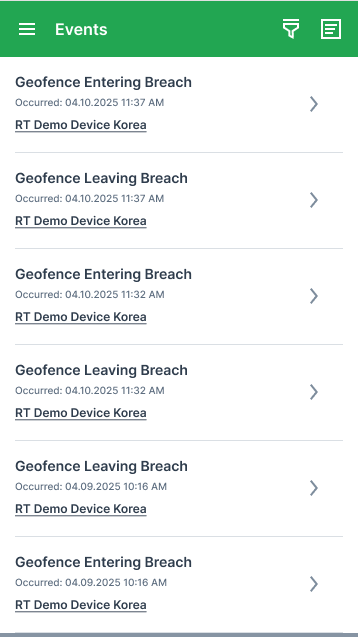
The Events screen shows a list of all geofence events, including both entry and exit breaches. Each event entry shows:
- Event title (e.g. "Geofence Entering Breach" / "Geofence Leaving Breach").
- Timestamp of the breach.
- Machine name (selecting the machine name opens its Machine Details).
Filter the list by:
- Machine
- Organization
- Time
Sort events by:
- Newest
- Oldest
Time-based Filtering
The Events tab supports time-based filtering, letting users filter events by predefined or custom time periods.
Default Behavior
- The default time filter is Current Year (year-to-date).
- When opening the Events tab, the Time filter is preselected and visible in the filter screen.
- Edge case: on January 1, the filter remains set to Current Year, even if few or no events are available.
Accessing the Time Filter
The Time filter is available under Events.
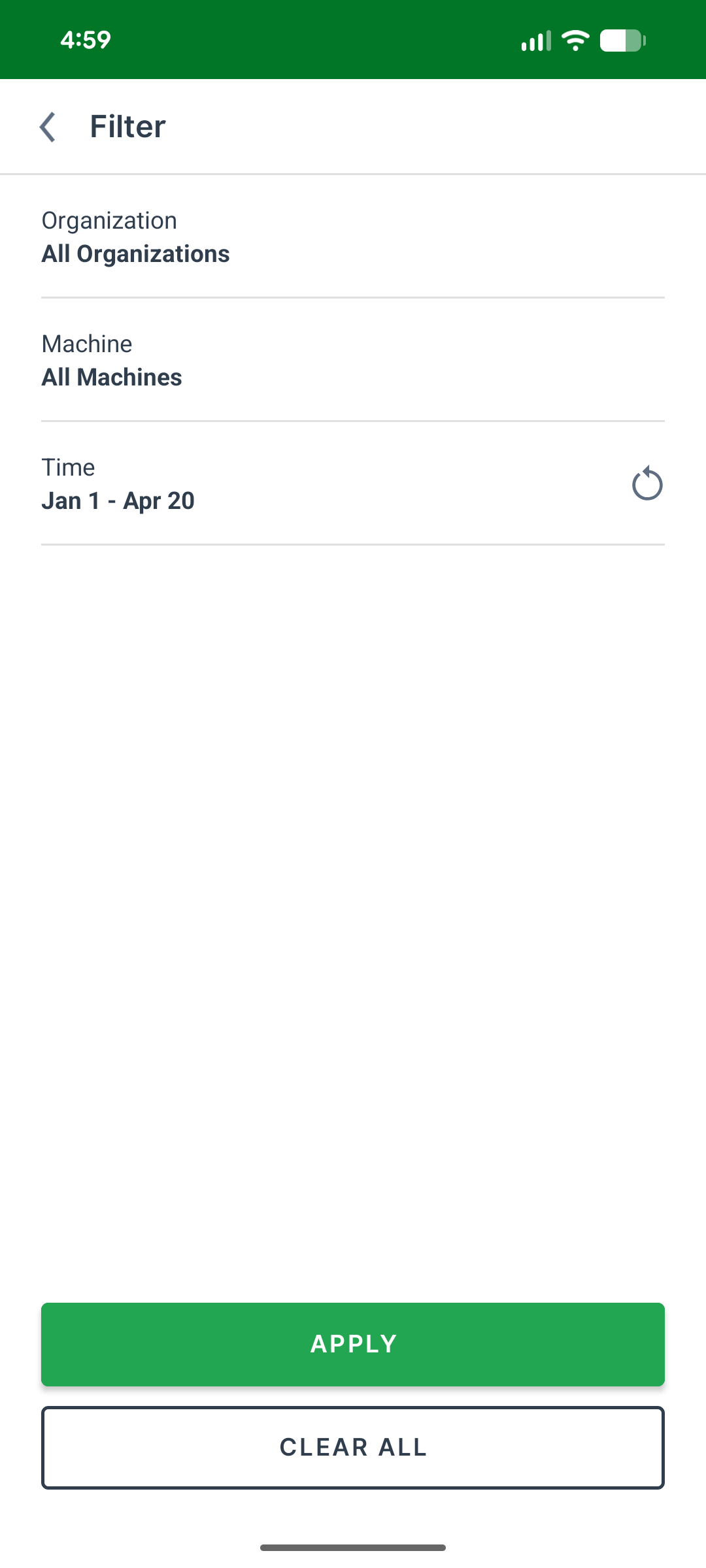
Select Time to open the dedicated Time Filter screen:
Available Options
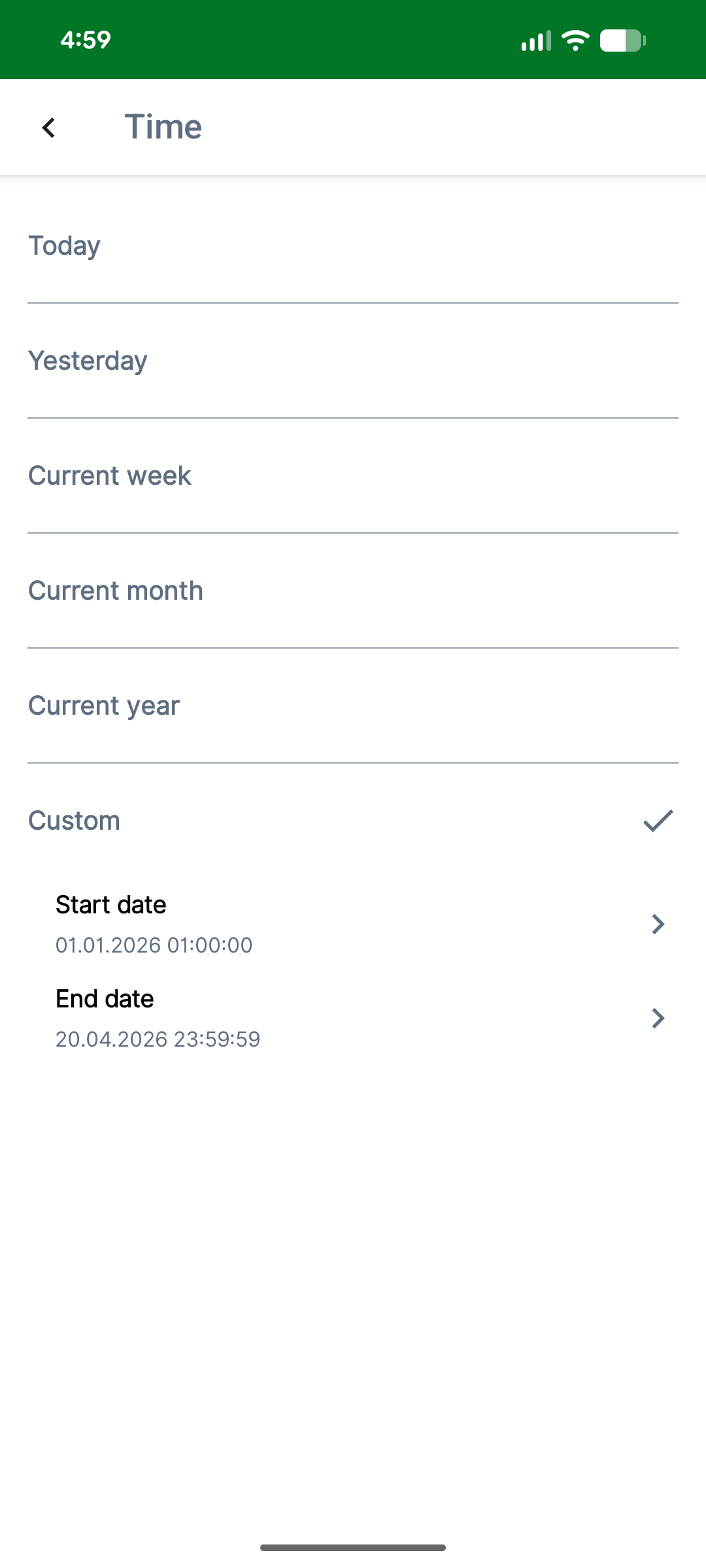
The following predefined time ranges are available:
- Today
- Yesterday
- Current Week
- Current Month
- Current Year (default)
- Custom
The selected option is highlighted, and the selection persists when navigating back to the screen.
Custom Time Range
Selecting Custom enables a date range selection on the same screen:
- Users can select a start date and an end date.
- Select Done to confirm the selection and return to the main filter screen.
- Previously selected dates remain visible when reopening the filter.
Returning to Filter Screen
After confirming the selection, the selected time filter appears in the Time field:
- Predefined values are shown as labels (e.g. Current Week).
- Custom ranges are shown as formatted dates (e.g. Nov 1 - Nov 10).
Clear All
Selecting Clear All resets the Time filter to Current Year, and the Time field reflects the default value again.
Apply Filter
Selecting Apply filters the Events list based on the selected time range and other active filters (e.g. Machine, Organization).
Events Details
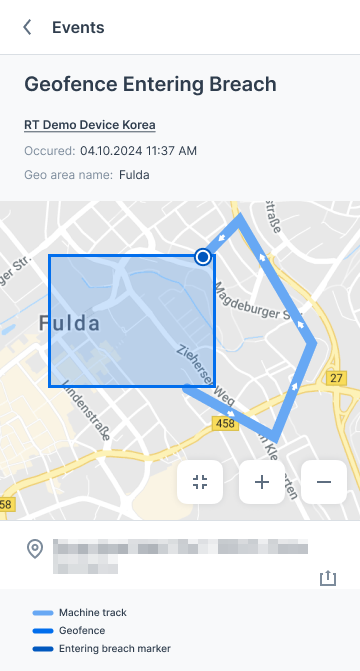
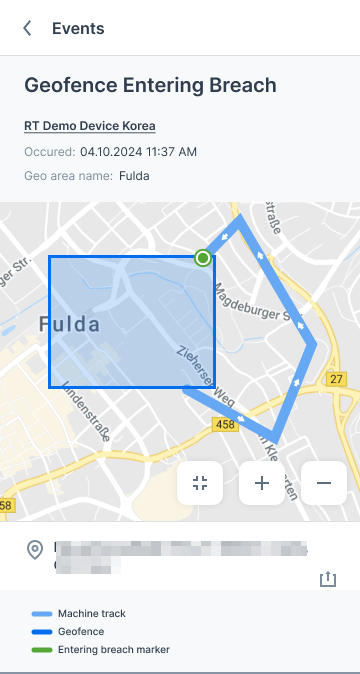
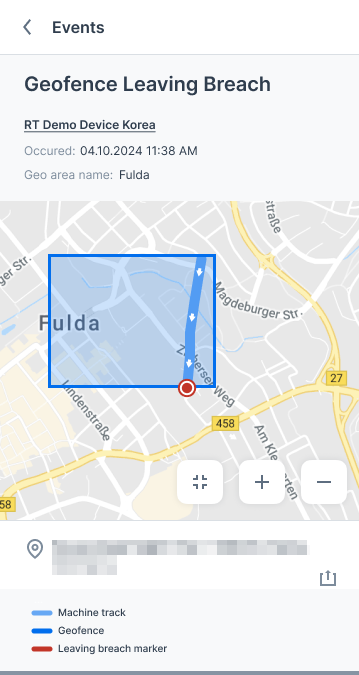
Selecting an event opens a detailed view with the following information:
- Event title (e.g. "Geofence Entering Breach" / "Geofence Leaving Breach").
- Timestamp of the breach.
- Machine name.
- Geofence area name.
- Location and address.
- A map showing the geofence area, the machine's track for ±15 minutes around the event time and its direction, a breach marker (red for a leaving breach, green for an entering breach), zoom and reset controls, and a legend.
Location Sharing
Users can also share the location of a geofence event, either as an address or as coordinates, enabling easy communication of location information with relevant stakeholders. See also Share Live and Static Location to share a machine's current location the same way.