Preparation
This guide assumes you have purchased a CANlink® mobile along with a Launch Kit, and you have received an email with instructions on how to access the Proemion DataPortal.
Info
If any of the above are not in place, please contact your Proemion account manager.
Prerequisites
Hardware
You will need to prepare the following equipment.
- Any model and type of CANlink® mobile 3600
- CLM 3600 Starter Cable (136000202)
- Antenna LTE GNSS DA 3M0 FAKRA-D FAKRA-C FAR (157000109) only needed for CANlink® mobile 3600 types with external antenna connectors
- PCAN-USB - CAN/USB Interface (257001041)
- CAN bus terminator D-Sub/D-Sub, 120Ω (157000033)
- Power Supply Unit With Set Of Connectors (US, EU, UK, AU) and adapter (257004007)
- A computer running Microsoft Windows 10 or 11
See Launch Kit items and how to connect it all up.
Note
Typically, one of the CANlink® mobile devices of the inaugural Proemion kit purchase is designated as a bench test TCU, and it remains so for the complete lifetime of the telematics project.
Software
The following software applications need to be downloaded and installed.
- Proemion Configurator: Download Center > 03_Proemion Tools Software > 01_Software > 01_PROEMION Configurator
- PCAN-USB device driver and PCAN-View: PCAN-USB > Downloads > Device driver setup for Windows
Info
A password is required to access the Proemion Download Center, which can be found inside the package of any Proemion device.
Activation
After purchasing a new CANlink® mobile 3600 TCU, the device is not immediately able to transmit any machine data to the Proemion DataPlatform. To make this possible, the TCU must be activated.
This is a two-step process:
Provisioning
The TCU is assigned to the machine on which it will be physically installed (although we are not installing the TCU to an actual machine in this guide, we do have to adhere to the same process).
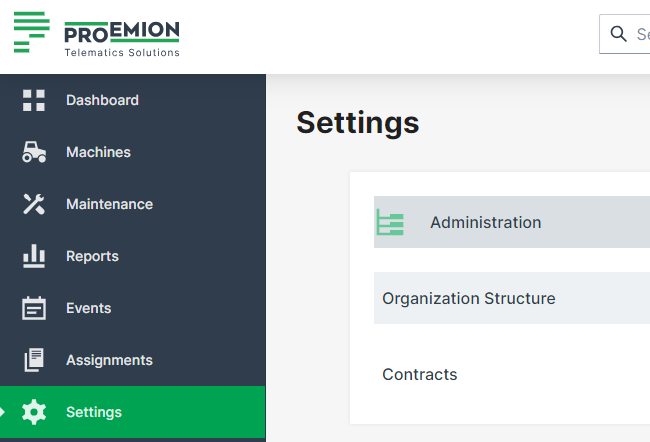
https://dataportal.proemion.com > Settings > Administration > Organization Structure
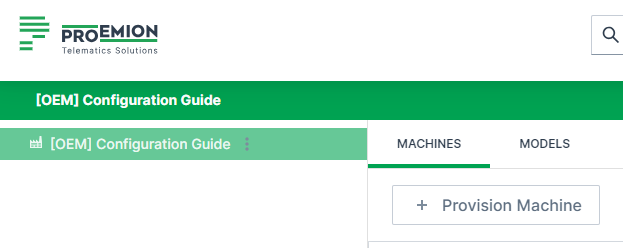
"your organization name" > MACHINES > Provision Machine
| element | description |
|---|---|
| OEM NAME | the "brand" name of the machine, without the model name component (there is no need to write anything for the bench test TCU) |
| IMEI | see TCU front label |
| SERIAL NUMBER (CU) | see TCU front label |
| ORGANIZATION UNIT | the organization responsible for paying for this TCU |
| MODEL | the machine's model name (we'll discuss this later) |
| SERIAL NUMBER (MACHINE) | (0 will do for the bench test TCU) |
| MACHINE NAME | (PCAN-USB will do for the bench test TCU) |
| PIN | AEMP related (skip for now) |
| VIN | AEMP related (skip for now) |
| YOUR INTERNAL REFERENCE NUMBER | this will show up in the invoice received upon activation (bench test will do for now) |
CREATE the binding between the machine (the bench test in this case) and the TCU, and you are ready to get the TCU to go live.
Go Live
A hosting service contract is enacted and TCU starts communicating with the Proemion DataPlatform.
Select the STARTER_KIT Hosting Plan and GO LIVE.