Basic Configuration - DataPlatform
Introduction
This chapter explains how the Proemion DataPlatform must be configured to correctly interpret, decode, and display the logged CAN data received from the TCU.
It applies to both CANlink® mobile 3600 and CANlink® mobile 10000, regardless of whether the TCU is configured via the Configurator or CODESYS.
You will learn how to define signals in the Signal Catalog, configure binary data parsing using a PDC, and assign the configuration to a machine so that logged CAN data becomes visible in the DataPortal.
DataPlatform Configuration
Before sending messages to the CAN bus, the DataPlatform needs to know what to do when it receives binary data from the TCU.
To set this up, first a signal needs to be added to the Signal Catalog and a parsing definition needs to be set in the PDC.
Signal properties, such as label, unit, min/max values, and decimal places, are managed in the Signal Catalog, while the PDC's parsing definition defines how binary CAN data is parsed and mapped to those signals.
Signal Catalog
Create a signal, see Create Signal, using the following values for this example:
Metric Type=StandardSignal Key=value.common.engine.fuel.levelDecimal Places=0Min Value=0Max Value=100Logical Type=Measurement(unchanged default)- English
Signal Label=Fuel Level
PDC
For this example, the required PDC is provided below. Download it and upload it to the DataPlatform; for details on uploading, see PDC Upload.
Before uploading it, take a look at some elements that are important to understand.
PDC Identifiers
Each PDC is uniquely identified in the DataPlatform by its uuid and customerVersion attributes. The PDC Name and Description only make the PDC easier to identify.
The uuid must remain the same, while the customerVersion must be incremented with every new PDC revision.
Note
The Name and Description attributes can be changed between versions as long as the uuid remains unaltered.
<!-- uuid4 and semver versioning -->
<DataConfig uuid="2a4002bf-11c0-4848-96ae-e15f99c049b0" customerVersion="0.1.0" ... >

  <!-- PDC Name -->
  <Name xsi:type="MessageDefinition">
    <Label lang="en" value="Configuration Guide"/>
  </Name>

  <!-- PDC Description -->
  <Description xsi:type="MessageDefinition">
    <Label lang="en" value="Input Signal Logging"/>
  </Description>

  ...
Parsing Definition
Go back to the Signal Catalog and take note of the Signal Key. This is the link between signals and the PDC.
The value definition has been migrated to the Signal Catalog, so the PDC below only references it by key.
The parsing definition tells the DataPlatform how to read the binary data and assign it to signals.
For convenience, here are the relevant signal elements configured in the PDC.
| ELEMENT | VALUE |
|---|---|
| ACRONYM | fuel_level |
| INTERFACE | CAN1 |
| FORMAT | STANDARD_11_BIT |
| CAN ID | 0x200 |
| START BIT | 0 |
| BIT-LENGTH | 8 |
| DATA TYPE | UNSIGNED_INT |
| SCALING | None |
| OFFSET | None |
  ...

  <ValueDefinitions>
    <ValueDefinition key="value.common.engine.fuel.level" managedByDataPlatform="true"/>
  </ValueDefinitions>

  <ParsingDefinition>

    <!-- INTERFACE: src="CAN" channel="1" -->
    <BinaryStreamDefinition src="CAN" channel="1">

      <!-- CAN ID: canId="0x200" -->
      <!-- FORMAT: canIdLength="11" -->
      <CanMessage canId="0x200" canIdLength="11" mask="0x7FF" protocolStyle="GENERIC">
        <Values>

          <!-- START BIT: startPos="0" -->
          <!-- BIT-LENGTH: length="8" -->
          <!-- BYTE ORDER: endianness="LITTLE" -->
          <!-- DATA TYPE: signed="false" -->
          <IntValue startPos="0" length="8" endianness="LITTLE" signed="false" continueOnLastPostion="false">

            <!-- signal catalog reference -->
            <valueDefinition ref="value.common.engine.fuel.level"/>

          </IntValue>
        </Values>
      </CanMessage>
    </BinaryStreamDefinition>
  </ParsingDefinition>

  ...
Assign PDC to Machine
The PDC is now available on the DataPlatform, but there is no binding between the machine and the PDC.
This example follows the bench test workflow, assigning the PDC directly to the machine (PCAN-USB in this case).
Machines > click on the machine to view its page > MANAGE MACHINE > Properties > PDC > Name > Version > UPDATE
Info
In a production project, the PDC would typically be assigned to multiple machines with a single operation, normally by assigning it to all machines of a particular model.
The next step is to send the first test data.
Send CAN Data
Use PCAN-View to send test data, initially by setting fuel_level to 100%.
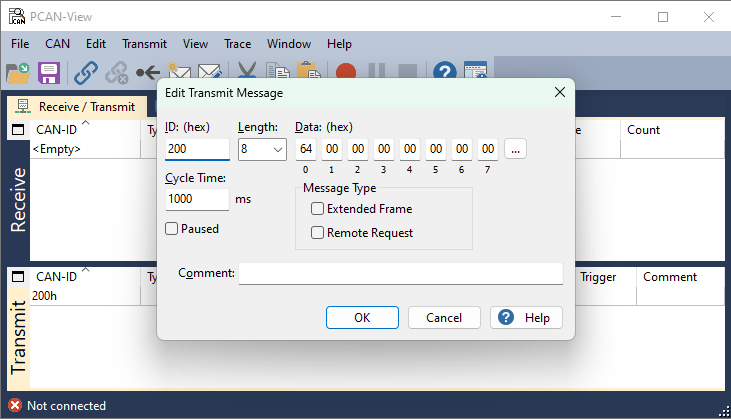
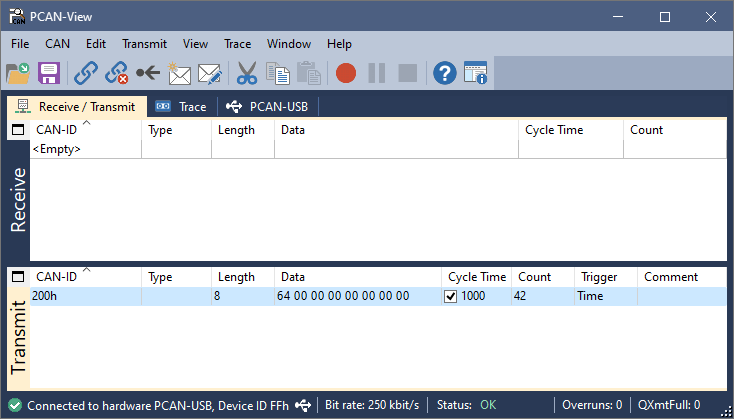
Expedite Data Transmission
By default, it takes a while for data to appear on the DataPortal, because the CANlink® mobile batches data before sending it to the DataPlatform.
To see the value immediately, force the CANlink® mobile to send all pending data:
- On CANlink® mobile 3600, set
Logging - Send File Command=1using theWrite to devicebutton in the Configurator. For details, see Logging. - On CANlink® mobile 10000, lower the Upload collected CODESYS log data every X seconds value under CODESYS UPLOAD SETTINGS. For details, see Log Data using the CANlink® mobile 10000 Library.
View Machine Data
The machine page on the DataPortal shows Fuel Level at 100% in the Signal List widget.
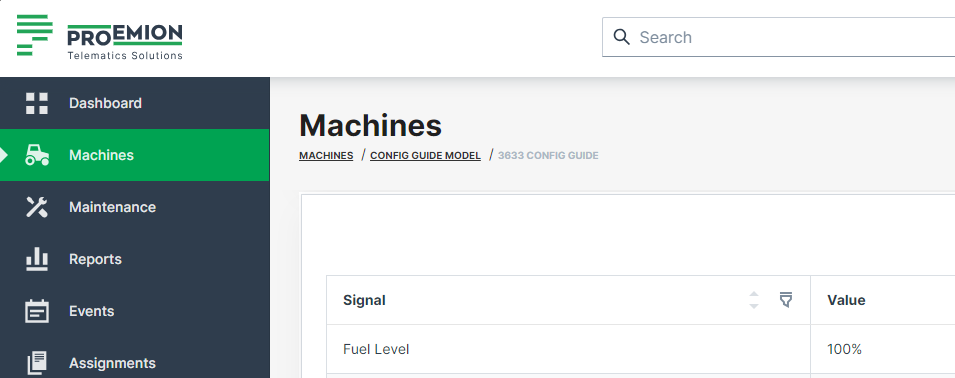
If the widget is not yet configured on the machine dashboard, see Signal List to add it and select the fuel_level signal.
Note
It takes several seconds for machine data to become available on the DataPlatform after the TCU has transmitted it; this processing latency can be tracked on the DataPlatform Status monitoring page.
The machine page only fetches the latest data when loaded, not while it stays open. Activate the Refresh function to periodically request updates.
Continue testing by sending different values. On CANlink® mobile 3600, remember that the downsampling cycle time is 1 minute, so make value changes at least 1 minute apart in order to see the value on the DataPortal.
Troubleshooting
If something is not working as expected:
- Ensure the correct test Tx data is set on PCAN-View.
- On CANlink® mobile 3600, cross check the DOD: Cyclic_Input_Downsampling_and_Logging.dod
- On CANlink® mobile 10000, cross check the CAN signal mapping in the CODESYS project, see First CODESYS Application.