1. Migration Guide for Tenants Using Named Dashboards
With the Guide - Dashboards for Machine Owners, Proemion provided you with a guide for creating useful dashboards for machine owner’s organization units.
The feature Machine Pages by Organization Type is described in the DataPortal User Manual at Machine Page Layout and helps you to easily manage the availability of various machine details page layouts for different machine models and organization unit types.
This feature replaces the previous "Named Dashboards" feature which had led to confusing configuration options in the past.
Unfortunately, due to the complexity of the previous configuration options, no automatic migration is possible and a manual adjustment is required in case your organization’s DataPlatform account has the "Named Dashboards" feature activated.
The following guide provides you step-by-step instructions on how to manually migrate your organization to fully use machine pages by organization type.
1.1. High-level Steps
Machine Pages by Organization Type can coexist with the named dashboards under the same tenant.
For more information on "tenant", see Tenant in the DataPortal User Manual.
This provides the possibility of enabling the feature in Lab mode at a tenant which is done by Proemion.
For more information on "lab mode", see Lab Mode in the DataPortal User Manual.
Proemion will execute a migration script on your account to prepare the machine page layouts for the migration.
You will receive information when the migration is prepared.
Alternatively, contact support to get the migration script executed earlier.
After the migration script has been executed and before the manual migration steps below are completed, only add new machine page layouts with users that have Lab mode activated. Otherwise, the new page layouts may get lost.
|
You can then subsequently manually migrate and test the machine pages with the following steps:
-
Access the DataPortal with
Labmode to manually configure all machine page layouts as intended. -
Test the new configuration for the Machine Pages by Organization Type in the DataPortal.
-
When the configuration is behaving as expected, switch the feature from "Lab" to "On".
Below you can find detailed information on each step.
1.2. Execute Manual Migration
The following tasks need to be performed by a user with Dashboard:Admin permissions at the tenant organization.
After Proemion has run the migration script, the result will be as follows:
-
The Machine Pages by Organization Type feature will be set to
Lab.
This can be checked in the Feature Switch within the DataPortal: Figure 1. Settings > Administration > Organization Structure > Features
 -
Previously existing bindings between models and dashboards will be recreated but will be bound exclusively to
OEMorganization type as anAlternativedashboard.
For information on "organization type", see Organization Types and Layout Visibility. -
Named dashboards that were stored in lower organization units will be renamed as
$dashboard_name from $organization_unit_namefor easy identification and will be marked asPrivate. -
No user, except for those with
Dashboard:Adminrights in the tenant organization, will be able to accessPrivatedashboards.
They were originally intended for some specific organization, not widely available, and the migrator needs to make the decision whether to keep them or not.
There is no longer the choice of making a dashboard only for a branch or an organization in the tree.
The dashboard can only be assigned to all organizations of a certain organization type.
|
As an admin of the tenant organization (OEM), ensure that all models are well represented in the DataPlatform. This means that each model should have at least one layout assigned to every organization type, see also Layout Visibility. However, if you do not have individual layouts for each organization type, you may assign the same layout to all organization types. |
Proemion suggests the following approach.
Access Administration > Page layouts > View by model.
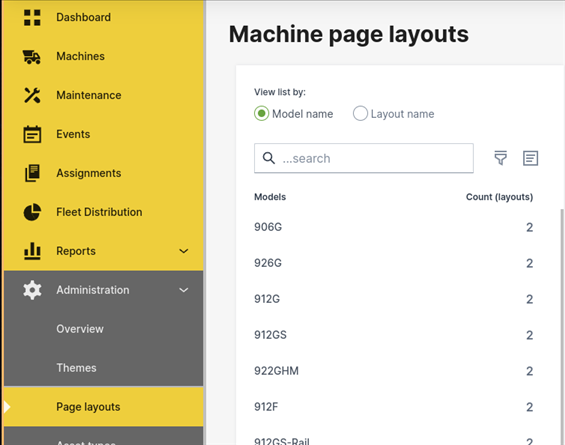
| The steps described must be done for each model in the Page Layout menu, see Machine Page Layout. |
1.2.1. Adjust Models with Bindings to Layouts
Configure Layout Binding to Model
Understand which layouts are bound to the model. |
|
||
Decide whether to keep the binding or not. |
|
||
Select Edit title, description to update the name and description of the layout according to its purpose, target audience, and target family of machines. To make the identification of layouts faster in the user interface we suggest that during the manual migration, the name of the layout clearly indicates its intended final configuration.
|
|
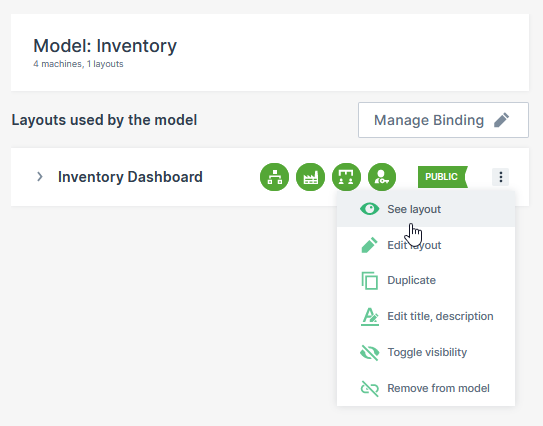
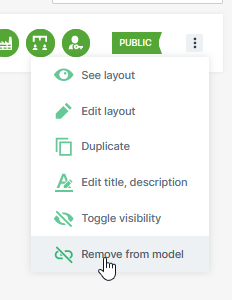
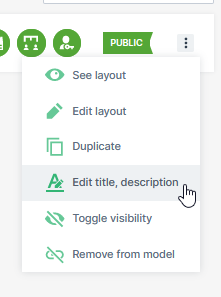
Configure Bindings for Target Audience
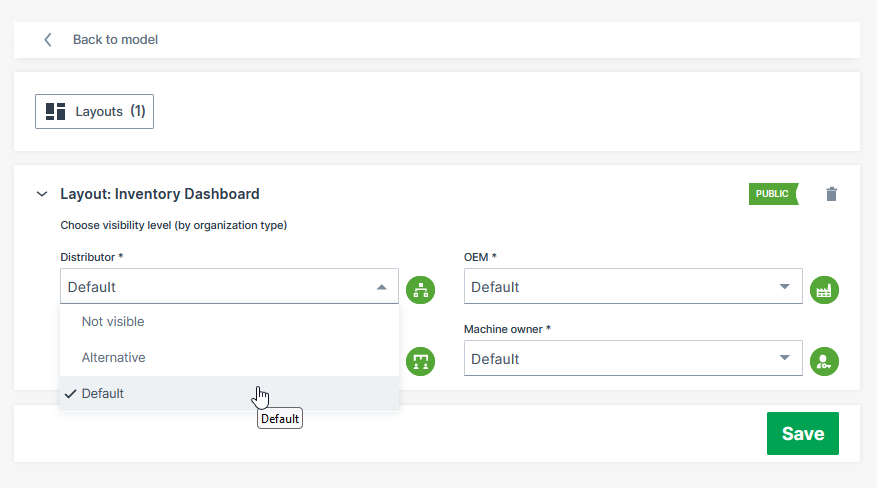
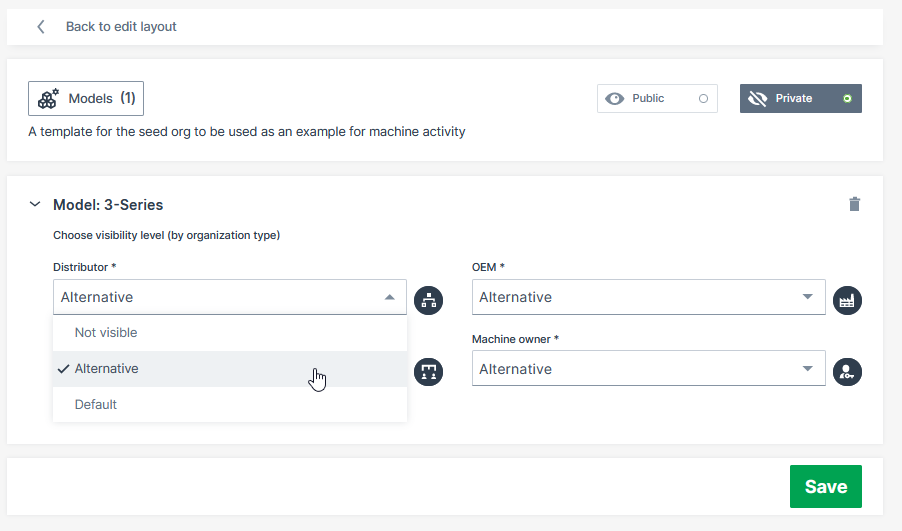
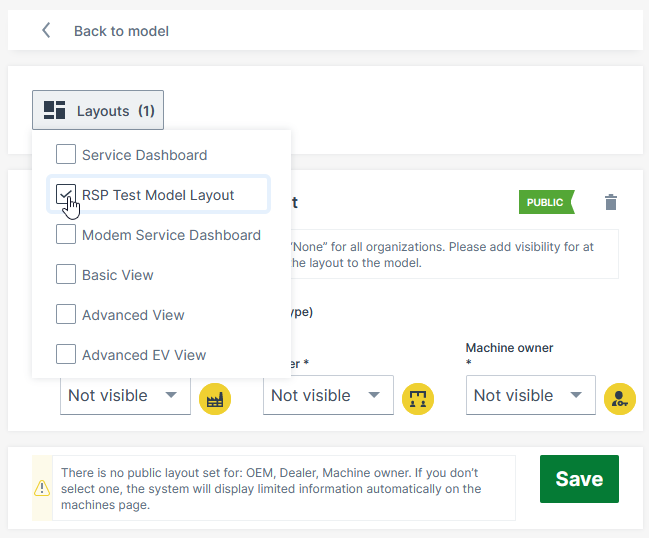
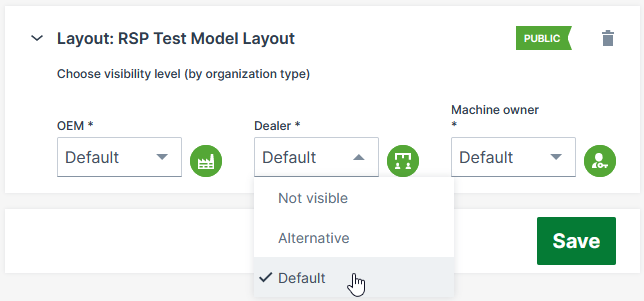
Configure bindings according to the target audience: OEM, Dealer, Machine Owner, so-called Organization Types.
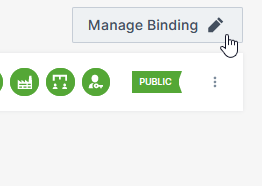
Select Manage Binding. |
|
Set the Default Binding. |
|
Define the visibility for the other layouts.
|
|
1.2.2. For Models without Bindings to any Layout
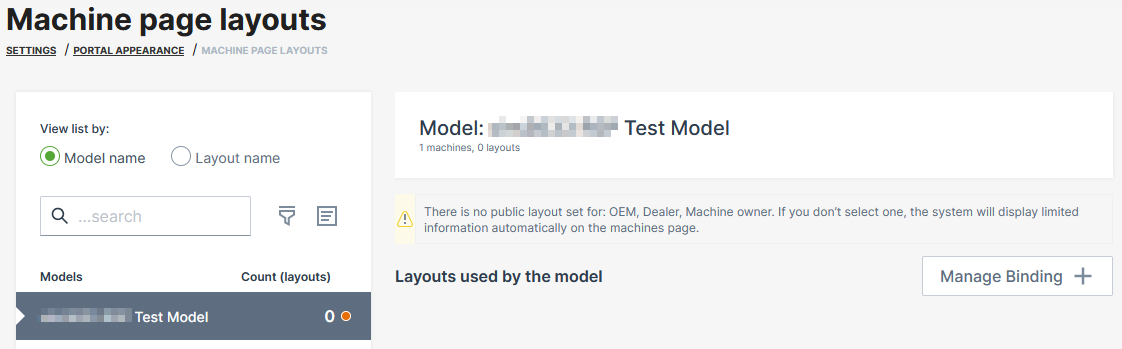
Check if there are Models that do not have a layout assigned.
These models show 0 for Count (layouts) and are marked with a red dot in the Machine page layouts Models list.
Assign layouts to these models.
If you don’t assign a layout, the system automatically displays limited information on the machine page.
|
|
|
|
|
|
1.3. Wrap up
As a result of this process, all models should be properly represented.
The next step would be to check the layouts and remove unused ones, identify those you would like to keep private and fix the layout naming.
Access Administration > Page layouts > View by layout.
All layouts will be listed.
1.3.1. Handle dangling Layouts
Dangling layouts will show zero models bound and a red dot.
These are candidates to be deleted as they are not being used.
-
Examine those layouts first.
-
Assign them to appropriate models.
-
Delete them if you don’t plan to use them any longer.
Read also Delete Layout.
-
-
Otherwise, if you want to keep them dangling, for example as a template to create new layouts in the future, you can mark them as
Private.
1.3.2. Check the Visibility of Layouts.
Verify that the visibility of layouts is according to their purpose.
This can be done via the View as feature in the DataPortal, see Preview Layout.
If necessary, adjust the visibility.
Read also Layout Visibility.
All layouts that are under development or should be kept as a template must be marked Private so that only dashboard administrators can access them.
Otherwise, ensure that the layout is Public and bound to at least one model and organization type.
1.3.3. Rename Layouts
Give the layouts the final name you want to reflect for your users.
Also, set a description that reflects the purpose of the layout.
The description is kept private for the dashboard administrators.
Read also Layout Configuration Options.
1.4. Switch the Feature on
When finished with the steps above, switch the feature on to make it available for all users.
To do so, change the Feature Switch from Lab mode to On or contact Proemion to switch it on for you, see Service and Support.
Your DataPlatform Account is ready for switching on the feature, after:
-
You have finalized the migration.
-
You have checked the layouts in the Lab mode within the DataPortal.
-
You have adjusted the bindings of the layout to both models and organization type
-
You configured models without layouts, if needed.
2. Service and Support
The latest versions of the drivers, software, firmware, and documentation are available in our Document Library.
Do you need help or want to report a bug?
Visit Proemion for more information, or raise a ticket at Support.
2.1. Firmware Updates and Support
|
Version: 11.0.1026 · Cookie Preferences